9 10
USING YOUR ON-BOARD CAMERA AND VIDEO RECORDER
Your
Sky Master™
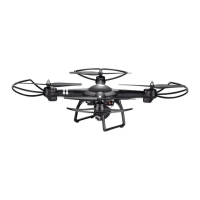
comes equipped with an onboard digital camera that takes both video and still photographs. To
enable usage of the same, download the free APP on your compatible mobile device. This will also allow you to shoot,
record and stream using the on board camera. For more details refer to page 11.
Now you can have hours of fun creating aerial photography and videos for family and friends.
GETTING STARTED
The camera enables recording directly to your mobile device (standard definition) and onto a microSDHC card(High
Definition). Note: You can directly download the Hight Definiation videos from the microSDHC card to your compatible
mobile devide.
RECORDING TO microSDHC card
To use with a microSDHC card you will need:
1. One microSDHC card (not included)
2. One microSDHC card reader (included)
3. A Computer with a USB port and Windows Media Player or other Media player that can play AVI files (not included).
FORMATTING YOUR microSDHC card
Before you can begin to take videos or digital photographs you must first format your microSDHC card. To format your
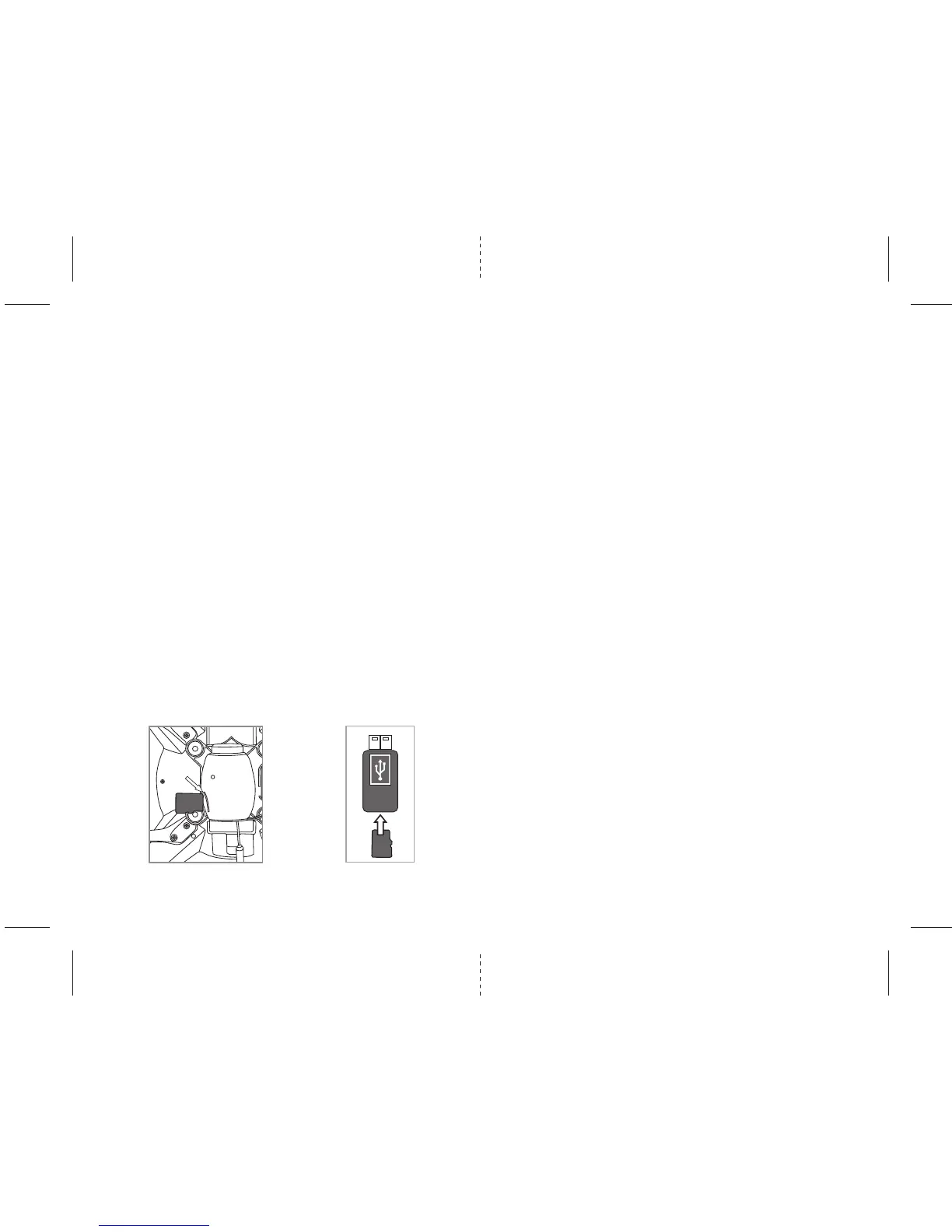
microSDHC card simply place the microSDHC card into the included USB SD card reader and plug it into your computers
USB port (See diagram W1 and W2 below). After a few moments an icon will appear on your Desktop. Right click on
the Icon and follow instructions to format your microSDHC card.
INSTALLING THE microSDHC card IN YOUR SKY MASTER™
• Place the formatted microSDHC card into the side of the
Sky Master™
’s digital camera port (see diagram Q below).
Push gently until you hear and feel the microSDHC card “click” into the digital camera slot.
• Turn the
Sky Master™
on and make sure that it is both fully charged and properly synced to the Controller
(see HOW TO SYNC YOUR QUADROCOPTER on page 4 ).
REMOVING YOUR microSDHC card
To remove your microSDHC card push in gently on the back of the SD card with your thumb or forefinger
until you hear and feel a “clicking sound”. The microSDHC card will “pop-out” slightly and is ready for
removal. Simply grab and pull gently away from the Sky Master™’s camera port to remove the card. Always
store your microSDHC card in a clean, safe and cool environment.
DOWNLOADING AND CLEARING SPACE ON YOUR microSDHC card
Plug your microSDHC card into the microSDHC card reader and connect to your computer. It is best to
always download all your videos and pictures on to your computer and not store this data on your
microSDHC card. After downloading your photos and videos , follow your computers instructions to “delete”
files on your microSDHC card.
Note: The Sky Master™ + FPV can record video files upto 2 minutes of length. When attempting to
record longer videos, it will automatically split the video into multiple files, each approximately 2
minutes in length. Still photos are recorded simultaneously on device and microSDHC card when
inserted, but Videos are recorded only onto SD card when included. To record onto phone directly make
sure to remove microSDHC card from the quadrocopter camera.
Q
R


 To Next Page