Setup menu operation
Style:press *_ / _ toselectoneofAutomaticand Custom, whenyou select automatic, the other are disabIe and can notbe
adjusted.
Size: press q / _. to select one of Normal/Large and Small.
Font: press _ / _ to select one of Default and from Front 1 to Font 7.
Text Color: press 4. / _ to select one of Red/Green/Yellow/Magenta/Cyan/Black and White.
Text Opacity: press 4 / _ to seIect one of the Solid/Flashing/Transparent/Translucent
Background Color: press *_ / _ to select one of Red/Green/Yellow/Magenta/Cyan/BIack and White.
Background Opacity: press •. / _- to select one of the Solid/Flashing/Transparent/Translucent
Edge Effect: press • / _- to select one of the None/Raised/Depressed/Uniform/Left Shadow/Right Shadow.
Edge Color: press 4 / _- to select one of Red/Green/Yellow/Magenta/Cyan/Black and White.
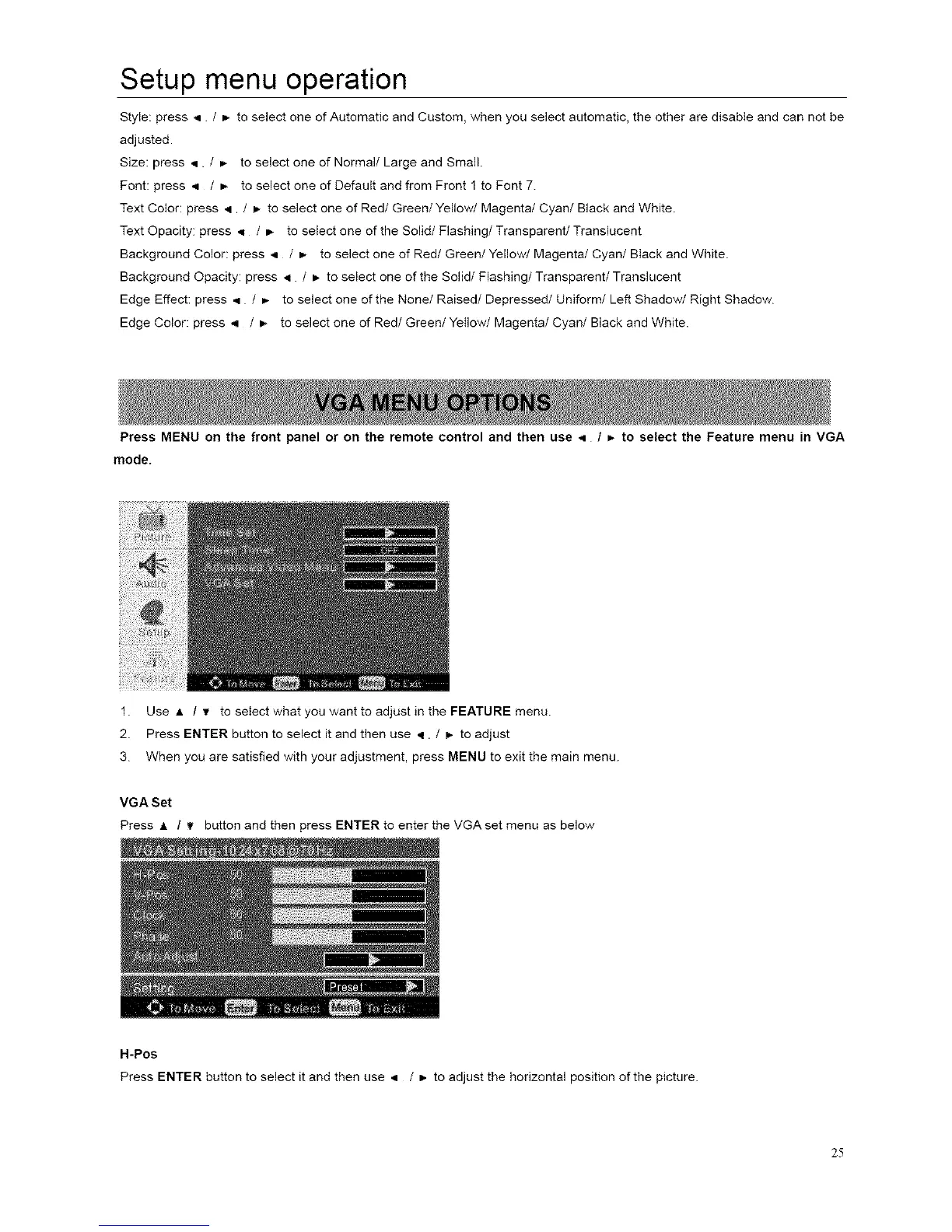
Press MENU on the front panel or on the remote control and then use < / _, to select the Feature menu in VGA
mode.
1. Use • / T to select what you want to adjust in the FEATURE menu.
2. Press ENTER button to select it and then use •. / _- to adjust
3. When you are satisfied with your adjustment, press MENU to exit the main menu.
VGA Set
Press • / _ button and then press ENTER to enter the VGA set menu as below
H-Pos
Press ENTER button to select it and then use ,i / b to adjust the horizontal position of the picture.
25



 To Next Page