Installation and Initialization
Tsunami MP-8100 Installation and Management Guide 23
Step 8: Plug in the Cables
NOTE: Unscrew the sealing cap for installation of the cable.
1. Plug one end of the Cat5e/Cat6 cable (Eth1) into the Ethernet (RJ45) jack of the Eth1 interface inside the enclosure.
Plugging in the second Cat5e/Cat6 cable to Eth2 interface is optional. Ensure that the cable connector is latched
securely and the Toroid are fixed on the cable. You can hear a click sound when the cable connector latches into the
jack, then tighten the sealing nut by hand.
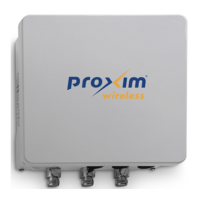
2. Plug the Serial cable into the serial RJ11 telephone jack inside the enclosure. (leftmost cable in the picture below)
Tighten the sealing nut by hand.
3. Connect the other end of the first CAT5e/Cat6 cable (Eth1) to the “PWR LAN-OUT” port on the power injector.
WARNING: A tension of 48 VDC (15 W average) is present on the second ethernet port (Eth2). Make sure the
connected device can support this tension on its ethernet port.
WARNING: Connect network devices only into the LAN-IN port of the Power injector. The PWR LAN-OUT port is
meant to power the MP-8100 unit.
4. To connect the MP-8100 unit through a hub or a switch to a PC, connect an Ethernet cable between the network
interface card in the PC and the hub and between the hub and the RJ45 “LAN-IN” port on the PoE adapter.
5. To connect the MP-8100 unit directly to a PC, connect an Ethernet cable between the network interface card in the
PC and the RJ45 “LAN-IN” port on the power injector.
Step 9: Connect the Antenna (Connectorized Version Only)
1. Connect the antenna with N-male cables to the antenna connectors on the device.

 To Next Page
 Loading...