11. MONITORING
By default, Door1, Door2, CAM1 and CAM2 can be monitored. To disable monitoring of
Door2, set “Door2 Status” to OFF in the Mode menu. To disable monitoring of CAM1 and/or
CAM2, set their corresponding “CAM1” and “CAM2” switch to OFF in the Alarm menu.
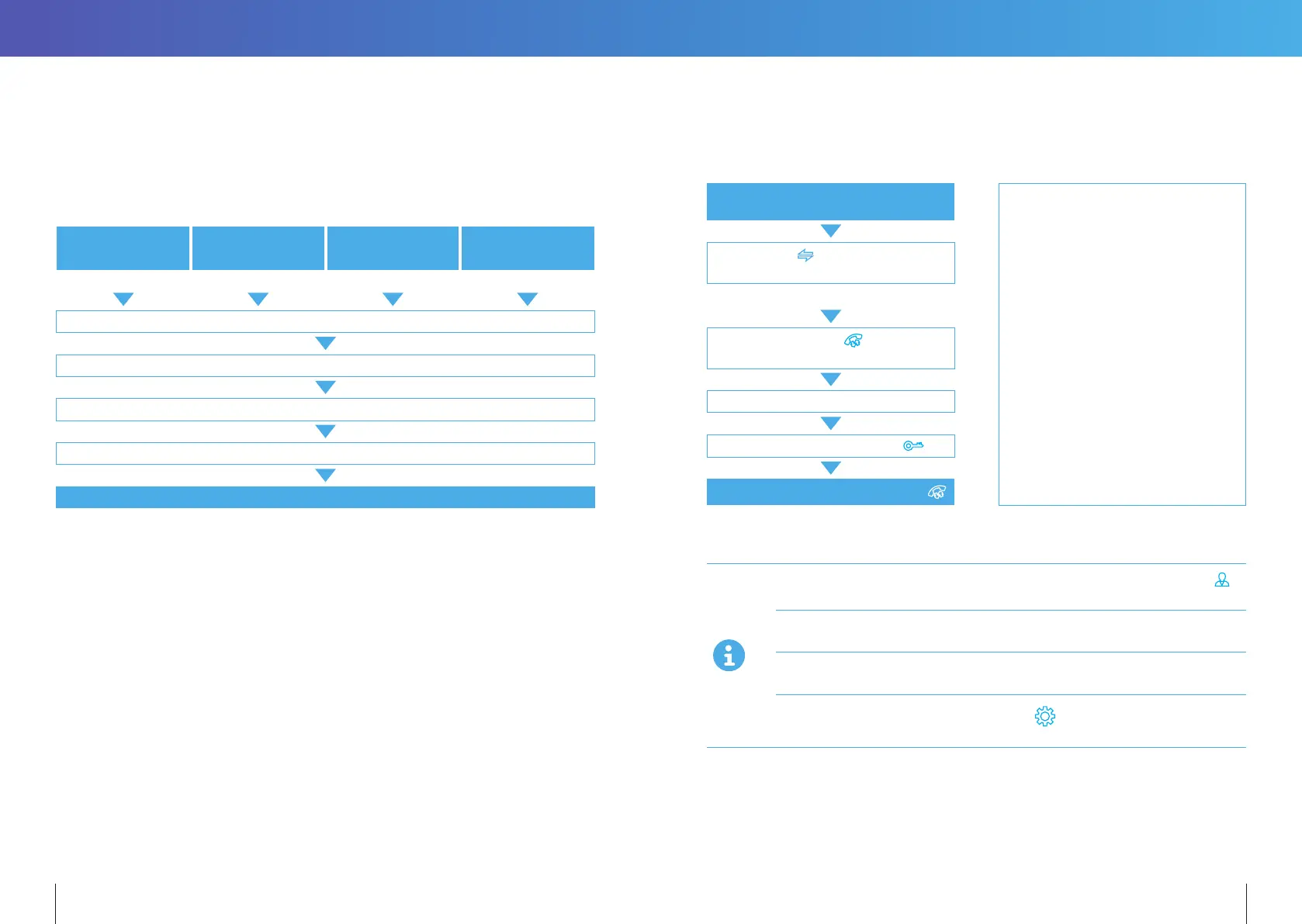
Standby Mode
DOOR 1 CAM 1 DOOR 2 CAM 2
Show DOOR 1 Image Show CAM 1 Image Show DOOR 2 Image Show CAM 2 Image
Each monitoring time is 60s
Press the CALL BUTTON
Call Door Station
Press the UNLOCK BUTTON on the indoor Monitor to open the electric lock
Press the HANG UP BUTTON to end the call
Close display
12. CALL TRANSFER TO OTHER EXTENSION
Internal communication function requires at least two Indoor Monitors
and one Door Station to be connected.
Door Station calls
indoor monitor and conversation is underway
Note:
After transferring a call to another
extension, the first monitor will return
to Standby mode. Whereas the target
monitor will ring, and display video.
Press & hold button to see choice of
extensions to transfer the call to
The target monitor will ring
Press the TALK BUTTON of the receiving
monitor to accept the incoming call
Talking with visitor
The electric lock can be opened
End the call and return to standby mode.
14 15
If you are only using one Door Station, you can exit Monitoring mode by pressing the
again (when Door2, Cam1 and Cam2 have been disabled in the menu).
If you are using two indoor Monitors, both can simultaneously monitor the same door
station. The same image will be displayed on both monitors.
If either door station calls while the user is in Monitoring mode, the monitor will ring, exit
monitoring mode and display video of the new caller.
With an MicroSD card installed, the first press of
button will start recording (if the
recording setting is active); or will take a snapshot (if the snapshot setting is active).


 To Next Page