iOS
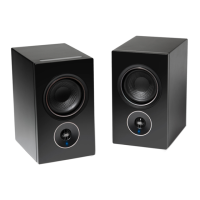
1. With both Primary and Secondary Speakers powered up, ensure that both speakers’ Status Indicator LEDs are solid Green in color.
Note If the Status Indicator LED of Primary or Secondary Speaker is not solid green, perform Factory Reset of that specific Speaker.
2. Launch iOS BluOS App connected to the same network or router as the Primary Speaker.
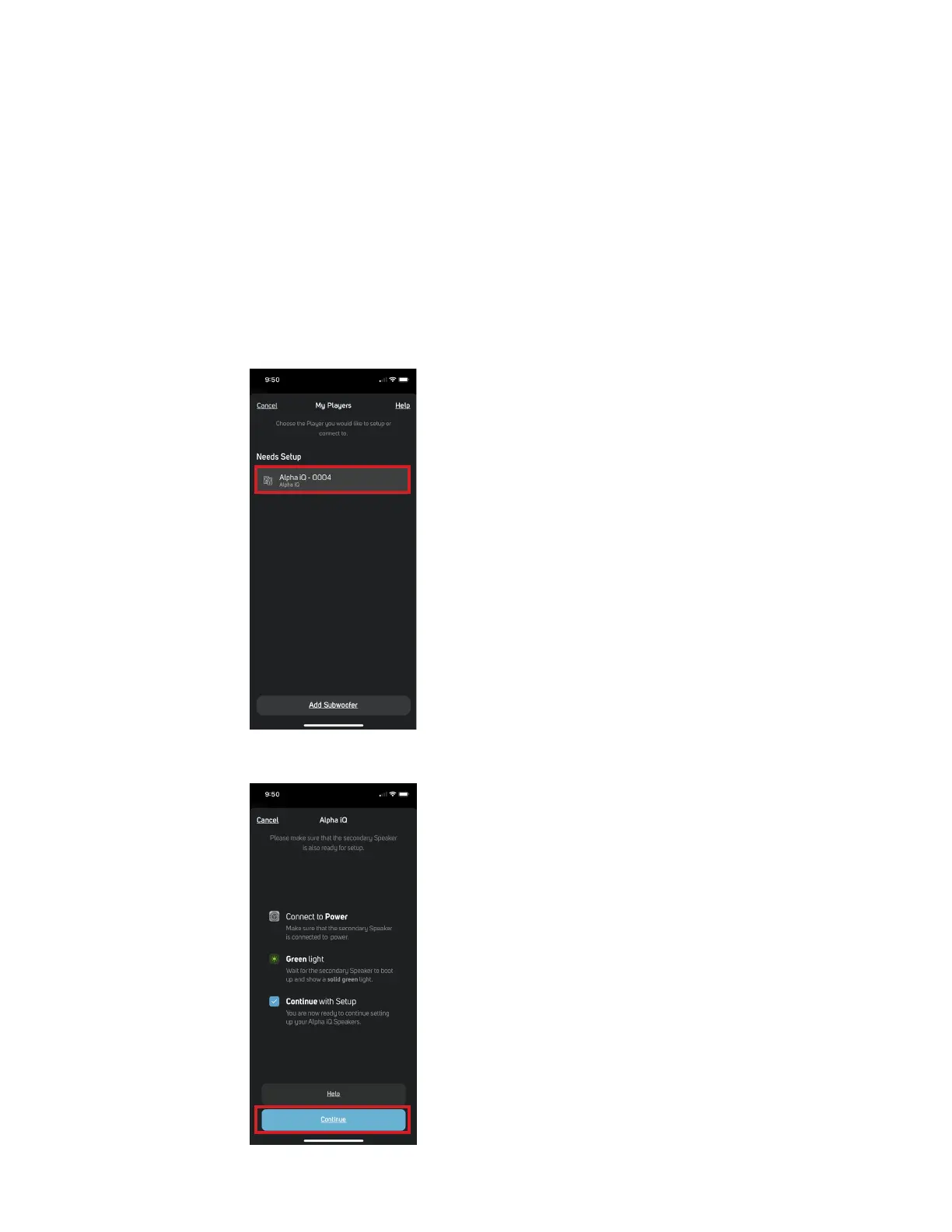
3. The App may immediately prompt Needs Setup and show the unique network ID of your Alpha iQ (listed as the product name
followed by four digits like “Alpha iQ-0004” for example).
e. If you are not prompted, open the Player Drawer by pressing the Home icon in the top right corner of the App.
f. Scroll to the bottom and select Add a Player to launch the Easy Setup Wizard.
4. Select the Primary Speaker’s unique network ID (“Alpha iQ-0004” in this example) from the Needs Setup or My Players App screen.
5. An on-screen prompt like below will appear. Select Continue.


 To Next Page