• Download and install the corresponding “BluOS Controller” App for your device.
• The BluOS App is available as a Mobile App for Android, iOS, Kindle and Desktop App for Windows and macOS computers.
• Mobile Apps are handled by the respective Application Store of the Mobile devices.
• Desktop Apps are available to download directly from the Bluesound homepage - https://bluos.net/downloads
• Always update the BluOS App version in your device to the latest version.
Important! The foregoing sequence of events or indicators may vary or subject to change without notice.
Wired Connection
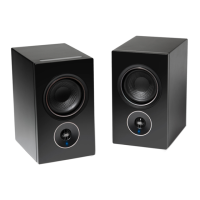
1. With both Primary and Secondary Speakers powered up, ensure that both speakers’ Status Indicator LEDs are solid Green in color.
Note If the Status Indicator LED of Primary or Secondary Speaker is not solid green, perform Factory Reset of that specific Speaker.
2. Connect one end of the supplied Ethernet cable to the Primary Speaker’s LAN port and the other end directly to your Wired network or
router.
3. Launch iOS or Android BluOS App connected to the same network or router as the Primary Speaker. Android BluOS App used in this
example.
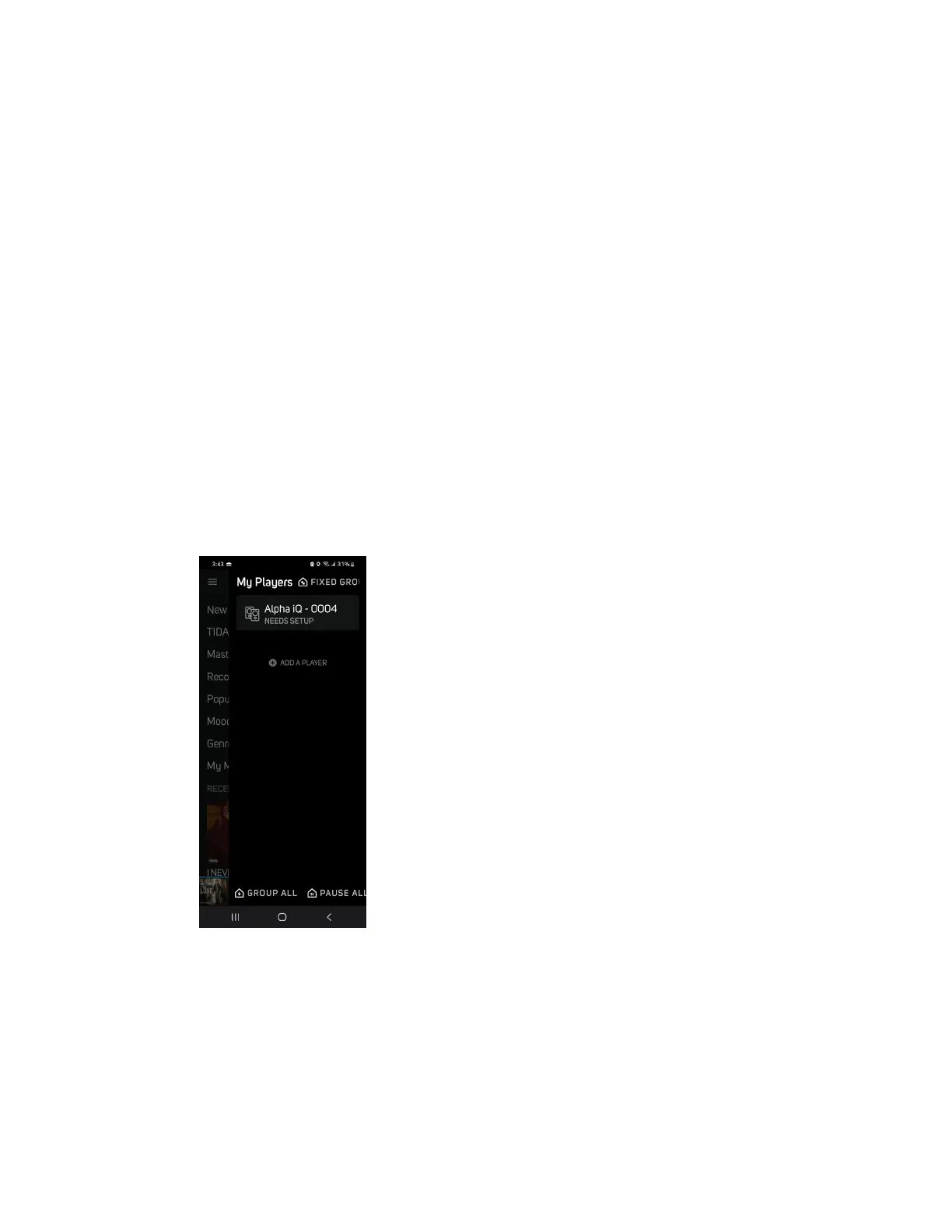
4. The App may immediately prompt Needs Setup and show the unique network ID of your Alpha iQ (listed as the product name
followed by four digits like “Alpha iQ-0004” for example).
a. If you are not prompted, open the Player Drawer by pressing the Home icon in the top right corner of the App.
b. Scroll to the bottom and select ADD A PLAYER to launch the Easy Setup Wizard.


 To Next Page