8
Setting the clock
The clock will automatically set itself using a Wi-Fi or digital radio signal. However, if you cannot re-
ceive an updated time signal, or see the message ‘Time not available’, the time and date can be
manually set by selecting Set Clock from the Alarm or timer menu. Use the select dial to adjust
the time and date. Tap or to move to the previous or next setting.
Setting the sleep timer
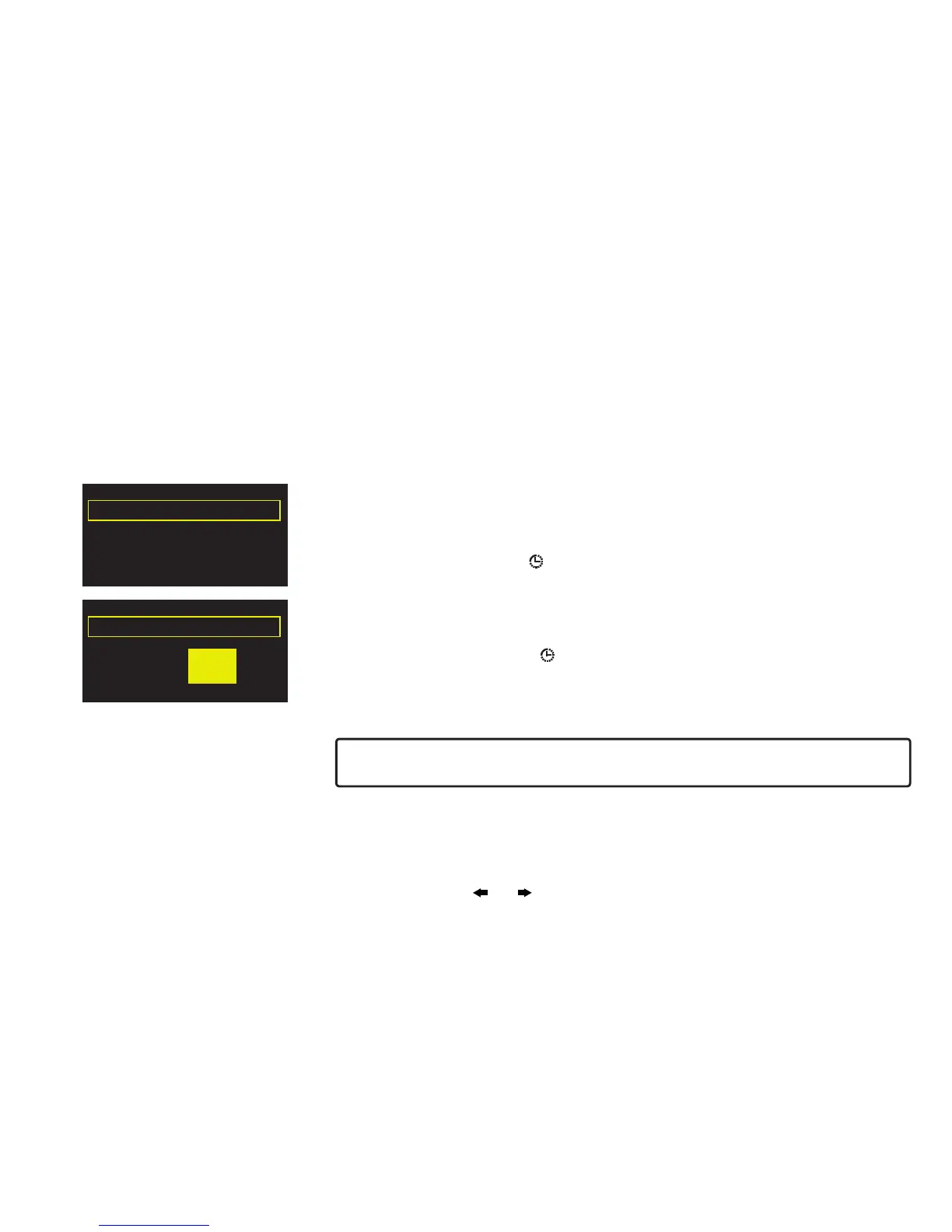
The sleep timer switches your radio into standby after a set period of time. From the Alarm or
timer menu, select Sleep timer. Use the Select dial to adjust the length of the sleep timer in 15
minute steps from 15 mins to 1 hour 30 mins.
A set sleep timer is indicated by in the icon bar.
Setting the kitchen timer
The kitchen timer sounds a beeping tone after a set period of time.
From the Alarm or timer menu select Kitchen timer and use the Select dial to adjust the length
of time. Tap mins to toggle between minutes and hours. Tap Save to confirm.
A set kitchen timer is indicated by in the icon bar.
Cancelling a sounding timer
To cancel a sounding alarm or timer, push either the Select or Volume dial. A sounding alarm will
automatically cancel after 1 hour.
Warning: when not powered by mains power, pressing Standby switches the radio off and any
set alarm or timer will not sound.
Snoozing or cancelling a sounding alarm
Cancel the alarm by pushing the Standby button, or snooze the alarm for 9 minutes by tapping
Snooze.
Adjusting the Snooze timer
From the Alarm or timer menu, select Snooze time. Use the Select dial to adjust the duration of
the snooze from 5 to 15, then either 20/25/30/40 minutes, or 1 hour.
00:15
Sleep timer (hh:mm)
OKClear Save Menu
00:45
Kitchen timer: set mins


 To Next Page