EasyManua.ls Logo

Q-See QC804 - User Manual

Q-See QC804
42 pages
Print Icon
To Next Page IconTo Next Page
Loading...
1
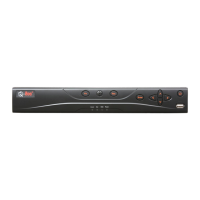
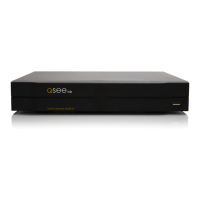
H.264 NETWORK VIDEO RECORDERS
Variable D1 and HD Recording Options
User Manual
MODEL QC804
QC808
QC8016

Questions and Answers

  • L
    Leslie DavidSep 4, 2025
    Why is the real-time video color distorted on my Q-See DVR?
    • P
      Patricia Dawson DVMSep 4, 2025
      If the real-time video color is distorted on your Q-See DVR, check the following: * Incorrect NTSC/PAL setup: Correct the NTSC and PAL setup when using BNC output. * Incompatible resolution settings: Make resolution settings compatible between the NVR and monitor. * Long video cable: Shorten the video cable. * Incorrect color or brightness setup: Adjust the color or brightness setup on the combo NVR.
  • B
    bsmallSep 18, 2025
    Why can't I playback the downloaded file from my Q-See DVR?
    • K
      Katherine BurtonSep 18, 2025
      If you cannot playback the downloaded file from your Q-See DVR, it might be because: * There is no media player: Install a media player. * Need Divx Codec in file player: Install Divx Codec.
  • V
    vgreenSep 16, 2025
    Why is there audio when monitoring but no audio when the system plays back on my Q-See DVR?
    • R
      rhondabrownSep 16, 2025
      If you have audio during monitoring but not during playback on your Q-See DVR, it could be due to: * Incorrect setup: Enable the audio function. * No audio input on the channel: Check the audio input for the corresponding channel.
  • D
    Desiree Murray MDSep 14, 2025
    Why is the remote control not working with my Q-See DVR?
    • M
      Michael HansonSep 14, 2025
      If the remote control is not working with your Q-See DVR, consider the following: * Incorrect Device ID: Enter the correct Device ID on the remote control. * Distance or angle: Reduce the distance or adjust the control angle. * Low battery: Replace the remote control battery. * Damaged remote or front panel: Replace the remote control or check the NVR front panel.
  • L
    lowezacharySep 12, 2025
    Why is there no audio when monitoring on my Q-See DVR?
    • S
      Shelly WilsonSep 12, 2025
      If there is no audio when monitoring on your Q-See DVR, check the following: * Channel not full screen: Make the channel full screen. * Damaged audio cable: Replace the audio cable. * Combo NVR hardware malfunction: Check the combo NVR hardware.
  • R
    rhamiltonSep 12, 2025
    What causes burn errors or USB backup errors on my Q-See DVR?
    • D
      Dr. Nicole DavisSep 12, 2025
      If you encounter burn errors or USB backup errors on your Q-See DVR, consider these factors: * High CPU usage: Try stopping recording before starting the backup. * Insufficient backup device capacity: Reduce the amount of data to fit the backup device's capacity. * Incompatible backup device: Use a compatible backup device. * Damaged backup device: Replace the backup device.
  • G
    Greg BatesSep 9, 2025
    What causes the time display to be incorrect on my Q-See DVR and how can I fix it?
    • M
      mendozadavidSep 9, 2025
      If the time display is incorrect on your Q-See DVR, it may be due to: * Incorrect setup: Correct the setup. * Battery issues: Replace the battery if the contact is poor or the voltage is too low. * Broken crystal: Replace the crystal.
  • B
    Brent SellersSep 7, 2025
    Why can't I search local records on my Q-See DVR?
    • J
      justinramosSep 7, 2025
      If you are unable to search local records on your Q-See DVR, consider the following: * Damaged HDD ribbon: Replace the HDD ribbon. * Failed HDD: Replace the HDD. * Overwritten recorded file: Recover previous files if possible. * Disabled record function: Enable the record function.
  • J
    James FernandezSep 5, 2025
    Why is there only mosaic and no video when previewing or playing back video files remotely on my Q-See DVR?
    • J
      Jonathan DoyleSep 5, 2025
      If you're seeing only mosaic and no video when remotely previewing or playing back video files on your Q-See DVR, it could be caused by: * Insufficient network bandwidth: Increase network bandwidth. * Insufficient computer resources: Upgrade computer resources. * Multiple-cast group setup: Avoid using multiple-cast group setup in combo NVRs. * Privacy mask or channel protection setup: Check privacy mask or channel protection setup. * Insufficient user rights: Check user monitoring rights. * Poor local video output quality: Improve NVR local video output quality.
  • O
    oliverrossAug 20, 2025
    How to fix a Q-See DVR that does not boot up properly?
    • J
      Joan BradleyAug 21, 2025
      If your Q-See DVR isn't booting correctly, consider these potential causes and solutions: * Incorrect input power: Check the power supply. * Damaged power switch button: Replace the power switch button. * Incorrect firmware file: Use the correct firmware file. * Hard drive issues: Check the hard drive and cable. * Front panel error: Check the front panel. * Damaged main board: Replace the main board.

Summary

Introduction and Safety Precautions

Electric Shock Safety Warnings

Essential safety warnings regarding electric shock risks before installing or using the equipment.

General Safety Precautions

Instructions for safe operation, including power source, handling, cleaning, and ventilation.

Features and Specifications Overview

Connections and Controls Overview

Device Connections

Details front and rear panel connections for NVR models QC804, QC808, and QC8016.

IP Camera Connectivity

Connects IP cameras locally or through a network and the internet.

Basic System Operation

Live View Mode

Displaying video feeds from cameras in various screen layouts.

Login, Logout, and Main Menu Navigation

Accessing system functions via login, logout, and the main menu structure.

Recording Settings

Configuring manual and scheduled recording for cameras.

Searching and Playing Back Recordings

Locating and reviewing recorded video footage from the NVR.

Recording Schedule Configuration

Setting up recording schedules based on time, day, and event type.

Event Detection Configuration

Configuring motion detection, video loss, and camera masking events.

Data Backup Procedures

Backing up recorded files to external USB storage or network.

System Login and Main Menu Access

Searching and Playback Functions

Recording Schedule Setup

Event Detection Configuration

Alarm System Integration

Alarm Setup and Activation

Configuring NVR to activate based on connected external alarms.

Hard Disk Drive Installation

Hard Drive Installation and Removal

Step-by-step guide for installing or replacing the NVR's hard disk drive.

Appendices and Troubleshooting

Troubleshooting Common Issues

Solutions for common NVR problems like boot issues, video distortion, and network errors.

Q-See QC804 Specifications

General IconGeneral
Video Input Channels4
Video OutputHDMI, VGA
Compression FormatH.264
Remote AccessYes
Power Supply12V DC
Operating SystemEmbedded Linux
Motion DetectionYes
USB Ports2
Storage CapacityUp to 6TB
Network InterfaceEthernet
Hard Drive Support1 SATA
Hard Drive CapacitySupports up to 6TB

Related product manuals