EasyManua.ls Logo

Q-See QSD6204 - User Manual

Q-See QSD6204
48 pages
Print Icon
To Next Page IconTo Next Page
Loading...

Questions and Answers

  • J
    Joseph VelasquezJul 26, 2025
    What to do if I see nothing but a blue screen after I turn on the Q-See QSD6204?
    • M
      Marcus BatesJul 26, 2025
      If you see nothing but a blue screen after turning on your Q-See DVR, check the camera input and video output connections on the DVR rear panel. If these connections are fine, verify that the camera power cable is firmly connected.
  • R
    Ryan RomanJul 31, 2025
    How to fix Q-See QSD6204 if I push the Record button but nothing records?
    • B
      Brian McmahonJul 31, 2025
      If you push the Record button and nothing records on your Q-See DVR, make sure the “Record Schedule” menu shows that the current time is marked by a “red block” and not a “white block.”
  • R
    Renee LindseyAug 5, 2025
    I forgot my password, what should I do with my Q-See DVR?
    • L
      Laura ColemanAug 5, 2025
      If you forgot your password, press the “STOP” button five times. This will reset the Q-See DVR settings to factory default, and the password will reset to the factory default (111111). Note that the Channel 1 button functions the same as the numeric number 1.
  • M
    Mark GreenAug 10, 2025
    What to do if I turn on my Q-See QSD6204 DVR and no buttons work?
    • K
      Kristina JimenezAug 10, 2025
      If no buttons work when you turn on your Q-See DVR, ensure the hard drive jumper is set as a “master”. Also, check the two connectors (power cable & IDE cable) from the hard drive to the DVR to see if they are firmly connected.
  • D
    Debbie BlairAug 15, 2025
    Why I pushed the MENU button on my Q-See QSD6204 but it doesn’t show the menu directory?
    • C
      Craig ThompsonAug 15, 2025
      If the MENU button doesn’t show the menu directory on your Q-See DVR, it might be in record mode. When the DVR is recording, no button on the front panel will work. You will see the yellow light on the front panel when DVR is recording. To end recording, press the STOP button.
  • U
    underwoodheatherAug 20, 2025
    How to turn on Q-See DVR?
    • V
      Valerie HoltAug 20, 2025
      Make sure that the power switch is on. If the power switch is on and you still can’t turn on Q-See DVR, make sure that the power cord is plugged in correctly and the green power light on DVR front panel is on.

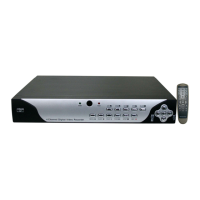
Summary

Introduction to the Digital Video Recorder (DVR)

General Safety

Unit Description

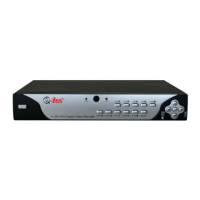
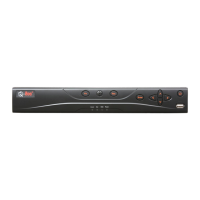
DVR Front Panel

Describes the buttons and functions on the front panel of the DVR.

DVR Rear Panel

Details the various ports and connectors on the rear panel of the DVR.

Getting Started

Hardware Installation

Connecting DVR to Your TV Set

Explains how to connect the DVR to a TV monitor via video and audio cables.

Camera Installation

Details how to connect cameras to the DVR, covering different connection types.

Sensor Installation

Describes how to connect up to four motion sensors to the DVR.

Alarm Installation

Explains how to install an alarm device into the DVR using the alarm port.

LAN-DVR Connection

Details how to connect the DVR to a local area network or the internet for remote monitoring.

Power Connection

Instructs on connecting the DVR's power adapter to the unit and power outlet.

DVR Menu

Camera Setup

Explains how to select cameras to be turned ON or OFF for real-time viewing on the screen.

Record Setup

Details how to select camera channels for recording.

Record Frame Rate

Explains how to adjust the recording frame rate per channel and its impact.

Video Quality

Describes the four video quality settings and their effect on image clarity and storage.

Record Schedule

Allows setting recording modes (NO RECORD, RECORD, SENSOR-RECORD) for different hours of the day.

Sensor Setup

Guides on setting up external motion sensors and software motion detection.

Hard Drive Setup

Explains options for overwriting, checking HDD size, used space, and formatting.

Miscellaneous Setup

Covers changing passwords, setting time, hidden channels, audio ports, PTZ, and color settings.

Network Setup

Details MAC address, IP allocation, gateway, DNS, HTTP port, and user setup.

Video Backup

Explains how to back up video files from the DVR.

Reset Menu

Details how to restore all factory default settings for the DVR.

USB Programming

Trouble Shooting Guide

Appendix

Technical Specifications

Lists detailed technical specifications for the 4-Channel DVR.

Recording Time Table

Provides a table estimating recording hours based on storage, quality, and frame rate.

Product Warranty

Q-See QSD6204 Specifications

General IconGeneral
BrandQ-See
ModelQSD6204
CategoryDVR
LanguageEnglish

Related product manuals