This Quick Start Guide is an overview. Users are asked
to review the manual for detailed instructions.
The
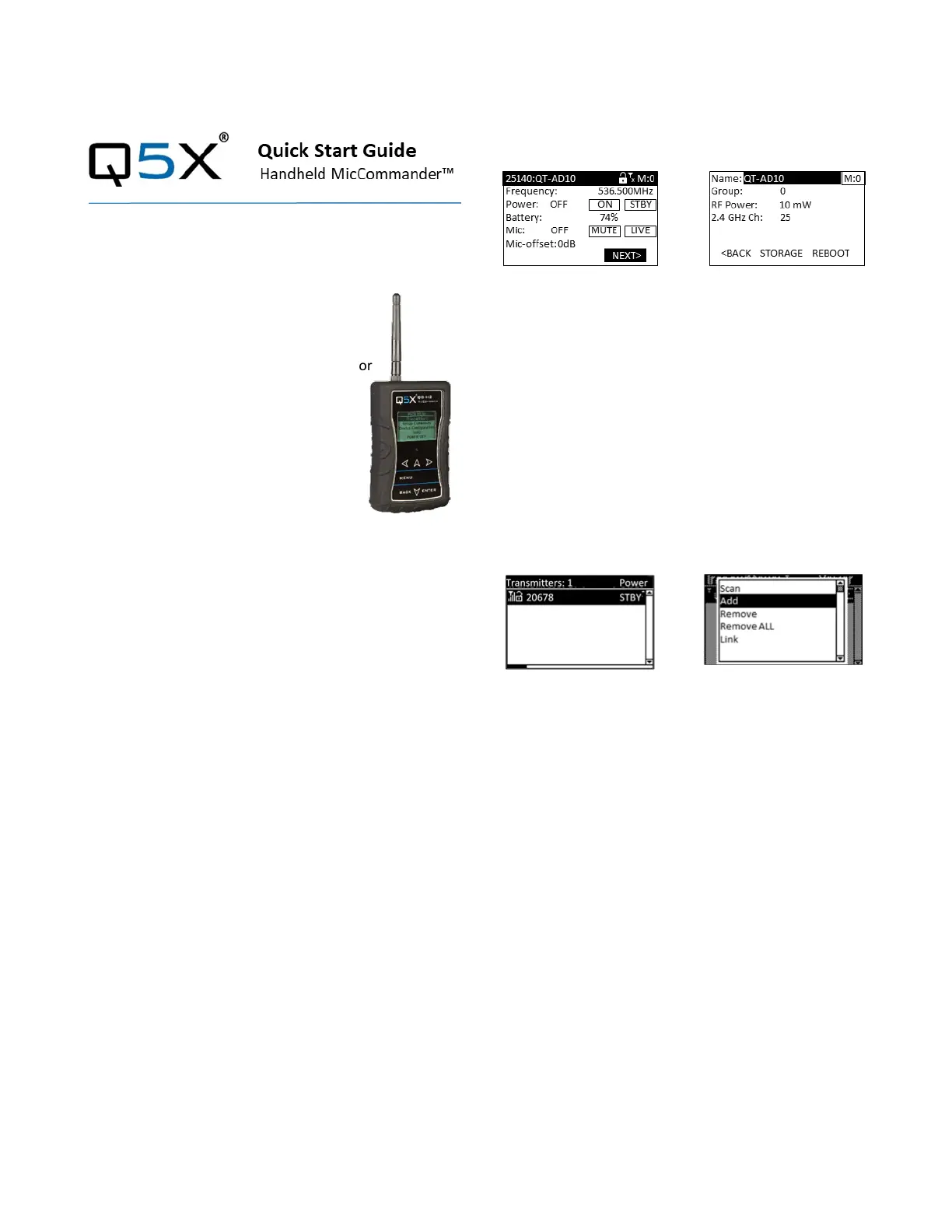
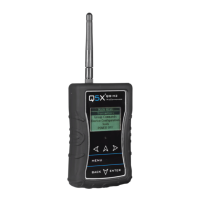
carrying pouch contains two parts.
• Handheld MicCommander remote control (QG-H2)
• Antenna
Users also need:
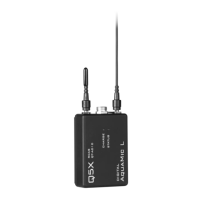
• Q5X Digital transmitter
• Microphone with special Lemo connector
• Shure Axient Digital receiver
• 2 AA batteries
Visit www.Q5X.com/support to:
• update the firmware
• register the warranty
• download the manuals
PREPARE: Handheld MicCommander Remote Control
• Remove the rubber cover to access the battery
chamber.
• Install 2 AA batteries. Lithium ion is recommended
for best performance. Alkaline or Ni-MH are
acceptable when battery type is changed in the
device configuration menu.
• Replace the rubber cover and install the antenna on
the top.
• NEVER power the unit without the antenna in place.
• Turn on the unit by pressing the power button on the
top or by plugging the USB cable.
• The MicCommander will automatically shut off after
two minutes.
PREPARE: QT-AD10 Transmitter
• Bring the transmitter out of storage mode (minimal
battery draw) and into standby mode (detectable but
the UHF radio is off) using either method below:
• Hold the ON/OFF button until the flashes change
from rapid to slow, or
• Plug and unplug a powered charging cable into the
side of the transmitter.
• Connect the microphone by pushing the mic
connector ends together.
PAIR: MicCommander and Transmitter
• The screen on the MicCommander displays the serial
number of paired transmitters. The serial number is
on the transmitter antenna or back.
• If the desired transmitter is not listed, press the
<MENU> button to either scan for nearby
transmitters or manually add the serial number. Use
the arrow buttons to navigate the menu.
o Scan: Press <ENTER> to scan. Use the down arrow
to select the transmitter. Use the side arrows to
review information about the transmitter. Press
<ENTER> to toggle the selection “x”. Press
<MENU> to access additional search
functionality. Press <Back> to accept the addition
of a transmitter to the list.
o Add: Use the down arrow to select “Add” and
press <ENTER>. Use the navigation arrows to
enter the serial number. Hold the arrow key for
rapid scroll. Press <ENTER> to save.
• Select the desired transmitter and press <ENTER> to
go to the transmitter menu.
ADJUST: Set the functions in the two transmitter
menus of the MicCommander.
Screen one includes
frequency, power On/Off, battery level, mic mute/live
and mic offset. To access screen two, navigate to NEXT>
and press <ENTER> to adjust transmitter name, group,
RF power, 2.4GHz channel, storage and reboot.
• Frequency: Highlight the frequency and press
<ENTER>. Use the directional arrows to choose the
desired frequency. Hold the arrow for rapid scroll.
Press <ENTER>.
• Mic-offset: If using a single transmitter, set Offset to
0 dB. If there is an audible difference in the sound
level between multiple transmitters, navigate to the
Offset menu (Audio > Offset) in the transmitter to
increase or decrease the Offset in real time to match
the audio levels.
• RF Power: Select between 2, 10 and 20mW. A lower
power level will conserve battery life.
• Storage: Navigate to NEXT> and <ENTER>. Use the
down arrow to go to STORAGE and press <ENTER>.
Navigate to highlight CONTINUE on the warning
screen and <ENTER>.



 To Next Page