EasyManua.ls Logo

quadient IS-290i - User Manual

quadient IS-290i
2 pages
Print Icon
To Next Page IconTo Next Page
Loading...
IS-200 Series
Quick Installation Guide
For more help with your
installation, please visit:
kb.quadient.co.uk/IS200install
or
kb.quadient.co.uk/is200_
video_QSG
to watch an installation video.
2
Insert meter (b).
3
1
2
4
3
Plug in LAN cable (c), weigh platform cable (d - place weighing platform in position) and power cable (e).
Power the machine on.
4
5
Select LAN and press ‘OK’ to test connection type.
6
Obtain registration PIN from MyQuadient.
Registration PIN
www.myquadient.co.uk
7
Select NO as you will need to perform an OLS
call before.
8
Complete the declaration.
9
Open the door, insert ink cartridge (f) and follow steps to complete alignment test.
A C E G I K
B D F H J
1
Unpack box, remove packaging.
Your machine is almost ready to use. From now on, you need to add credit.
Please turn over for your quick User Guide.
10
Box content includes:
3
Machine base
Meter
LAN cable Power cable
Weighing platform
Ink cartridge
Question and Answer IconNeed help?

Do you have a question about the quadient IS-290i and is the answer not in the manual?

Overview

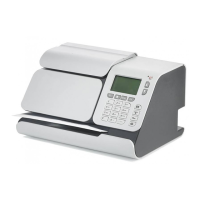
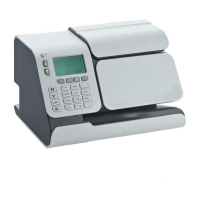
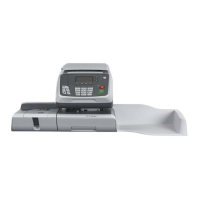
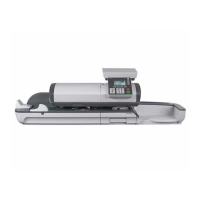
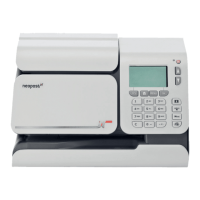
The IS-200 Series is a compact and efficient franking machine designed to streamline mail processing for businesses. Its primary function is to apply postage to mail items, ensuring accurate pricing and professional presentation.

Function Description

The core function of the IS-200 Series is to frank mail, which involves printing postage directly onto envelopes or labels. This process eliminates the need for physical stamps, offering convenience and often cost savings through access to discounted franking rates. The machine integrates a weighing platform to accurately determine the weight of mail items, which is crucial for calculating the correct postage. Users can select various postal services and rates directly from the machine's control panel, ensuring that each item is franked with the appropriate postage. The device also manages accounts, allowing businesses to track their postage expenditure and allocate costs to different departments or projects. Furthermore, it can store job memories, enabling quick recall of frequently used franking settings.

Usage Features

The IS-200 Series is designed for ease of use, featuring a clear screen display and intuitive navigation.

  • Initial Setup: The installation process is straightforward, beginning with unpacking and powering on the machine. Users are guided through inserting the meter, connecting essential cables (LAN, weighing platform, and power), and performing an initial connection test. The machine prompts for registration, requiring a PIN obtained from MyQuadient, which links the device to the user's online account for credit management and support.
  • Powering On and Basic Operation: Once powered on, the machine displays key information such as the current rate, date, weighing type, and account details. The control panel features a keypad and navigation buttons (MENU, OK) for interacting with the system.
  • Franking Mail:
    • Resetting the Machine: A dedicated button allows users to reset the machine, clear screen information, wake it up from sleep mode, or return to the home screen.
    • Weighing Mail: For items requiring weight-based postage, users place the mail on the integrated weighing platform. The machine automatically detects the weight. If manual entry is preferred, users can key in the weight directly.
    • Selecting Rates and Services: After weighing, the machine displays available rates. Users can then select the desired postal service (e.g., 1st Class, 2nd Class, Inland, International) and any additional services using the keypad or a guided wizard.
    • Printing the Stamp: Once the rate and services are confirmed, the user inserts the mail item into the machine's feed slot. The machine then prints the postage stamp onto the upper right-hand side of the mail. Users are instructed to hold the item in position until printing is complete.
  • Adding Credit: To ensure continuous operation, users must add credit to their postage account. This can be done directly through the machine by selecting the 'Credit' option and following the on-screen instructions, or via a PC using PCML software. It's important to note that funds must be available in the user's postage account for credit to be added.
  • Screen Information: The screen provides comprehensive information at a glance, including:
    • A1: Rate and services selected.
    • A2: Date printed.
    • A3: Weighing type.
    • A4: Message notification.
    • A5: Postage and weight displayed.
    • A6: Job memory, which can store rate, stamp settings, and account information.
    • A7: Current account balance.
  • Shortcut Keys: Dedicated shortcut keys simplify common tasks:
    • B1: Sleep/On/Off-mode (indicated by amber/green/flashing amber light).
    • B2: Rate and postal services selection.
    • B3: Weighing method selection.
    • B4: Memorized Jobs (access to stored rate, stamp settings, and account).
    • B5: Credit management.

Maintenance Features

Regular maintenance, particularly ink cartridge replacement, is crucial for the IS-200 Series to function optimally.

  • Ink Cartridge Replacement:
    • The process begins by opening the machine's left-hand side front panel.
    • On the keypad, users navigate to 'Cartridge' and select 'Headset Replacement'. This action moves the cartridge to a replacement position.
    • A blue lever is used to free the empty cartridge, which can then be removed.
    • Before inserting a new ink cartridge, the protective strip must be removed from its printing head.
    • The new cartridge is then inserted into the carriage and locked into place by pushing the blue lever back.
    • Finally, the front panel is closed, and the user presses 'OK' on the control panel to complete the process, often followed by on-screen steps for alignment or testing.
  • Online Support: For further assistance with installation, usage, or troubleshooting, users can visit the Quadient knowledge base or watch installation videos provided online. The MyQuadient account also serves as a central hub for accessing support, managing the device, and ordering consumables.

quadient IS-290i Specifications

General IconGeneral
Weight25 kg
Media TypesEnvelopes
Processing SpeedUp to 9, 000 letters per hour
DisplayLCD
FeaturesAutomatic envelope feeding
Feeder TypeAutomatic
Sealing MethodAutomatic
Print TechnologyInkjet
Print ResolutionUp to 600 dpi
Print SpeedUp to 9, 000 letters per hour
Media Width89 - 229 mm
Power Requirements100-240 V, 50/60 Hz
Humidity20% to 80% (non-condensing)

Related product manuals