EasyManua.ls Logo

quadient iX-3 Series - User Manual

quadient iX-3 Series
282 pages
Print Icon
To Next Page IconTo Next Page
Loading...
User Guide
iX-3 Series
Mailing Systems

Table of Contents

Other manuals for quadient iX-3 Series

Questions and Answers

  • D
    Dawn NguyenJul 25, 2025
    What to do if my quadient Digital Mailing system displays '72 Hour Time limit for server communication reached'?
    • H
      Heidi WilsonJul 25, 2025
      If your quadient Digital Mailing system shows a '72 Hour Time limit for server communication reached' message, reconnect your mailing system to your network and perform a postal inspection to clear the PSD Locked message.
  • J
    John KingJul 29, 2025
    Why does my quadient Digital Mailing system have poor print quality after cleaning the print heads?
    • N
      nscottJul 29, 2025
      If you still observe poor print quality (streaked, too light, blurred, etc.) after cleaning the print heads of your quadient Digital Mailing system, or if the system indicates the ink cartridge is out of ink, it is time to replace the ink cartridge.
  • C
    Cynthia HillAug 3, 2025
    What to do if my quadient Digital Mailing system says 'PSD Locked'?
    • E
      eric64Aug 3, 2025
      If your quadient Digital Mailing system displays a 'PSD Locked' message because the date limit to call the server has been reached, reconnect your mailing system to your network. Then, perform a postal inspection to clear the message.
  • H
    hollowayomarAug 7, 2025
    What to do if my quadient Digital Mailing system says the package is too heavy?
    • T
      Tammy WashingtonAug 7, 2025
      If your quadient Digital Mailing system indicates that you have placed a package on the platform that is too heavy for the rate selected: 1. Press [OK] to clear the error message. 2. Press the [Rate] key and select a rate class that can accommodate the weight of the package (for example, select Priority if you were using First Class). 3. Press lightly on the Weigh Platform to establish the weight and postage with the new rate.
  • L
    Lindsay MclaughlinAug 11, 2025
    What to do if my quadient Digital Mailing system shows that the weight of the items on WP exceeds the max capacity?
    • C
      charles90Aug 12, 2025
      If your quadient Digital Mailing system indicates that the weight of the items on the Weighing Platform exceeds the maximum capacity defined: 1. Remove the package, and if possible, weigh it on another scale. 2. Use Manual Weight Entry mode to enter the weight and determine the postage.
  • R
    Rhonda MendozaAug 15, 2025
    How to clear envelope jams in the quadient Digital Mailing system base?
    • S
      Steven BurnsAug 16, 2025
      To clear jammed envelopes in the base of your quadient Digital Mailing system because the mail piece is too thick or the mail size is incorrect: pull the release handle located underneath the base to lower the transport belts and wheels. Hold the handle, and with your other hand, remove the jammed envelopes. Then, release the jam release handle to put the transport belt and wheels back in position.
  • B
    Barry HayesAug 20, 2025
    What to do if something is touching the Weighing Platform of my quadient Digital Mailing system?
    • A
      Aaron BrayAug 20, 2025
      If something is touching or laying on the Weighing Platform of your quadient Digital Mailing system, clear the weighing zone. Then, re-zero the Weighing Platform.

Summary

Safety Information

Safety Requirements

Details safety precautions and recommendations for operating the mailing system.

How to Enable an Emergency Stop

Instructions on how to immediately stop the system in an emergency situation.

Symbols

Explains the meaning of symbols used throughout the manual for warnings and notes.

Meet Your Mailing System

System Layout

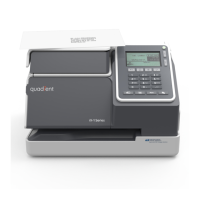
Identifies and describes the main components of the mailing system.

Control Panel Features

Details the display areas and keys on the mailing system's control panel.

Processing Mail

Preparing and Starting your Work Session

Steps to prepare and start a mail processing work session efficiently.

Choosing Stamp Type

Guide to selecting the appropriate stamp type based on mail processing needs.

Processing Examples

Provides examples and steps for various mail processing scenarios.

Printing [Permit] Mail

Instructions for setting postage and processing mail using permit options.

Mail Corrections

Procedures for correcting postage amounts or dates on mail pieces.

Settings

Details various system settings, including account management and rate selection.

Imprints

Imprint Configuration

How to configure date, text, and slogans on the stamp imprint.

Money Operations

Managing Funds

How to check and manage postage funds in the Postal Security Device (PSD).

Unlocking the PSD (Postal Inspection)

Procedures for performing postal inspections or unlocking the PSD.

Accounts and Access Control

Rates

Configuring your Mailing System

Setting Warnings

Setting up high-value postage and low-funds warning thresholds.

Imprint Memories

How to save, edit, and use imprint memories for stamp customization.

Maintenance

Troubleshooting

Machine Issues

How to clear mail jams and clean print heads.

Diagnostics

Performing diagnostic tests on base status, sensors, display, IP, keypad, and ports.

quadient iX-3 Series Specifications

General IconGeneral
Envelope FeedingAutomatic
Label DispenserOptional
Print TechnologyInkjet
ConnectivityUSB
DisplayTouchscreen
TechnologyInkjet
Media TypesEnvelopes, labels
Power Supply100-240V, 50/60 Hz
Processing SpeedUp to 15, 000 letters per hour
Weighing PlatformIntegrated weighing platform available

Related product manuals