Making Video Calls between Lync Clients and H.323 Devices | 15
RADVISION | User Guide for SCOPIA Video Gateway for Microsoft Lync Version 7.7
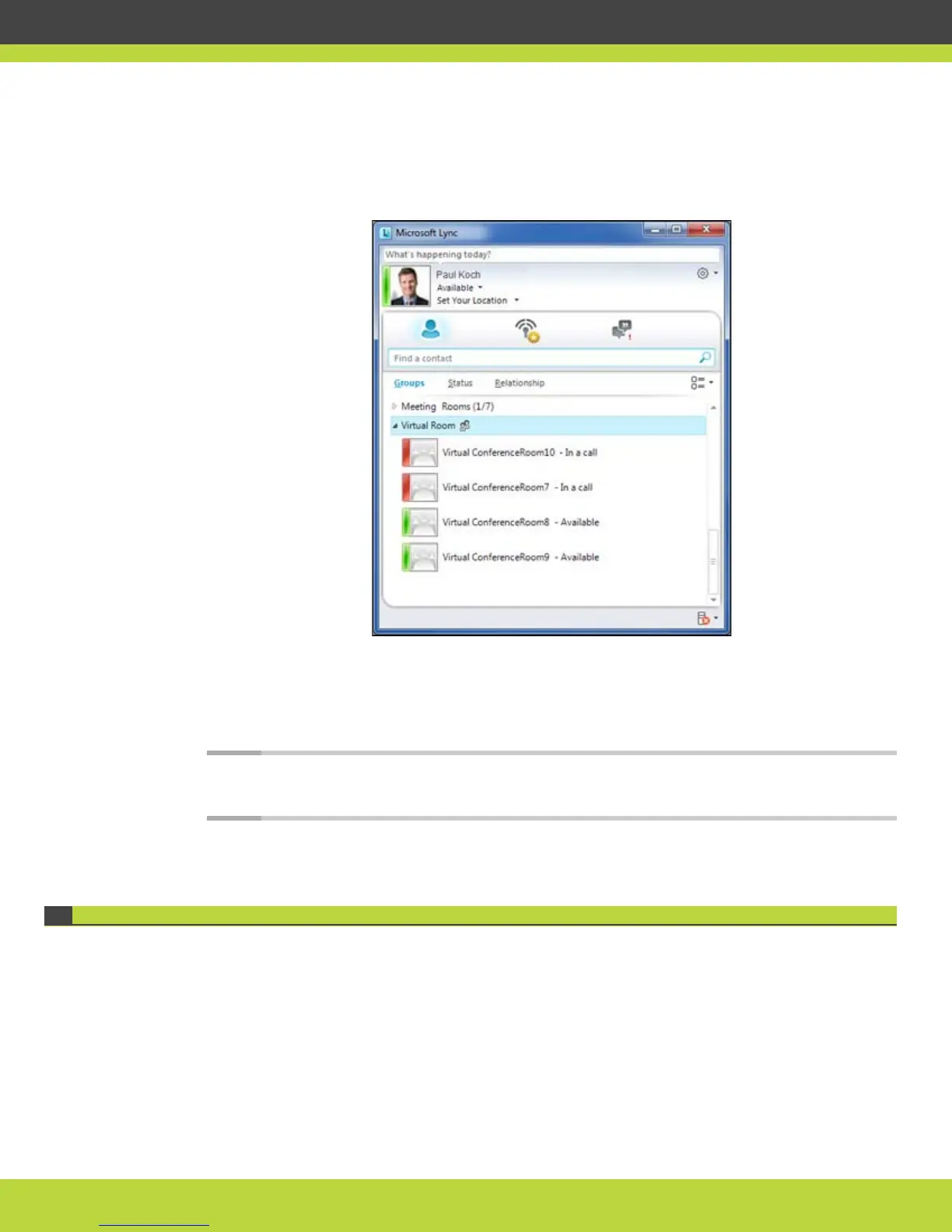
Step 3 Double-click the Virtual Room group to expand the group.
The virtual meeting rooms are displayed.
Figure 1-16 Virtual meeting rooms displayed in the Contact List
Step 4
Right-click the available virtual meeting room, and then select Start a Video Call.
The virtual meeting room is displayed.
Other participants who joined the virtual room from their Lync Clients or H.323 endpoints can be
seen in the virtual room.
Note: Avoid inviting participants directly from your Lync Client. They should join the conference
by dialing in from their endpoint or Lync Client.
Joining a Conference in Progress Using your Lync Client
If you want to join a conference happenning at this moment, you can do it easily using the Auto
Attendant as described in this section.
This feature is available only in deployments using a SCOPIA Solution. Contact your video network
administrator to find out whether this feature is available in your organization.



 To Next Page