RAK LoRaWAN Industrial Gateway Configuration Guide
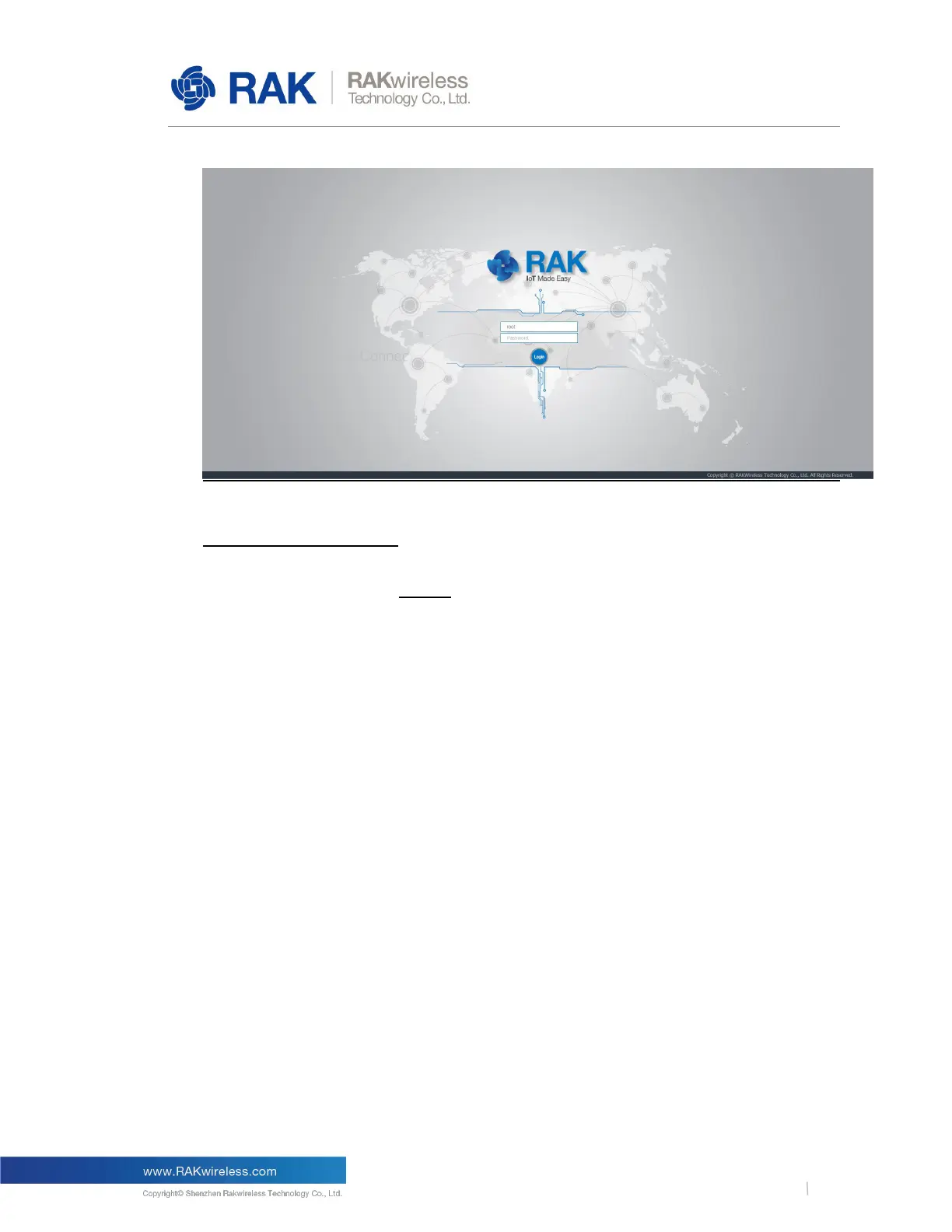
Figure 1 | Login window
WAN port (DHCP IP) mode
Connect the Ethernet cable to the port marked “ETH” and the other end to your Router. Use
the same credentials for the Web UI as for AP mode.
3 Web Management Platform
After you have entered the correct credentials, you can start exploring the configuration and
monitoring interface of the RAK LoRa Gateway.
3.1
Status
This is where statistics about the Gateway behavior can be monitored in real time.
3.1.1 Overview
Upon logging in the browser displays the page in Figure 2.
The following are the parts of the Overview window:
Received:
Shows the total number of uplink LoRa messages received by the gateway.
Transmitted:
Shows the total number of downlink LoRa message sent by the gateway.



 To Next Page