16
MP2015 MANUAL
Class Compliant USB Ports
The USB ports are 100% class compliant, allowing hook-up to any Mac OSX device without the need for an additional
driver. A high-performance ASIO driver runs most Windows DAW and DJ software. MIDI end points are class compliant
with both OSX and Windows devices.
ASIO (Windows)
Available Spring 2015 from the Downloads link in the MP2015 page at dj.rane.com, a low-latency ASIO driver is available
to interface with most DJ and DAW audio software applications on Windows operating systems. Multi-client ASIO allows
different audio software applications to simultaneously stream audio to and from the MP2015. If the same playback channel
is selected in more than one application, the driver mixes the audio from the applications before streaming it to the device.
The driver Control Panel may be launched from the Windows Control Panel. Select Start > Control Panel > Rane MP2015.
Core Audio (Macintosh)
No driver installation is required. Connect the MP2015 to a Mac running OSX, and the MP2015 inputs and outputs become
available in your audio program. Install the Rane control panel to provide additional setting as described below. The most
recent control panel installer may be downloaded from the MP2015 page at dj.rane.com.
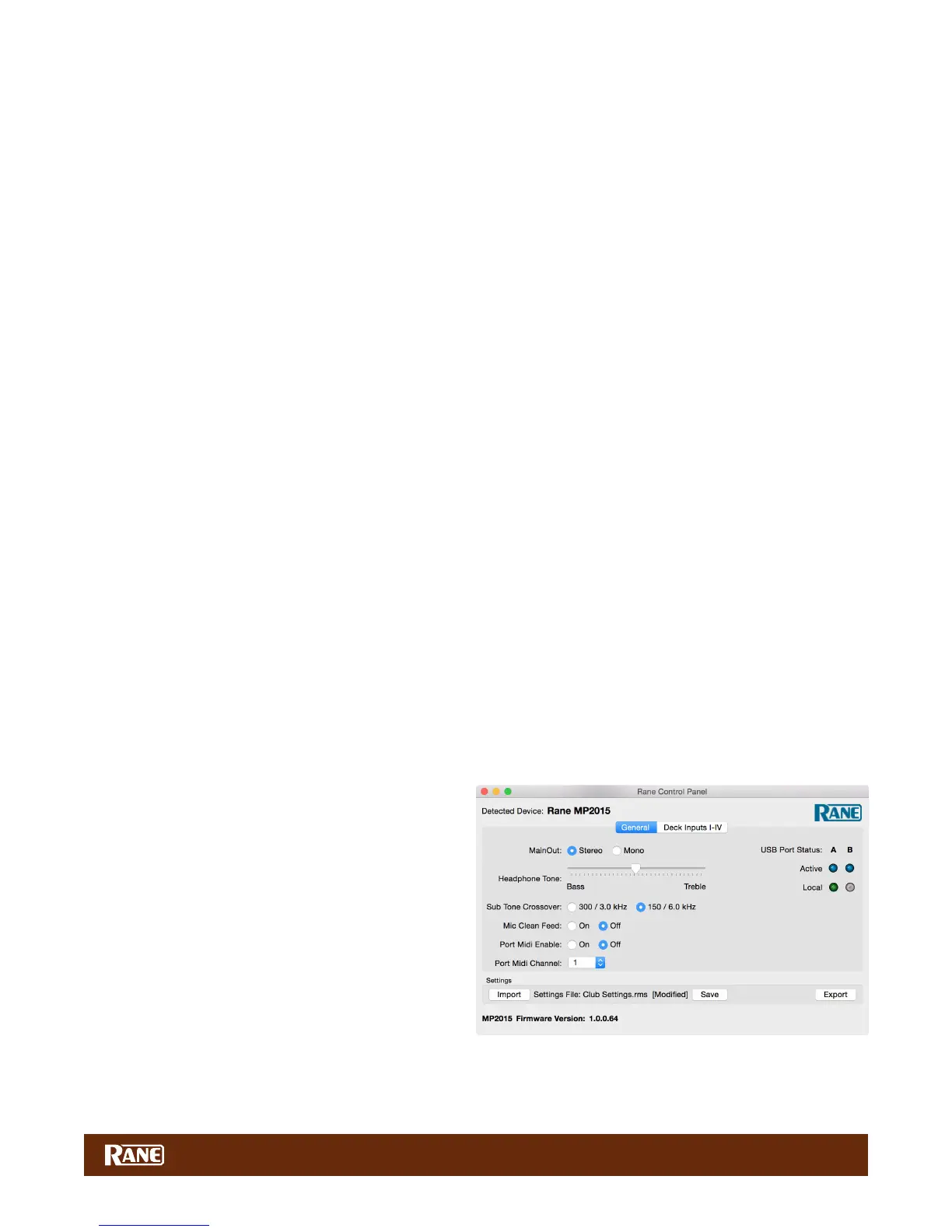
Control Panel
NOTE: Settings are saved in the mixer. The control panel for Windows or Macintosh is updated with the mixer’s settings.
Therefore, when you connect to a different MP2015 Mixer, it's saved settings override your previous Control Panel settings.
NOTE: The Rane Control Panel and Firmware will be updated with new features. To get the most from your MP2015,
occasionally check the Downloads link in the MP2015 page at dj.rane.com.
Settings
The MP2015 allows you to save and export settings. You can load your preferences when using a different MP2015 than
your own, or putting things back after another DJ has used your mixer.
Once you have set control panel preferences, click Export to write these to a computer le. Click Import to load a .rms
settings le. The control panel shows the current settings le loaded in the mixer. If any changes are made since the last
import, [Modied] will appear after the lename along with a Save button, offering to save your changes as the new default.
Firmware
The MP2015 Firmware Version currently installed in the MP2015 is shown. The Downloads link on the MP2015 page at
dj.rane.com is the place to check if there is a control panel / rmware update. After downloading and installing, if the
MP2015 rmware installed on your computer is newer than the rmware in your MP2015, an Update Firmware button is
enabled. Pressing the button updates the MP2015 rmware to the new version.
General Tab
Main Out can be set to Stereo or Mono. The Booth and
Session Outputs are always in stereo.
Headphone Tone slider adjusts the tone going to the
headphones using spectral tilt lters.
• Increasing Treble reduces lows by the same amount.
• Increasing Bass reduces highs by the same amount.
Sub Tone Crossover sets the crossover points of the
3-band Tone controls in the Submix to either:
• 300 Hz between Low and Mid, 3 kHz between Mid and
High.
• 150 Hz between Low and Mid, 6 kHz between Mid and High (default).
Mic Clean Feed when selected, the microphone signal is only sent to the Main Out and is not present in the USB Main
Record, Booth Out or Session Out. This allows you to record your set without any house announcements. Default is Off.


 To Next Page