pLayIng muSIc
Click on the icon to show all the tracks
in your library. Use the keyboard shortcut Shift
- Left Arrow to load the highlighted track on to
the left deck, and Shift - Right Arrow to load the
highlighted track on to the right deck.
To start playing a track, simply put the needle on
the record and start the turntable. The track will
start playing as soon as it detects the signal from
the control vinyl (or CD).
In ABS mode, the track will play from the
position dictated by the placement of the
needle on the record. If you place the needle at
the beginning of the record, the track will start
playing from the beginning. You can skip through
the track by picking up the needle and placing
it further into the record, just as with regular
records (This is known as needle dropping).
tRack dISpLay
When a track is loaded, the track name, artist
and length are displayed in the track title bar,
and the Virtual Deck shows a solid black line.
If the track has BPM information written in the
tag this will also be displayed.
pRepaRIng
yOuR FILeS
Before you play your music in Scratch Live, It is
important to rst prepare your les by building
overviews.
The overview builder analyses the songs in
your library to detect le corruption, saves the
waveform overview to an ID3 tag*, and calculates
auto-gain and BPM values.
To build overviews start Scratch Live with the
hardware disconnected. On the left side of the
main screen, you will notice a button labeled
“build overviews”. Click this to automatically
build the overviews for all the tracks in your
library.
If Scratch Live detects a corrupt le it
will tag it with a corrupt le icon:
It is very important that you delete
ANY corrupt les from your library as they can
cause Scratch Live to crash regardless if you
play the le or not.
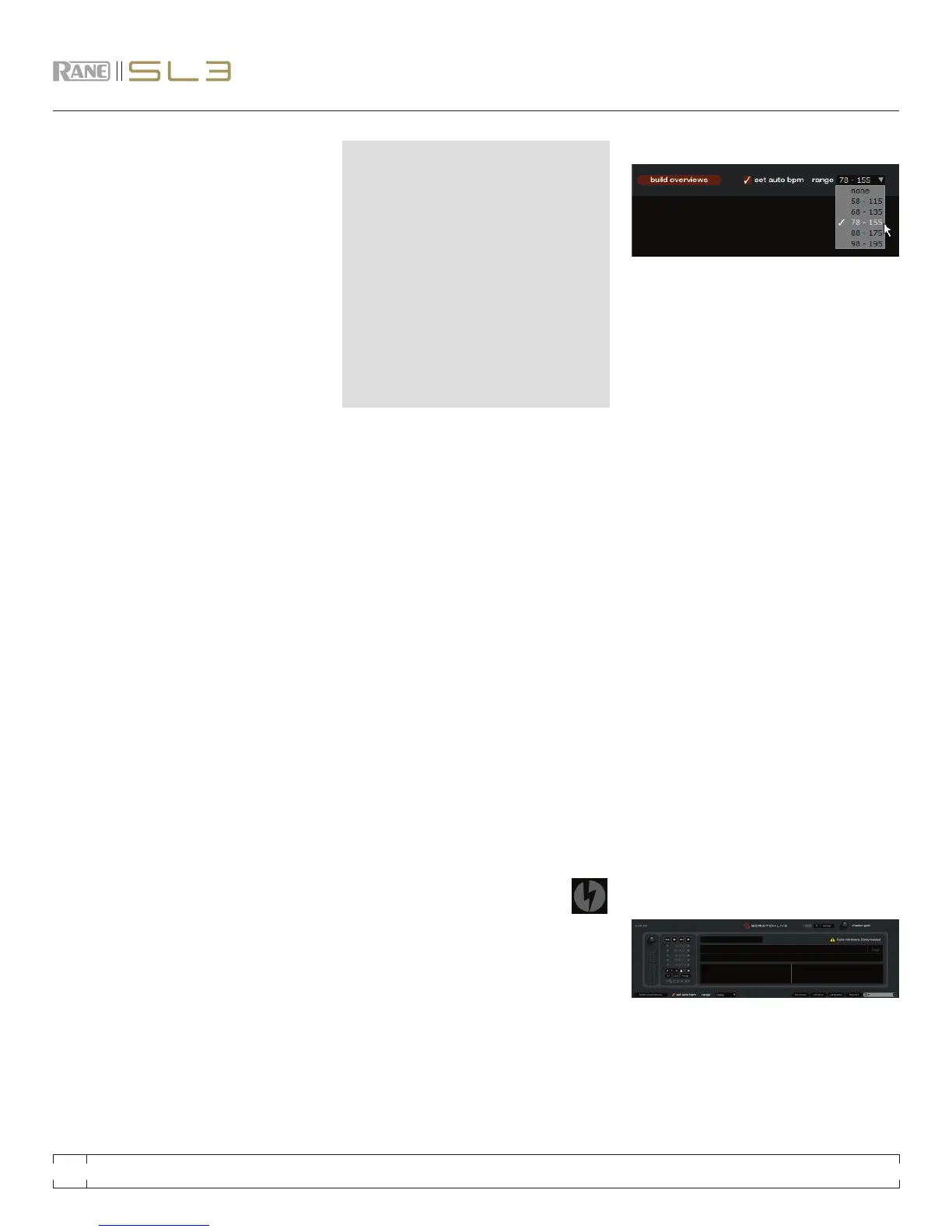
If this option is checked while building overviews,
Scratch Live will calculate the estimated tempos
of your les. If Scratch Live is condent that the
auto-BPM estimate for a le is accurate, it will be
written to an ID3 tag* in the le.
The auto-BPM function will not be applied if
the track already contains BPM information. To
rebuild overviews and use auto-BPM or auto
gain on those les, drag them onto the build
overviews button. If you know your les BPM
will fall within a certain range, use the range drop
down to avoid double or half value BPMs being
calculated.
the OFFLIne pLayeR
The ofine player is available when the Scratch
Live hardware is not connected, and outputs
through the current default audio device. Load
a track to the ofine player by dragging and
dropping onto the deck, or pressing shift+left
arrow. If the end of the loaded track is reached,
the next track in the current playlist is played
automatically.
The ofine player is a useful tool for preparing
crates, auditioning tracks, and setting cue and
loop points.
RANE SL 3 FOR SERATO SCRATCH LIVE • OPERATOR’S MANUAL 1.8.4
10


 To Next Page