
EasyManua.ls Logo

RayTek MP150 - User Manual

RayTek MP150
60 pages
Print Icon
To Next Page IconTo Next Page
Loading...
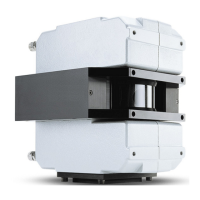
MP150
Linescanner
Operating Instructions
Rev. E3 07/2013
58501

Questions and Answers

  • N
    Natalie BlevinsAug 26, 2025
    How to troubleshoot RayTek Scanner Ethernet Communication?
    • C
      Catherine MannAug 26, 2025
      To troubleshoot Ethernet communication issues with the RayTek Scanner, you can try the following: * Ensure that the scanner’s Ethernet settings are correctly configured. * Verify that the PC network adapter is set up properly. * Go to to see a list of all available network connections. The network connection should be related to your real adapter device (and not a wireless or virtual adapter), and its status should be . * Disable the PC network adapter temporarily: .
  • J
    Jasmine PearsonAug 27, 2025
    What to do if RayTek MP150 Scanner software does not respond?
    • M
      Martin CruzAug 27, 2025
      Here are some steps to take if the RayTek Scanner software is not responding: * Try switching the scanner's power off and then on again. * Ensure that the software is not launched during the scanner's initialization time (approximately 30 seconds). * Use the network administration utility Ping to test the scanner's reachability. Open the Windows and execute ping 192.168.42.30 (using the appropriate IP address). * Utilize the network protocol Telnet to establish bidirectional text-oriented communication with the scanner by using scanner-specific commands. Open the Windows and execute telnet 192.168.42.30 2727 (using the correct IP address and port). Note that Telnet may not be available on all Windows computers by default.
  • W
    wmitchellSep 1, 2025
    What to do if RayTek MP150 Ethernet communication fails?
    • A
      Andrew FloresSep 1, 2025
      To resolve Ethernet communication issues with your RayTek Scanner, first ensure that the scanner's Ethernet settings are correctly configured. Then, verify that your PC network adapter is also set up correctly. The desired network connection needs to be related to your real adapter device (and no wireless or virtual adapter), and the status for the connection needs to be . As a troubleshooting step, you can also try disabling the PC network adapter temporarily.
  • M
    Marilyn BurgessSep 4, 2025
    How to fix RayTek Scanner serial communication problems via COM port?
    • S
      steven36Sep 4, 2025
      To troubleshoot serial communication issues via the COM port with your RayTek Scanner: * Verify that you're using the correct COM port. If the current port is not working, try another COM port on your computer. * Ensure the RS232/485 adapter is close to the PC, not the scanner. * If you encounter communication errors, reduce the baud rate step by step. * Avoid launching the software during the scanner's initialization time, which is approximately 30 seconds. * Avoid the use of third party USB/RS232 converters! * If using plug-in serial cards, disable for the Auto Flow Control.
  • L
    Lisa OwensSep 6, 2025
    Why is my RayTek MP150 Scanner PC software running slowly?
    • R
      Ryan LopezSep 6, 2025
      If you're experiencing issues with your RayTek Scanner and PC performance, try these adjustments: On some computers, software performance can be increased dramatically by switching off the hardware graphic acceleration. A too high display resolution can cause problems, so test temporarily a setting of 800x600 pixel at high color (16 bit).
  • K
    Kimberly HendrixSep 9, 2025
    How to prevent RayTek Scanner overheating?
    • Q
      qmartinezSep 9, 2025
      To prevent RayTek scanner overheating, ensure the maximum internal housing temperature does not exceed 60°C (140°F).
  • H
    haleyobrienSep 12, 2025
    How to configure COM port to avoid RayTek Scanner communication problems?
    • R
      Robert TaylorSep 12, 2025
      To avoid communication problems with RayTek scanner the properties of all used COM ports must be changed as follows: : Low.
  • A
    Alfred VelasquezSep 14, 2025
    How to check available network connections for RayTek MP150?
    • M
      Michael OrtizSep 14, 2025
      provides a list of all available network connections. The desired network connection needs to be related to your real adapter device (and no wireless or virtual adapter). The status for the connection needs to be .
  • J
    Jennifer WilliamsNov 16, 2025
    What to do if my RayTek MP150 is not working?
    • N
      Nancy Sherman MDNov 17, 2025
      If your RayTek Scanner isn't working, there are several things to check: * Inspect the wiring of the entire system, paying attention to connector fit and any signs of cable damage. * Verify the scanner is receiving power by checking the LED on the scanner's backside. For MP50 models, a red LED should be on; for MP150 models, a green LED should be on. * If the scanner is powered on, check for the rotation of the internal scanner mirror by visually inspecting or listening for it. * Ensure that the main power for both the scanner and the PC is supplied from the same location. * Prevent overheating by ensuring the internal housing temperature does not exceed 60°C (140°F). The scanner software's status bar displays this temperature. * Check for condensation inside the scanner housi...
  • B
    Brendan VasquezNov 19, 2025
    Why is my RayTek Scanner PC performance poor?
    • J
      Jason MartinezNov 19, 2025
      Poor performance of the RayTek Scanner software on your PC can stem from several factors. You can try the following: * Improve software performance by disabling hardware graphic acceleration: Go to and set to None. * A display resolution that is too high can cause issues. Try temporarily setting the resolution to 800x600 pixels with high color (16 bit). * The PC might be overloaded. Check this by running the scanner software and pressing CTRL+ALT+DEL. In the Task Manager, select the system performance window. The value should consistently remain well below 100%. * In some instances, the computer's graphic card might interrupt serial communications for extended periods. S3-graphic cards are known to cause this issue, and the only solution is to replace the S3-graphic card.

Summary

Contacts

Warranty Information

General Warranty Terms

Covers the manufacturer's warranty for material and workmanship defects for two years.

Software Warranty Terms

Details the warranty provided for the software and documentation, typically for one year.

Safety Instructions

Operation Guidelines and Warnings

Explains acceptable/unacceptable operation, parts, disposal, safety symbols, and laser warnings.

Technical Data

Measurement Specifications

Details temperature range, spectral response, system accuracy, and repeatability.

Optical Specifications Overview

Covers standard focal distance, resolution, and hot spot detection parameters.

Electrical Specifications

Details communication, output, input, signal processing, and power supply specifications.

General Specifications

Covers MTBF, environment rating, temperatures, humidity, and physical dimensions.

Dimensions and Mounting

Provides physical dimensions and mounting locations of the linescanner.

Scope of Delivery

Lists all items included in the linescanner package.

Understanding the Basics

Principles of Infrared Temperature Measurement

Explains how infrared radiation is used for temperature measurement.

Emissivity of Target Object

Discusses the importance of setting the correct emissivity for accurate measurements.

System Overview

Installation and Setup

Environmental and Interference Considerations

Covers ambient temperatures, environment rating, and electrical interference.

Measurement Geometry

Defines conditions for accurate object measurement based on size and shape.

Mounting and Positioning

Details methods for installing the linescanner securely.

Communication Interfaces

Explains Ethernet and RS485 communication options and wiring.

Ethernet Settings Configuration

Guides on configuring IP addresses, subnet masks, ports, and gateways.

Changing Scanner Ethernet Settings

Provides steps to modify the scanner's IP address via Telnet.

Power Supply and Warm-Up Time

Covers power cable specifications and recommended warm-up period.

Water Cooling and Condensation Avoidance

Details water cooling system usage and methods to prevent condensation.

Air Purge Collar Operation

Explains the function and usage of the air purge system.

Input and Output Connectors

Details the physical connectors for data, power, and signals.

Laser Sighting Function

Describes the built-in laser for aiming and its safety precautions.

Operation and Data Transfer

Scan Rate and Target Viewing Time

Explains how scan rate affects target viewing time and measurement.

Sectors and Analog Output Configuration

Explains how to assign analog outputs to scan sectors for data analysis.

Data Transfer Modes and Stand-Alone Operation

Describes data transfer methods and operating the scanner without a computer.

Accessories

Mechanical, Electrical, and Fiber Optic Accessories

Lists mounting, power, interface, and fiber optic accessories for system setup.

Output and Alarm Modules

Details various output modules and the alarm module for system integration.

Tube Fittings Installation and Reassembly

Provides instructions for installing and reassembling water cooling tube fittings.

Thermostat Function and Installation

Explains the thermostat's role in maintaining housing temperature and installation steps.

Spare Windows

Lists available spare windows and their compatibility with spectral models.

Industrial Power Supply and RS485 Interface

Covers power supply specifications and the RS485 interface kit for serial communication.

RS485 Cable Extension

Instructions on extending the RS485 communication cable.

Output Modules General Specification

Provides general specifications for various output modules.

Wiring Example for Output Modules

Illustrates a typical network setup with RS232/485 converter and output modules.

RS232;485 Converter 7520 Details

Provides technical details for the RS232/485 Converter 7520.

Analog and Digital Output Modules (7024, 7042)

Details specifications for analog (7024) and digital (7042) output modules.

Digital Output Modules (7043, 7045)

Details specifications for digital output modules 7043 and 7045.

Relay Output Module 7067

Details the specifications for the 7067 relay output module.

Alarm Module Functionality

Explains the alarm module's role in system alerts and trigger signals.

Maintenance and Troubleshooting

Window Cleaning and Replacement

Provides instructions for cleaning and replacing the scanner's window assembly.

Troubleshooting Scanner and Communication Issues

Addresses common problems with scanner power, mirror, overheating, and Ethernet/serial communication.

Appendix: Emissivity and Measurement Guidelines

Determination of Emissivity

Outlines methods for determining the emissivity of target materials.

Typical Emissivity Values

Provides reference tables of emissivity values for various materials.

RayTek MP150 Specifications

General IconGeneral
BrandRayTek
ModelMP150
CategoryScanner
LanguageEnglish

Related product manuals