Polling Rate
The higher the polling rate, the more often the computer receives information about the status
of your mouse, thus increasing the mouse pointer’s reaction time. You can switch between
125Hz (8ms), 500Hz (2ms) and 1000Hz (1ms) by selecting your desired polling rate on the
dropdown menu.
Mouse Properties
From here, you can access the Windows Mouse Properties where you modify operating
system settings that can directly affect your Razer Atheris.
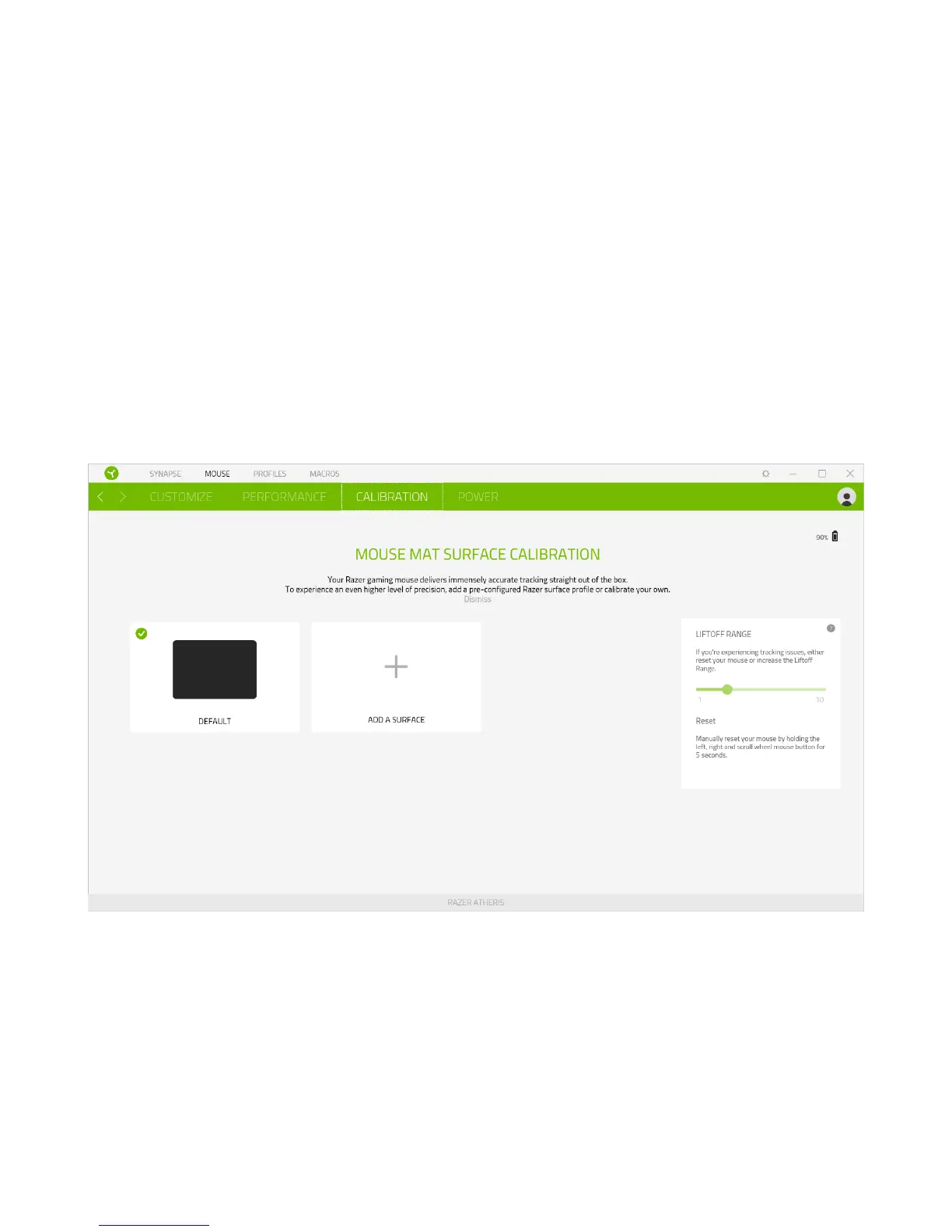
Calibration
The Calibration subtab allows you to optimize your Razer Precision Sensor to any surface for
better tracking. To use this feature, you must click the Add A Surface option where you can
select from a comprehensive list of Razer mouse mats or add your own mouse mat.
Liftoff Range
The Liftoff Range enables you to set the distance at which the sensor stops tracking when it is
lifted from its surface to avoid unwanted cursor movement.


 To Next Page