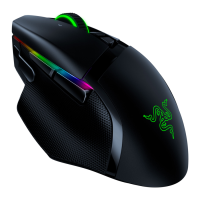
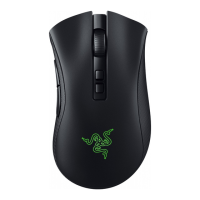
You may use the standard mouse functions by simply plugging the Razer Basilisk V2 into an available
USB port on your computer. However, you will need to install Synapse 3 in order to enable advanced
features such as macro recording, profile settings, Chroma lighting customizations and more.
What is the clutch for?
Deliberately shaped like a clutch rather than a traditional button, the easily accessible clutch is designed
not only to actuate and release quickly but also for enhanced comfort when held down; as opposed to
traditional buttons that are intended for quick click-and-release. Push-to-talk, temporary DPI adjustment
and other game actions that require the gamer to hold down the mouse button can now be executed in
greater comfort. The clutch’s default setting is to adjust the DPI to 800 when held down. A rubber cap is
also included for gamers who prefer not to use the clutch. Like other programmable buttons, the clutch
can be customized in Razer Synapse 3.
What is the dial at the bottom of the mouse?
Designed specifically to cater to FPS gamers who bind game actions to their scroll wheel, the Razer
Basilisk comes with a range of customizable scroll wheel resistances to choose from. Using a dial on the
bottom of the mouse, FPS gamers will be able to set the scroll wheel at their preferred resistance level
for activation of bunny hops, weapon selection and more.
Will my Razer Basilisk V2 work on a console?
The Razer Basilisk V2 is designed for PC use. However, as of 2018, Microsoft has updated Xbox One to
support PC keyboards and mice. Razer Basilisk V2 will work with games that have allowed keyboard and
mouse input. For these games, the Razer Basilisk V2 will work with basic functions.
Note: You cannot use a mouse on Home or within the Xbox user interface while navigating the
dashboard. You will need to use your controller to configure the mouse. Settings do not support mouse
interaction. A mouse will not work in Edge, which already has an on-screen cursor. Visit this page for
more information.
What is “On-The-Fly Sensitivity” and how do I configure it?
On-The-Fly Sensitivity adjustment allows you to set a button of your choice on the Razer Basilisk V2 to
enable the feature. If a button has been assigned to “On-The-Fly Sensitivity,” pressing and holding the
assigned button down while moving the scroll wheel up or down will produce a bar on the lower right-
hand corner of your screen allowing you to adjust your sensitivity settings by steps of fifty (50) DPI.
What quick lighting effects are available for the Razer Basilisk V2?
The Razer Basilisk V2 features Audio Meter, Spectrum Cycling, Breathing, Static and Reactive quick
effects.
What is Advanced Lift-off/Landing distance customization? How do I configure it?
The Razer Focus+ Optical Sensor’s Smart Tracking technology, it is able to automatically calibrate itself
across different mouse surfaces, ensuring your lift-off distance remains consistent. Smart Tracking allows
you to set the lift-off and landing cut-off point to your preferred distance in millimeters, regardless of the
surface it is placed on. Click here to learn more.
To configure, install Synapse 3. Once installed, select the mouse from the Dashboard and go to
Calibration > Smart Tracking and drag the slider to the preferred distance setting.
How do I clean my Razer™ mouse?
We cannot say with certainty what type of dirt and debris may be on your product, or how certain
cleaning products may react with it, but we have had good luck cleaning Razer products using commonly
available monitor cleaning wipes. To clean the body of your Razer mouse, please take a monitor wipe
and use gentle wiping motions. Do not scrub the surface of your Razer mouse. You can clean the sensor



 To Next Page