using a Q-Tip lightly coated with rubbing alcohol. Let the sensor dry for five minutes before attempting
to use it.
How can I modify or disassemble my Razer product?
We cannot help you in modifying or disassembling your Razer product as that will void the
manufacturer’s warranty on the unit.
How do I request or purchase replacement parts for my Razer product?
For a complete list of our current spare parts and accessories, please click here. If the item you need
isn’t listed, please contact our Customer Support Team here.
Troubleshooting
My Razer Device is not detected in Razer Synapse 3. How do I fix this?
If Synapse 3 just updated and your device is not detected, reboot your PC. Otherwise, check for updates
through Settings > About > Check for Updates. If there are no updates detected, try another USB port. If
all of the above fails, uninstall Synapse and reboot your PC. Re-install Synapse using the latest
installer.
Why does my Razer mouse pointer stutter or freeze?
It is most likely due to a dirty sensor or surface you use your mouse on. Try cleaning the sensor using a
Q-tip lightly coated with rubbing alcohol. Let the sensor dry for five minutes and test your mouse. Also,
clean the surface on which you use the mouse or use a good mouse mat, the Razer Goliathus Chroma for
example. If it still does not work, your sensor may have been improperly calibrated when setting up
surface calibration. With the mouse plugged in and put flat on your mouse mat, hold down the left-click,
right-click, and mouse wheel button for 7 seconds to reset the surface calibration. If the issue persists,
contact Razer Support.
My Razer mouse is not working properly when used with a KVM switch. How do I fix
this?
We recommend plugging your Razer product directly into your computer. KVM switches are known to
cause interruptions in communications between devices and computers. If your Razer mouse works
when plugged directly into the computer, then the issue is most likely on the KVM switch.
Hardware
Technical Specifications Comparison Table for Optical Mouse Switch vs Mechanical
Switch
Switch Optical Mechanical
Actuation Method IR Light Actuation Metal contact actuation
Actuation Force 55 to 75 g 45 to 75 g
Actuation Point 0.3 mm (nominal) 0.3 mm (nominal)
Durability 70 to 80 Million Clicks 50 Million Clicks
Key Feel Tactile & Clicky Tactile & Clicky
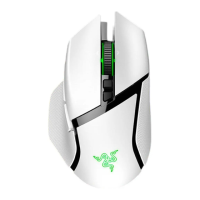
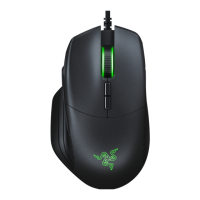
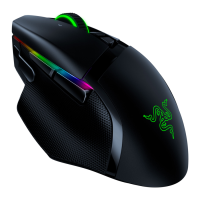
What kind of sensor does the Razer Basilisk V2 use?
The Razer Basilisk V2 uses the Razer™ Focus+ 20K DPI Optical Sensor which ensures that even the
finest movement of your mouse is tracked with consistency.



 To Next Page