Refresh rate and resolution monitor specifications when connecting a USB-
C/Thunderbolt™ cable from a Blade system to a monitor HDMI, Display, or USB-C
port
The performance of your external display is affected by the connection type used to connect your
monitor to the system. This answer provides information on the monitor’s refresh rate and resolution
based on the following connection types:
USB-C/Thunderbolt™ to HDMI Monitor
USB-C/Thunderbolt™ to Display Port Monitor
USB-C/Thunderbolt™ to USB-C Port Monitor
Note: Refer to the cable and monitor’s device specifications to determine the version of the connection
protocol.
When using adapters or docking stations, make sure its specifications must also match the ports used
in the setup. The dock or adapter must also support Multi-Stream Transport (MST) for multiple screens.
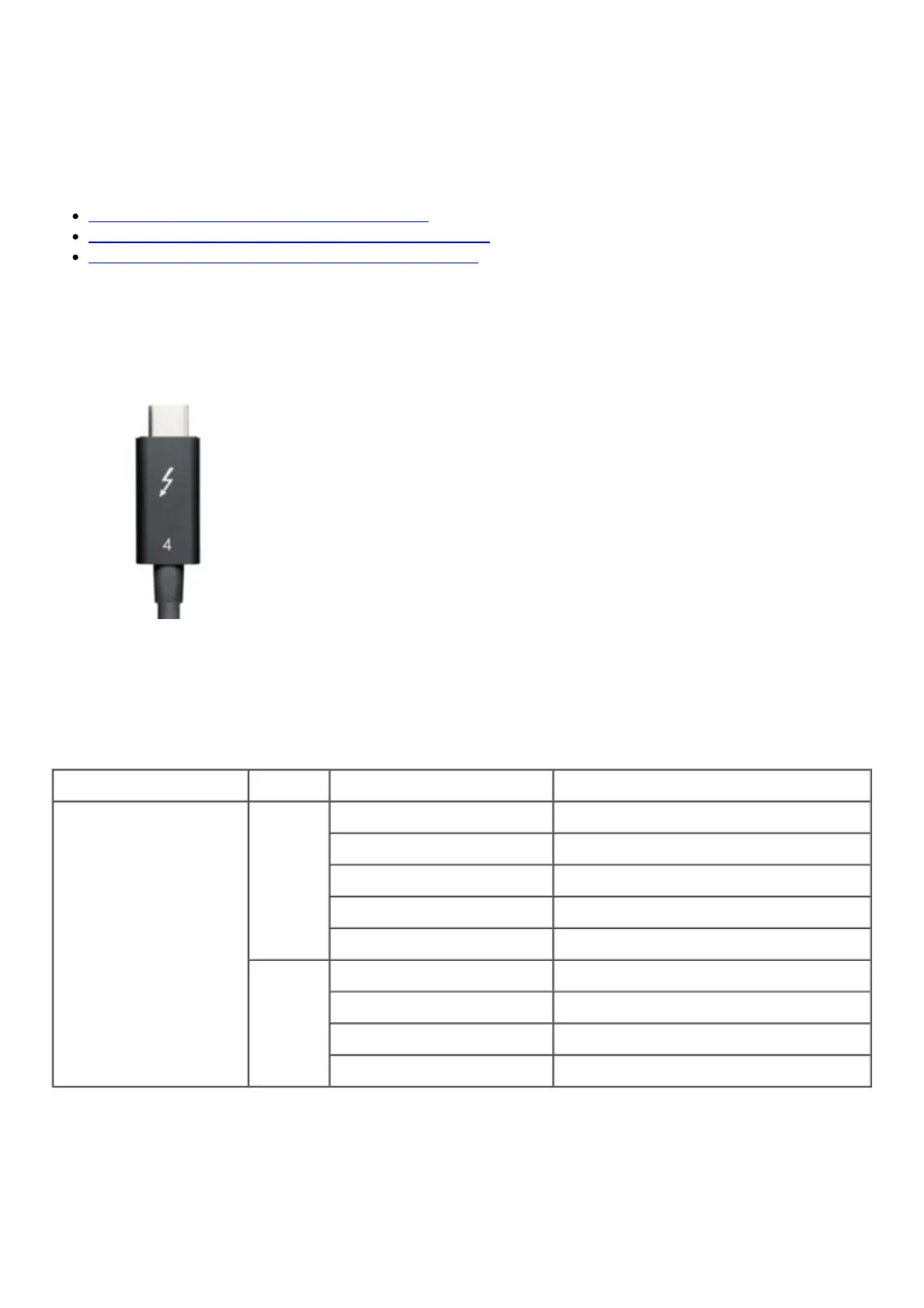
The Thunderbolt™ cable should have the Thunderbolt™ logo on the cable itself.
USB-C/Thunderbolt™ to HDMI
Note: HDMI devices are not required to support the maximum bandwidth of the HDMI implemented.
Therefore, it is not guaranteed that a display will support the refresh rates.
Ensure that the following refresh rates are supported by the HDMI version of the monitor and set the
refresh rate and resolution accordingly.
Connection Protocol Version Resolution Refresh Rate
HDMI Alt Mode
1.4b
720p HD (1280×720) 30Hz, 60Hz, 120Hz
1080p FHD (1920 x 1080) 30Hz, 60Hz, 120Hz, 144Hz
1440p QHD (2560 x 1440) 30Hz, 60Hz, 75Hz
4K UHD (3840 x 2160) 24Hz, 25Hz, 30Hz
4K (4096 × 2160) 24Hz
2
720p HD (1280×720) 30Hz, 60Hz, 120Hz
1080p FHD (1920 x 1080) 30Hz, 60Hz, 120Hz, 144Hz, 240Hz
1440p QHD (2560 x 1440) 30Hz, 60Hz, 75Hz, 120Hz, 144Hz
4K UHD (3840 x 2160) 30Hz, 60Hz with 24 bit/px color depth
USB-C/Thunderbolt™ to DisplayPort
Note: Check the version of the external monitor’s DisplayPort. Ensure that the following refresh rates
are supported and set the refresh rate and resolution accordingly.



 To Next Page