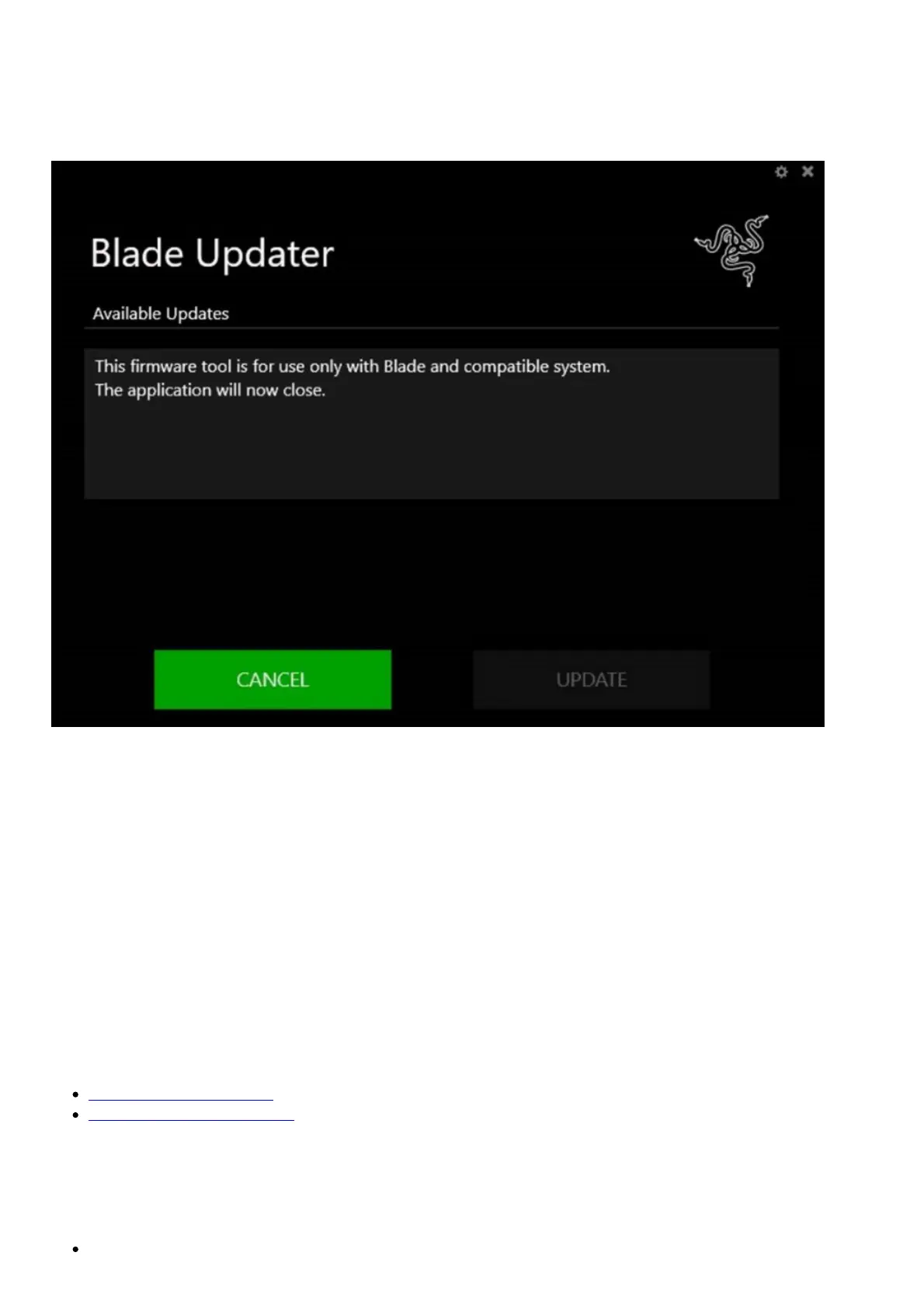
BIOS error message during installation
When downloading the proper BIOS firmware updater for your Razer Blade laptops, you may run into
the following issue when installing: “This firmware tool is for use only with Blade and compatible
systems. This application will now close.”
The issue is related to the product code of some devices, found in the BIOS. The firmware is correct,
but may not install because the product code embedded in the BIOS does not match the firmware
updater.
This is because the firmware houses a list of applicable product codes so that it knows which units to
allow itself to install on. If the product code in the BIOS of the laptop does not match that of the
updater’s list of approved devices, it will return an error to the user.
Display error on Razer laptops when using GPU-intensive programs or games
If you experience image issues or the display driver stops working when playing GPU-intensive
applications, programs or games, follow the steps below to resolve the problem:
1. Restart the device and test if the issue is still present after the reboot.
2. Ensure that you have updated to the latest version of Windows.
3. Make sure your graphics driver is up to date:
Intel Graphics driver for Blade Stealth
NVIDIA Graphics driver for Blade Stealth, Blade and Blade ProNote: Choose the appropriate
graphics card for your Razer Blade 15 model.
4. Check if the issue persists on all games or on a specific game.
5. If the issue only occurs on a certain application or game, the issue may be caused by the game
itself.
Make sure the device specifications fit the system requirements of the game or application.



 To Next Page