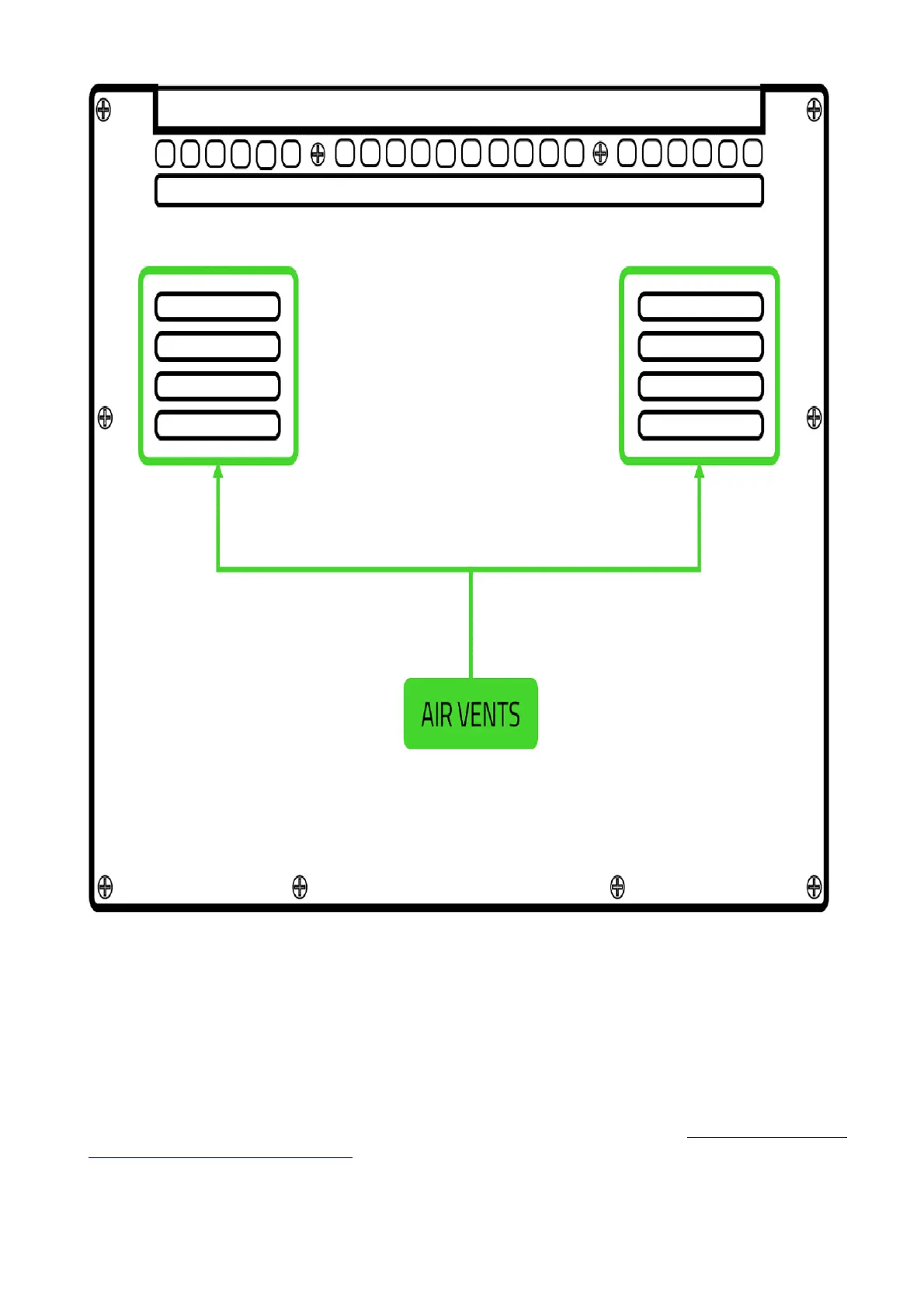
1. Over time dust could also accumulate within the vents that prevent them from working properly.
To alleviate this, you may try holding the device upside down and using compressed air to
dislodge any clumps of dust that may be clogging the vents.
2. Adjust the fan speed. Do note that not all Razer Blade models allow the option to control fan
speed. Depending on the specific model, you may have different fan control
options.Note: Decreasing fan speed may result in higher operating temperatures.
For more details on adjusting the fan speed on your Razer Blade, check out How to adjust the
fan speed on the Razer Blade.
3. You can also try to reduce system load by closing background programs that you are not using.
Make sure to save any unsaved work in those programs.
4. If you are comfortable doing so, you can also close any suspicious processes that may be slowing
your system. Just note that some processes may be essential to your system running smoothly



 To Next Page