13
FADERS > INPUTS view
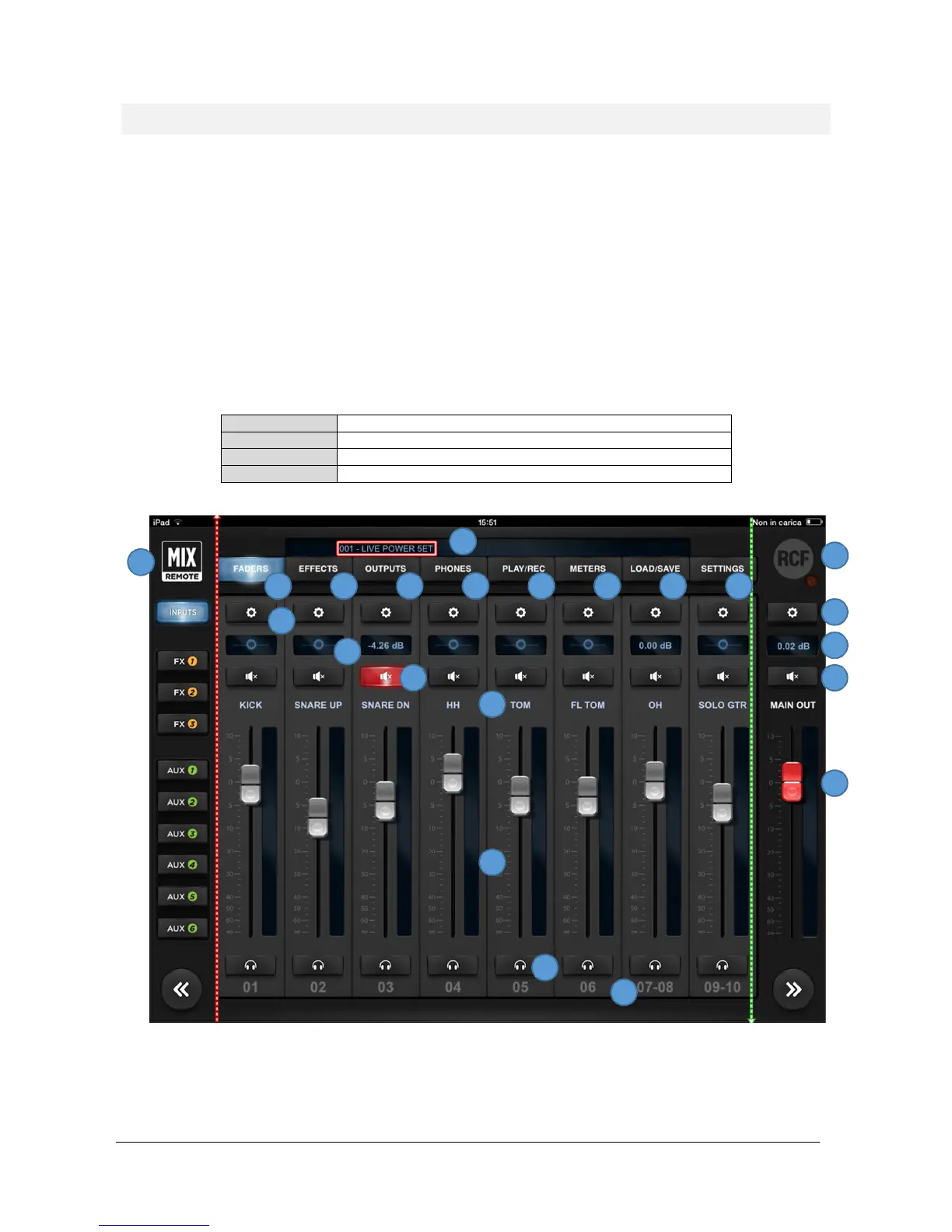
The first page you access is the FADERS INPUTS page, which shows on the top left the MIX REMOTE logo
(1). It you tap on the MIX REMOTE logo, you will be directed to the main FADERS > INPUTS view; this is a
sort of “Home” button that leads you always to the initial page with input faders.
In the central area, on the upper side, there is a small text box with indications of the currently active
session (2). Below there is a row of main tabs, named from left to right FADERS (4), EFFECTS (5), OUTPUTS
(6), PHONES (7), REC/PLAY (8), METERS (9), LOAD/SAVE (10) and SETTINGS (11); the active tab is backlit. On
the right side there's the RCF logo (3), which is lit (in brilliant white) when your controller is connected to
the M 18 Digital Mixer. A small indicator just below the logo signals lights up to indicate that the M 18
Digital Mixer is busy and the app is waiting for a response.
The fader caps are color coded consistently throughout the app:


 To Next Page