RED DSMC OPERATION GUIDE
COPYRIGHT © 2013 RED.COM, INC
955-0020_V5.1, REV-D | 103
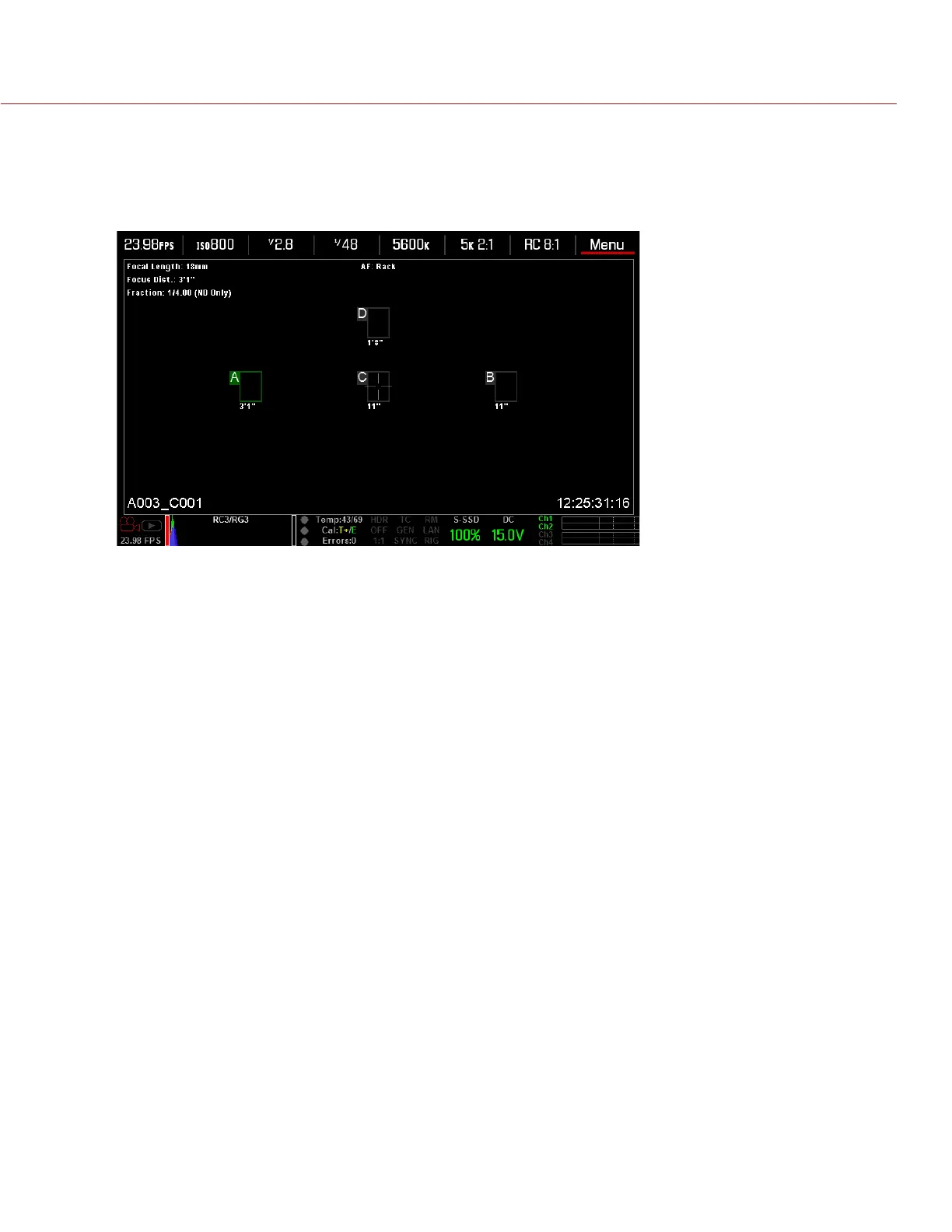
D. You can also press and drag the rack point to another location. In order to prevent a rack point from
being accidentally moved when touching it to rack focus to that point, the rack point is less sensitive
to touch than the other focus targets. If you need to fine-tune the location of your rack point, first drag
the rack point farther than it needs to be and then drag it to where you want it to be.
When you move a rack point, the camera autofocuses.
NOTE: To view the focus distance for each rack point on the main screen, go to Menu > Settings > Display
> Modes and enable Rack Target Distance mode. For more information about display modes, go to “Display
Modes” on page 61.
10. You can select another rack point by using any of the following methods:
‒ Select another rack point on the touchscreen LCD.
‒ Press the key that is mapped to AF: Start (default is SH Record Half Press) to cycle to the next rack
point in order (A, B, C, and D). For example, if rack point A is currently selected when you trigger the
AF: Start action, the focus racks from point A to point B.
‒ Press a key that is mapped to racking to a specific rack point. For more information, go to “Map Keys
to Cycle Rack Focus” on page 103.
MAP KEYS TO CYCLE RACK FOCUS
You can map user keys to rack focus between different rack points. For more information about mapping keys,
go to “Keys” on page 77.
You can map the following actions:
AF: Start
AF: Rack to A
AF: Rack to B
AF: Rack to C
AF: Rack to D
PRESETS
The DSMC has three types of presets:
Camera Presets: These are used to store and recall camera setup information, such as in-camera Looks,
key mappings, I/O configurations, etc. Your RED DSMC camera has a number of factory-installed presets.
Looks: These allow you to save the specific color, image, white balance, and detail settings to be used for
other projects. Looks that are generated in-camera display on the Camera Presets tab. Looks that are gen-
erated in REDCINE-X PRO and are imported to the DSMC via an SSD display on the Looks tab.


 To Next Page