COPYRIGHT © 2013 RED.COM, INC
RED DSMC OPERATION GUIDE
955-0020_V5.1, REV-D | 32
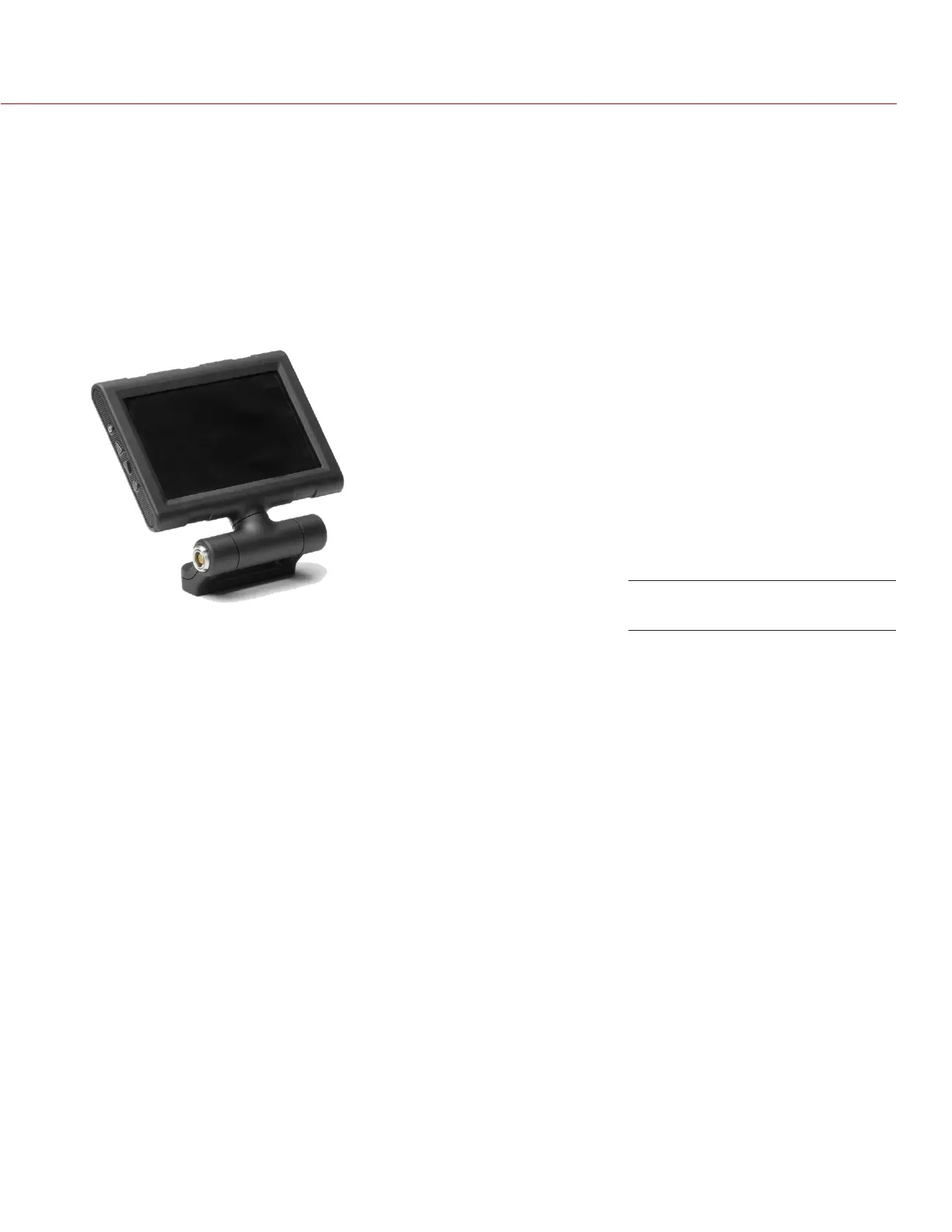
TOUCHSCREEN LCD
RED offers three (3) touchscreen LCDs:
RED TOUCH 5.0" LCD with 800 X 400 resolution
RED TOUCH 9.0" LCD with 1280 X 784 resolution
RED PRO LCD 7" with 1024 X 600 resolution
Touchscreen LCDs feature 4:4:4 progressive scan. You can navigate the DSMC menus and adjust camera pa-
rameters by directly touching icons on the touchscreen LCD screen.
For a full list of all EVF user keys and their default actions, go to “Default Key Functions” on page 142.
TOUCHSCREEN LCD GESTURES
Tap: Tap on an icon to bring up a quick adjustment display.
Double-Tap: If the monitor is in Clean mode, changes to Overlay mode.
Hold: Touch and hold on an icon to bring up an advanced interface display.
Slide: When a menu or drop-down menu is open, touch and slide to increment a value.
Pinch: Touch with two fingers, then open or close to magnify or normalize the video image. By default, this
gesture is disabled.
NOTE: Some of the touchscreen gestures can be disabled. For more information about how to enable/disable
these gestures, go to “Advanced Monitor Gestures” on page 61.
RED TOUCH 5.0” LCD


 To Next Page