Importing Drawing from Illustrator or CorelDraw
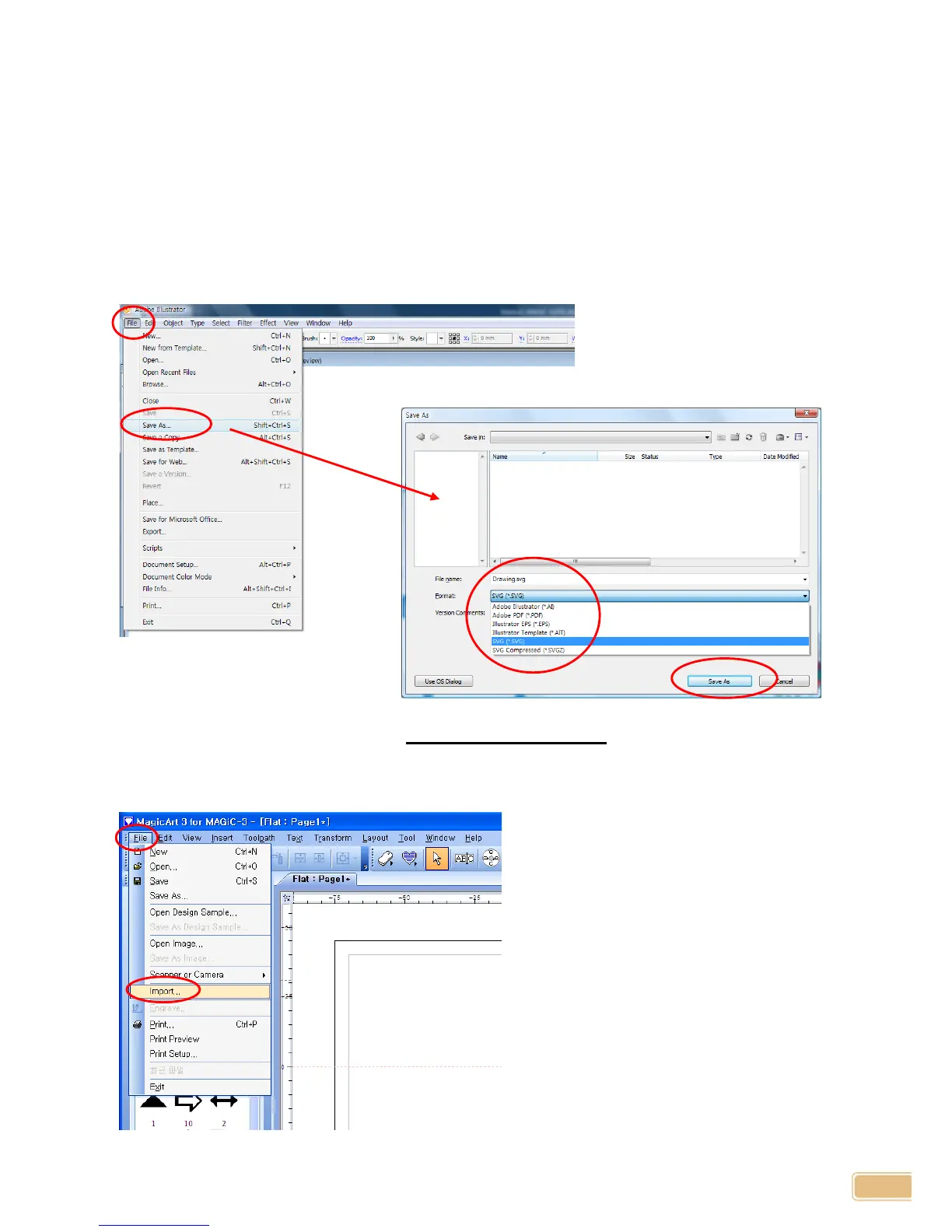
MagicArt support importing “Scalable Vector Graphic (SVG)” file. So any drawing saved as “SVG” can be
imported.
Most design s/w such as like Illustrator, CorelDraw supports saving as “SVG” file format
A drawing saved as “SVG” in illustrator or CorelDraw can be imported from File->Import… to cut or engrave
Illustrator:
1. Select File -> Save As... in Illustrator menu. Then save the drawing as “SVG(*.svg)” format.
*** Please make sure to turn OFF “Preserve Edit Capability” on next pop-up pane.
2. In MagicArt menu, File->Import…, load the file saved in Illustrator.


 To Next Page