EasyManua.ls Logo

Rena MACH 5 - User Manual

Rena MACH 5
128 pages
Print Icon
To Next Page IconTo Next Page
Loading...
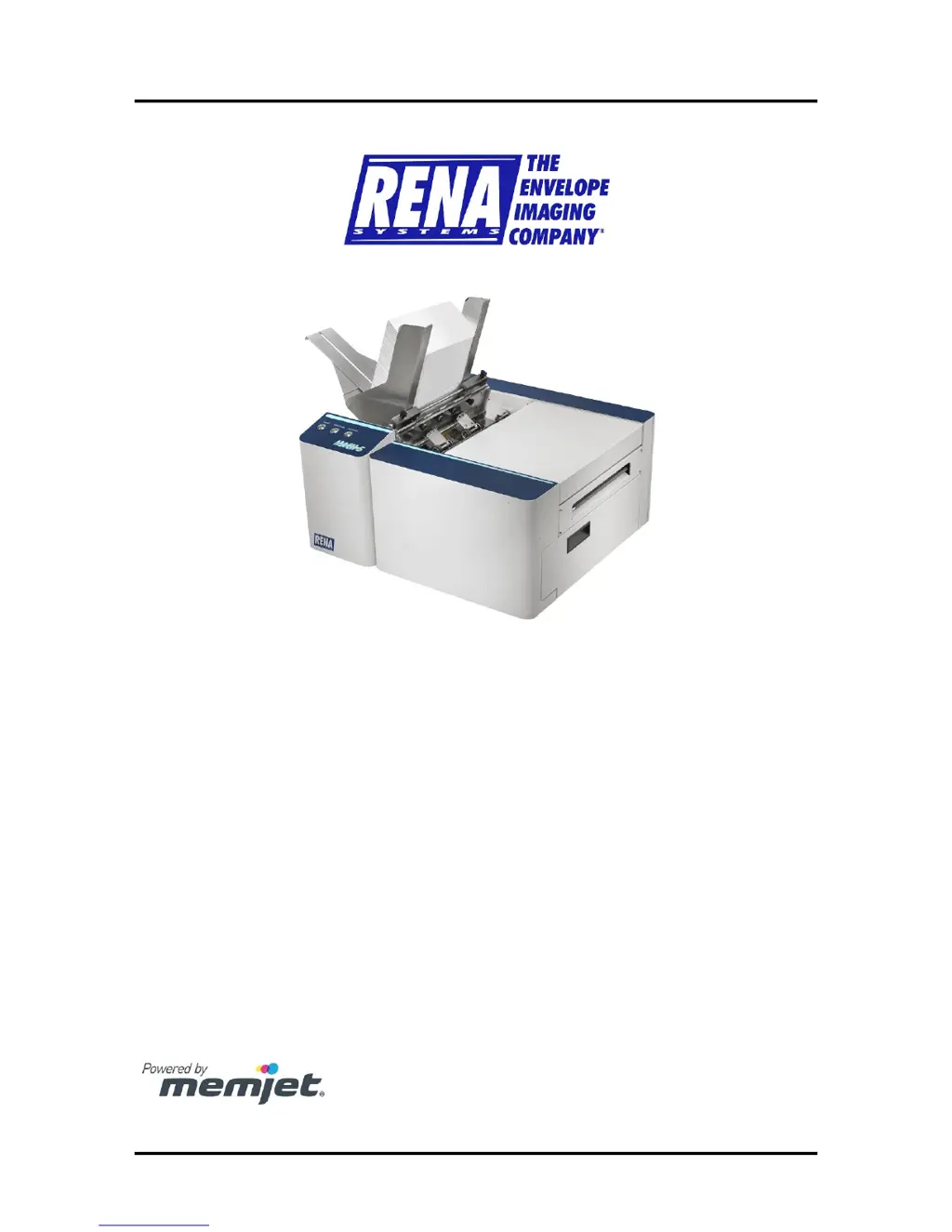
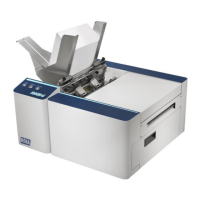
MACH 5
DIGITAL COLOR PRINTER
OPERATIONS MANUAL
Rev 1-31-14

Table of Contents

Other manuals for Rena MACH 5

Questions and Answers

  • T
    Tyler JenkinsSep 12, 2025
    Why are colors distorted on my Rena MACH 5 Printer?
    • J
      joshualambertSep 12, 2025
      If your Rena Printer is producing mixed, mottled, muddy, or distorted colors, refer to “Printhead Cartridge Conditioning”. Avoid opening the Print Engine to an angle greater than 60º. Use inkjet suitable media and ensure the table the printer is placed on is level.
  • K
    Keith GallagherSep 12, 2025
    How to fix 'Unauthorized Ink Tank Installed' error on Rena MACH 5 Printer?
    • M
      Megan WarrenSep 12, 2025
      If the Rena Printer displays 'Unauthorized … Ink Tank Installed' message, clean the electrical contacts and re-seat the ink tank. Ensure that ink tanks are purchased from an authorized supplier for your printer model.
  • E
    Elizabeth RodgersSep 9, 2025
    How to fix 'Incorrect Ink Tank' error on Rena MACH 5 Printer?
    • E
      Eugene WilkinsonSep 9, 2025
      If the Rena Printer displays 'Incorrect … Ink Tank' message, clean the electrical contacts and re-seat the ink tank.
  • K
    Kevin GuerreroSep 8, 2025
    How to fix 'No communication with Toolbox utility' on Rena Printer?
    • S
      Stephanie KennedySep 8, 2025
      If the Rena Printer is not communicating with the Toolbox utility, reboot the printer and close and reopen the Toolbox utility. Ensure that Java version 6 or higher is installed or updated. Also, verify that you are using the proper cable and check the connection.
  • M
    Michelle Bradley DDSSep 7, 2025
    What does 'Multiple Ink Tanks Out' mean on Rena Printer?
    • A
      allen77Sep 7, 2025
      If the Rena Printer displays 'Multiple Ink Tanks Out' message, replace the empty ink tanks.
  • T
    Todd LivingstonAug 23, 2025
    How to fix clogged nozzles on Rena MACH 5 Printer?
    • S
      Stephen SmithAug 23, 2025
      To address clogged, damaged, or dead nozzles on your Rena Printer, try these steps: * Press the 'Full Clean Printhead' button in the Toolbox on the User Interface screen if the issue is printhead nozzle dehydration or partial contamination. * Manually clean the printhead nozzles with distilled water and a lint-free cloth. * Adjust the Toolbox settings to their defaults: KWS Setting to Light and Mid-Job Servicing to Default. This can improve head maintenance routines. * Consider replacing the printhead cartridge and wiper roller. Contact a service person to inspect/clean the service station and replace the wiper roller. * Leave the print engine powered on when not in use, instead of powering it off, to allow automatic maintenance routines to run.
  • J
    Jessica WheelerSep 5, 2025
    How to troubleshoot feeding problems on Rena MACH 5 Printer?
    • S
      Sarah WalkerSep 5, 2025
      To address feeding problems with your Rena Printer, check and readjust the sheet separators and media guides. Also, make sure you are using compatible media.
  • D
    davidromeroSep 4, 2025
    How to stop heavy black lines on Rena MACH 5?
    • J
      Jennifer HarperSep 4, 2025
      If you see heavy black lines printed across the width of your media when using the Rena Printer, reduce the paper width to 8.5 inches to avoid exceeding the printer's maximum print width.
  • D
    David LynchSep 3, 2025
    What to do if Rena Printer won't feed or print?
    • C
      Courtney MoyerSep 3, 2025
      If the Rena Printer is not feeding or printing after a job is sent, ensure the printer is turned on and connected to the computer. Open the Toolbox utility to view any errors, and remove any media covering the Media Sensor in the Print Engine. If needed, uninstall and reinstall the driver. As a last resort, reboot both the printer and the computer.
  • S
    Stacy EvansSep 2, 2025
    How to resolve 'Load Paper' error on Rena Printer?
    • F
      fnelsonSep 2, 2025
      To resolve the 'Load Paper' error on your Rena Printer, load paper into the printer and press the PAPER/RESUME button.

Summary

SAFETY PRECAUTIONS

Section 1 - Getting Acquainted

Print Engine Area

Identifies and describes the components within the printer's print engine area.

Section 2 - Installing the Printer

Installing the Printer Software (Driver & Toolbox)

Step-by-step guide for installing the printer's software, driver, and toolbox utility.

Connecting the Printer via Network (Ethernet Port)

Instructions for connecting the printer to a network using an Ethernet cable.

Installing the Ink Tanks

Provides a detailed procedure for installing the printer's ink tanks.

Installing the Printhead Cartridge

Step-by-step guide for installing the Memjet printhead cartridge into the printer.

Section 3 - Operating the Printer

Control Panel Functions

Explains the function of each button on the printer's control panel.

Printer Status Light Indicators

Describes the meaning of the printer's status lights and their recommended actions.

Setting up the Feed

Instructions on adjusting media guides and separators for proper paper feeding.

Printer Driver Properties

Explains the settings and options available within the printer driver properties.

Using the Toolbox Utility

Guide on using the printer's Toolbox utility for monitoring and maintenance.

User Interface Menu

Covers the various buttons and functions available in the Toolbox user interface.

Section 4 - Software Setup Information

Section 5 - Operator Maintenance

Replacing the Ink Tanks

Procedure for replacing the printer's ink tanks when they are depleted or need replacement.

Cleaning the Printhead Cartridge

Explains how the printhead cartridge is cleaned automatically and manually.

Manual Printhead Cleaning

Provides instructions for performing a manual cleaning of the printhead cartridge.

Replacing the Printhead Cartridge

Step-by-step guide for removing and replacing the printer's printhead cartridge.

Cleaning;Replacing Service Station Items

Covers the maintenance and replacement of components within the service station.

Still Experiencing Print Quality Issues?

Advice for troubleshooting persistent print quality problems after performing maintenance.

Clearing Media Jams

Guides on how to identify and clear various types of media jams from the printer.

Section 6 - Troubleshooting Guide

Print Quality Issues:

Lists common causes and checks for print quality problems with the printer.

Examples of Print Quality Issues (including possible causes and solutions)

Provides examples of print quality issues with their potential causes and solutions.

Clogged;Damaged;Dead Nozzles:

Discusses issues with nozzles and provides solutions for clogged, damaged, or dead nozzles.

Color Mixing Issues:

Explains causes of color mixing problems and offers solutions to resolve them.

Scuff Marks and Smudging Issues:

Addresses issues related to scuff marks and smudging, offering solutions to prevent them.

Fuzzy;Distorted Print

Explains common causes for fuzzy or distorted print quality and how to resolve them.

The Ink Tank(s)

Covers common problems with ink tanks, including level status and recognition issues.

The Printhead Cartridge

Details common problems and solutions related to the printhead cartridge.

Errors and Warnings

Explains messages sent from the driver and displayed on the PC screen.

Toolbox System Status Messages

Details system status messages displayed in red within the M Series Toolbox utility.

Rena MACH 5 Specifications

General IconGeneral
BrandRena
ModelMACH 5
CategoryPrinter
LanguageEnglish

Related product manuals