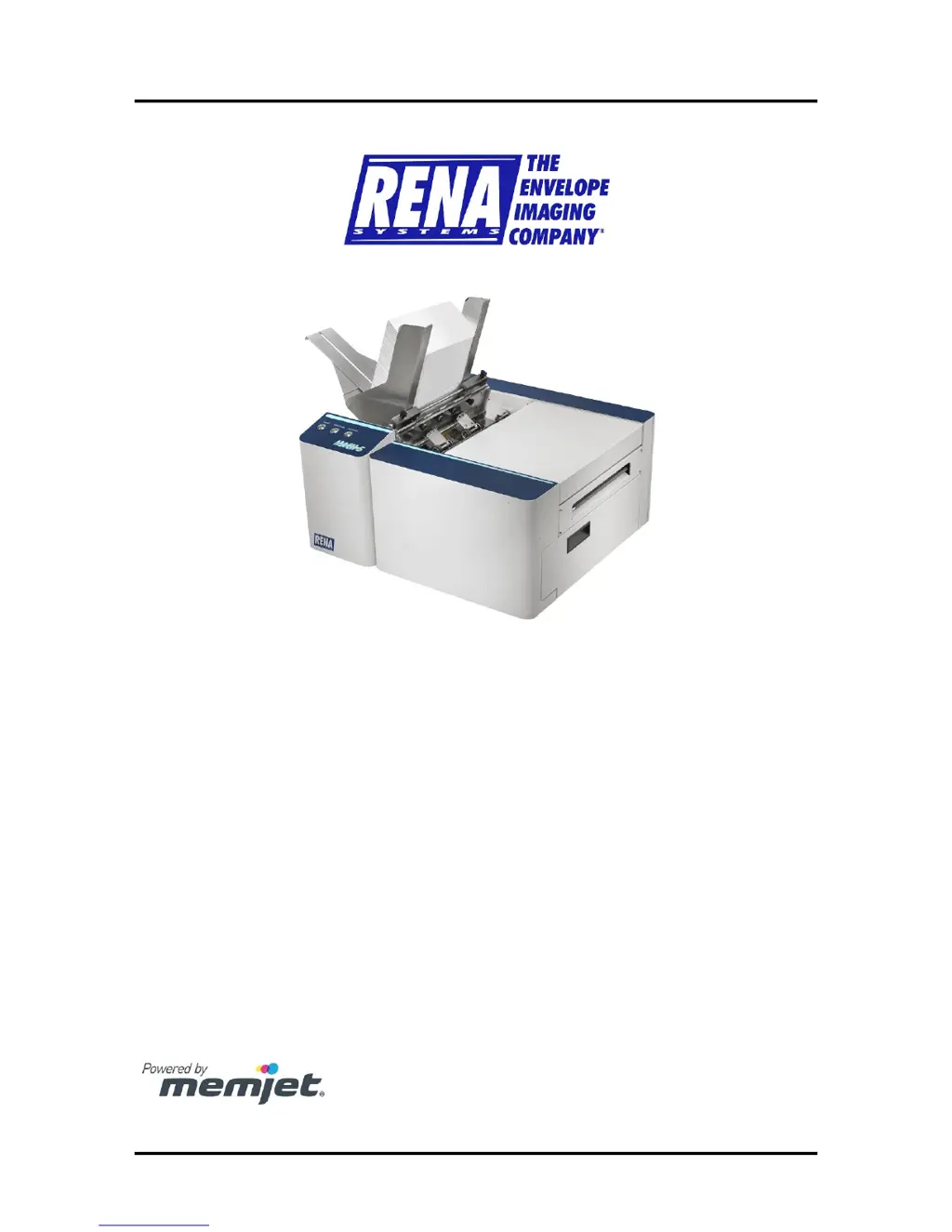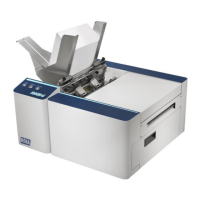
How to fix media jams on Rena MACH 5 Printer?
- CCarol GoodmanSep 1, 2025
If your Rena Printer is experiencing media jams, try the following: * Readjust the sheet separators. * Uncurl the media if it is curled. * Use compatible media.
How to fix media jams on Rena MACH 5 Printer?
If your Rena Printer is experiencing media jams, try the following: * Readjust the sheet separators. * Uncurl the media if it is curled. * Use compatible media.
How to fix improper output on Rena MACH 5 Printer?
To resolve improper output from the Rena Printer (such as address information being out of order, skipping records, or feeding blanks), ensure you are using the M Series Driver. Additionally, close the software, then turn the printer off and on.
What to do if my Rena Printer says 'Out of Ink'?
If your Rena Printer shows 'Out of Ink', replace the empty ink tank.
How to fix 'Ink Low' on Rena MACH 5 Printer?
If your Rena Printer is showing 'Ink Low' message, reorder ink.
What to do if my Rena MACH 5 says 'Paper Jam'?
If the Rena Printer displays a 'Paper Jam' error, clear the media from the system and then close the print engine.
How to troubleshoot Rena MACH 5 service station problems?
If you're encountering service station problems with your Rena Printer, try these steps: * Eject the Service Station and cycle the print engine off and on if the Service Station was not installed properly. * Make sure the wiper roller latches are closed and not damaged if the wiper roller securing latches are not closed.
What to do for ink tank issues on Rena MACH 5 Printer?
If you're experiencing ink tank issues with your Rena Printer related to empty or low ink levels, here are a few things to check: * Try removing and reinstalling the tank if one or more of the “septum needles” didn’t fully puncture the septum seal on the new ink tank. * Place the printer on a stable, level surface if it's not already. * Clean the prism on the tank if the QA chip on the tank may have been corrupted. * Check that the power is ON (Main Power Switch and ON/OFF button) and that the power cord is plugged in.
How to remove air from Rena Printer printhead?
If there's air in the printhead nozzle area of your Rena Printer, try these solutions: * Press the 'Full Clean Printhead' button in the Toolbox on the User Interface screen and lightly tap on the ink tubes and Printhead Cartridge as the system circulates ink. * Deprime and reprime the system. Release the printhead using the “Release Printhead” button, remove and reinstall the Printhead Cartridge, and then close the printhead latch to re-prime the system. * Instead of powering the printer off when not in use, leave the print engine powered up so it can perform automatic maintenance routines.
What to do if Rena Printer is smudging?
If you're experiencing scuff marks and smudging issues with your Rena Printer, here's what you can do: * Ensure the 'Head Media Guide' is properly installed. * Experiment with removing or inserting the 'PPS Spacers'. * Make sure your media is as flat as possible with tight folds. * Manually wipe the printhead surface with a lint-free cloth dampened with distilled water to remove excess ink. * Try rotating the media and image by 90, 270, or 180 degrees if possible. * Allow the printer to sit powered on for 2-3 hours to remove excess ink from the wiper roller. * Use a more suitable media that is flat and uniform in thickness. * Run the 'Quick Clean Printhead' routine once to see if it improves the issue.
Identifies and describes the components within the printer's print engine area.
Step-by-step guide for installing the printer's software, driver, and toolbox utility.
Instructions for connecting the printer to a network using an Ethernet cable.
Provides a detailed procedure for installing the printer's ink tanks.
Step-by-step guide for installing the Memjet printhead cartridge into the printer.
Explains the function of each button on the printer's control panel.
Describes the meaning of the printer's status lights and their recommended actions.
Instructions on adjusting media guides and separators for proper paper feeding.
Explains the settings and options available within the printer driver properties.
Guide on using the printer's Toolbox utility for monitoring and maintenance.
Covers the various buttons and functions available in the Toolbox user interface.
Procedure for replacing the printer's ink tanks when they are depleted or need replacement.
Explains how the printhead cartridge is cleaned automatically and manually.
Provides instructions for performing a manual cleaning of the printhead cartridge.
Step-by-step guide for removing and replacing the printer's printhead cartridge.
Covers the maintenance and replacement of components within the service station.
Advice for troubleshooting persistent print quality problems after performing maintenance.
Guides on how to identify and clear various types of media jams from the printer.
Lists common causes and checks for print quality problems with the printer.
Provides examples of print quality issues with their potential causes and solutions.
Discusses issues with nozzles and provides solutions for clogged, damaged, or dead nozzles.
Explains causes of color mixing problems and offers solutions to resolve them.
Addresses issues related to scuff marks and smudging, offering solutions to prevent them.
Explains common causes for fuzzy or distorted print quality and how to resolve them.
Covers common problems with ink tanks, including level status and recognition issues.
Details common problems and solutions related to the printhead cartridge.
Explains messages sent from the driver and displayed on the PC screen.
Details system status messages displayed in red within the M Series Toolbox utility.