TV
TV
24 25
Streaming mode volume adjustment
(Limited functionality for ReSound Alera wireless hearing instru-
ments. See “ReSound Alera streaming mode volume adjust-
ments“ section).
When in streaming mode, both hearing instruments volume (left
volume bar) and streamed audio volume (right volume bar) adjust-
ments are by default “active”. This is indicated in the display by
the two arrowheads (< and >) located next to the volume bars.
To adjust both hearing instrument and streamed audio volume
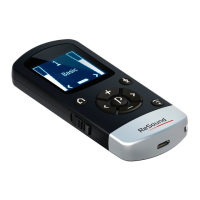
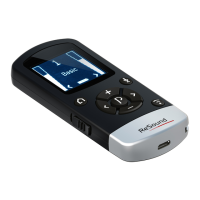
simultaneously, press the “+” or “-“ key (6 or 7 on page 9) on the
Remote Control 2.
Note: If you are using two hearing instruments any volume adjust-
ment will apply to both hearing instrument in parallel.
It is also possible to make individual volume adjustments for the
hearing instruments and the streamed audio signal respectively.
Adjust hearing instrument volume only
To adjust the hearing instrument volume press the left “<” key on
the keypad (8 on page 9) once. Now you will see two arrowheads
“<>” next to the hearing instrument volume bar and the “streamed
audio” volume bar will be dimmed.
Press “+” or “-“ (6 or 7 on page 9) to adjust hear-
ing instrument volume.
To return to simultaneous adjustment mode,
press the “>” key (9 on page 9) on the keypad
until one arrowhead appears next to each vol-
ume bar in the display, indicating that both vol-
ume levels are “active”.
Adjust streamed audio volume only
To adjust the streamed audio volume press the right “>” key on
the keypad (9 on page 9) once. Now you will see two arrowheads
“<>” next to the streamed volume bar and the “hearing instru-
ment” volume bar will be dimmed.
Press “+” or “-“ (6 or 7 on page 9) to adjust the streamed audio
volume.
To return to simultaneous adjustment mode,
press the “<” key (8 on page 9) on the keypad
until one arrowhead appears next to each vol-
ume bar in the display, indicating that both vol-
ume levels are “active”.


 To Next Page
 Loading...