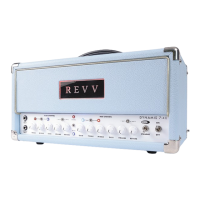
REVV | GENERATOR 100P MK3
16
MIDI
SETUP
37
Versatile & optional MIDI control helps Revv amps
seamlessly integrate into any rig. The amplifier will store
up to 128 programs for program change commands as
well as accept Continuous Controller (CC) commands
to control functions directly. The amplifier also features
OMNI mode to allow control options on 16 channels, &
phantom power to power control devices.
What does that mean?
1. You can set up “presets” of switch positions on the
amp to recall quickly. (this could be used for clean,
crunch, and high gain for example).
2. You can simply control anything’s on/o state
(FX loop for example).
3. You can do a combination of both of those things.
4. You can do this with a computer for automatic
changes during songs, a MIDI floor control unit
instead of our footswitch, a loop switcher with midi
to control pedals as part of the “presets,” a multi-
eects unit with MIDI control, & more.
5. You can do this with just our footswitch, or not at
all if you choose. External equipment just becomes
more beneficial when integrating your Revv with
additional pieces of a rig such as eects units.
OMNI MODE
38
OMNI mode o will allow the amplifier to be controlled
via a designated channel (1-16), & OMNI mode on will
allow the amplifier to respond to commands on any
channel. If other equipment is being used in a MIDI
system, it is desirable to set each piece of equipment to
separate channels. However if the amplifier is the only
piece of gear being controlled via MIDI, then setting
it to a specific channel is not required and using the
OMNI mode setting becomes preferable.
To toggle OMNI mode on or o:
1. Make sure the power switch is in the o position.
2. Press & hold “Reverb” push button.
3. With the “reverb” push button being held, turn on
the power switch.
4. Release the reverb push button once the reverb
LED begins to flash. Once the “reverb” LED has
stopped flashing, it has accepted the command to
adjust OMNI mode.
Note: The reverb LED will flash 3 times when it turns
OMNI mode on, & 4 times when it turns OMNI mode o.
MIDI CHANNEL SETTING
39
This amplifier can either automatically or manually
change the 16 MIDI channels you would like it to
respond to. The channel change is stored in memory
& only needs to be done when you need the amp to
respond on a certain channel.
1. To set the MIDI channel: With the power o, press
& hold the store button then turn on the power
switch. The amp will power up & begin to flash
all 3 channel LEDs as well as the Ch1/Ch2 Bright
LED. Once this happens it is awaiting the channel
data to be received from the external equipment
(Automatic) or to be set manually.
2a. To set the channel automatically: (recommended)
With your external equipment ready (pedals,
computers, etc.) & set to the channel you want the
amplifier to be controlled from via MIDI, send a
command to the amplifier by pressing a program
change button or CC command on your external
equipment. Once the amplifier receives the data,
it will verify the channel it received & save it to
memory. Easy!
2b. To set the channel manually: Once step 1 has been
completed above & the channel LEDs and CH1/
CH2 Bright LED are flashing, press the CH1 CLEAN
button. The CH1 LED will flash & the other Channel
LEDs and Bright LED will turn o, this signifies that



 To Next Page