EasyManua.ls Logo

Ricoh 407773 - User Manual

Ricoh 407773
100 pages
Print Icon
To Next Page IconTo Next Page
Loading...
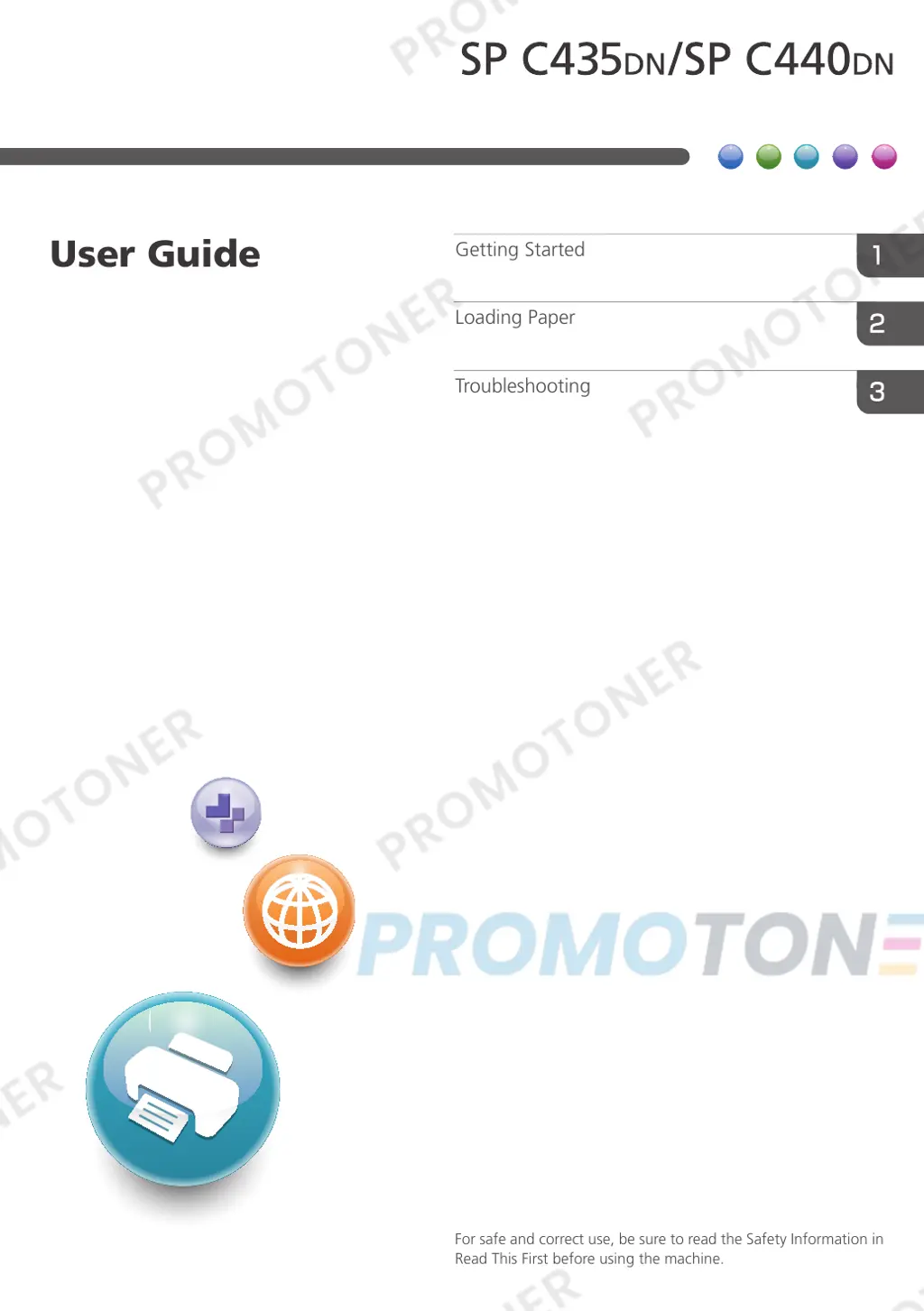
For safe and correct use, be sure to read the Safety Information in
Read This First before using the machine.
Troubleshooting
Loading Paper
Getting Started
User Guide

Table of Contents

Questions and Answers

  • T
    Thomas PinedaSep 6, 2025
    Why are images cut off when printing from my Ricoh Printer?
    • S
      Stacy ChandlerSep 6, 2025
      If the images are cut off or excess is printed by your Ricoh Printer, it might be because you are using paper smaller than the size selected in the application. Use the same size paper as selected in the application. If you cannot load paper of the correct size, use the reduction function to reduce the image, and then print.
  • D
    david53Aug 22, 2025
    What to do if the Ricoh Printer toner has run out?
    • A
      Adriana SmithAug 22, 2025
      If your Ricoh Printer indicates that the toner has run out, you should replace the print cartridge.
  • C
    Christopher CrossSep 3, 2025
    What to do if Ricoh 407773 Printer waste toner bottle is full?
    • T
      Thomas DavilaSep 3, 2025
      If your Ricoh Printer displays a message indicating that the waste toner bottle is full, you should replace the waste toner bottle.
  • S
    smartinezSep 2, 2025
    What to do if Ricoh 407773 cartridge is almost empty?
    • A
      April WilliamsSep 2, 2025
      If your Ricoh Printer displays a message that the print cartridge is almost empty, replace the print cartridge.
  • B
    Brandon Thomas DDSSep 1, 2025
    Why is the printed image smudged on my Ricoh Printer?
    • A
      Angela SteeleSep 1, 2025
      If the printed image from your Ricoh Printer is smudged, especially when using thick paper in the bypass tray, it might be because the settings for thick paper haven't been configured correctly. For PCL 5c: On the printer driver's [Paper] tab, select [Bypass Tray] in the "Input Tray:" list, then select the appropriate paper type in the "Type:" list. For PCL 6/PostScript 3: On the printer driver's [Detailed Settings] tab, click [Paper] in "Menu:", then select [Bypass Tray] in the "Input Tray:" list, and choose the correct paper type in the "Paper Type:" list.
  • E
    Erika DiazAug 30, 2025
    How to fix Ricoh 407773 Printer not automatically recognized?
    • B
      Bobby GrahamAug 30, 2025
      If the Ricoh Printer is not automatically recognized, it might be due to an improperly connected USB cable. Try disconnecting the USB cable, turning the printer off and then on again. After the printer fully boots up, reconnect the USB cable.
  • R
    Rhonda ReyesAug 29, 2025
    What to do if Ricoh 407773 cannot detect the wireless LAN interface board?
    • L
      Lauren HamptonAug 29, 2025
      If your Ricoh Printer cannot detect the wireless LAN interface board, check that the board is supported or installed correctly.
  • R
    Ruth DennisAug 27, 2025
    Why does my Ricoh 407773 Printer take so long to resume printing?
    • T
      Tammy MoralesAug 28, 2025
      If your Ricoh Printer takes too long to resume printing, it is because the printer was in Energy Saver mode or Sleep mode. The printer must warm up, and this takes time until printing starts.
  • L
    Louis ColeAug 26, 2025
    Why does my Ricoh 407773 Printer take so long to print?
    • R
      Richard HughesAug 27, 2025
      If it takes a long time to complete the print job on your Ricoh Printer, it may be because photographs and other data-intensive pages take a long time for the printer to process. Simply wait when printing such data.
  • N
    Nicole JohnsonAug 25, 2025
    Why is my Ricoh 407773 printing faded images?
    • S
      smithbrittanyAug 25, 2025
      If the printed image from your Ricoh Printer is faded across the entire page, it could be because the paper is unsuitable. Printing on coarse or treated paper might result in a faint print image. Use recommended paper.

Ricoh 407773 Specifications

General IconGeneral
BrandRicoh
Model407773
CategoryPrinter
LanguageEnglish

Related product manuals