EasyManua.ls Logo

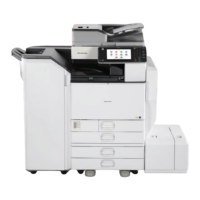
Ricoh Aficio MP C4502A - User Manual

Ricoh Aficio MP C4502A
240 pages
Print Icon
To Next Page IconTo Next Page
Loading...
Read this manual carefully before you use this machine and keep
it handy for future reference. For safe and correct use, be sure to
read the Safety Information in "Read This First" before using the
machine.
For information not in this manual, refer to
the HTML/PDF les on the supplied
CD-ROM.
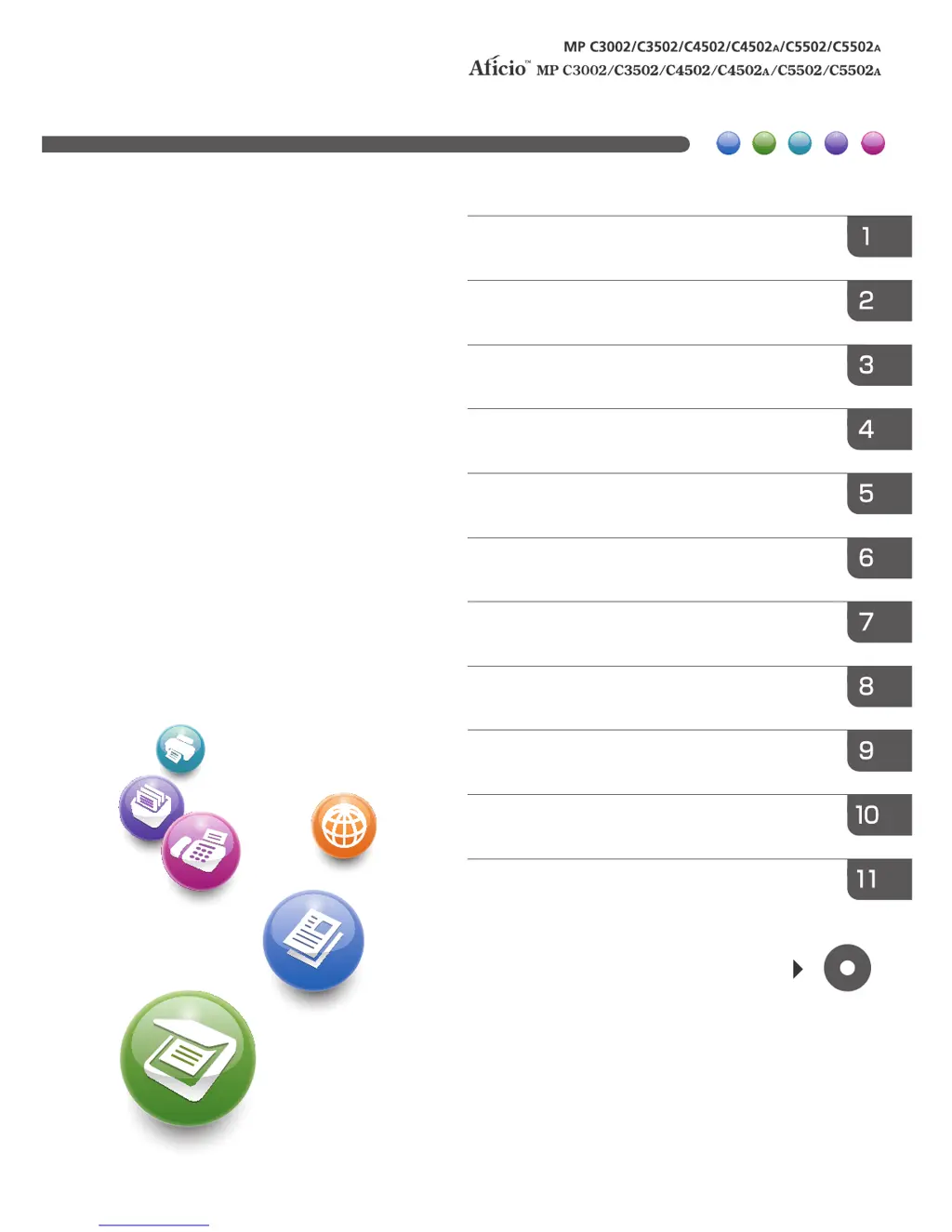
Appendix
Troubleshooting
Adding Paper and Toner
Web Image Monitor
Document Server
Scan
Print
Fax
Copy
Getting Started
What You Can Do with This Machine
User Guide

Table of Contents

Other manuals for Ricoh Aficio MP C4502A

Questions and Answers

  • H
    Heather FoxSep 23, 2025
    How to fix Ricoh All in One Printer unable to connect to network?
    • R
      Rebecca TaylorSep 23, 2025
      If your Ricoh All in One Printer is unable to connect to the network, a network error might have occurred. Press [Check] in the function where the error occurred, then check the displayed message and take the appropriate action. Ensure the machine is correctly connected to the network and properly set up. If the indicator remains lit after troubleshooting, contact your service representative.
  • L
    Luis WhiteAug 25, 2025
    Why does my Ricoh All in One Printer misfeed frequently?
    • J
      Jennifer EvansAug 25, 2025
      If misfeeds occur frequently with your Ricoh All in One Printer, ensure the tray's side or end fences are set properly and locked. Also, do not place anything on the finisher tray. If you load a paper size that is not selected automatically, specify the paper size using the control panel. If misfeeds occur frequently when printing on sheets loaded in internal tray 2, raise the guide on internal tray 2, and then try printing the job again. If sheets are curled when they are output, raise the guide on internal tray 2.
  • M
    Michael MartinezAug 25, 2025
    Why does Ricoh All in One Printer print on the reverse side?
    • W
      Wendy JonesAug 26, 2025
      If your Ricoh All in One Printer prints original images on the reverse side of the paper, you might have loaded the paper incorrectly. Load paper into the paper tray or tray 3 (LCT) with the print side up. Load paper into the Large capacity tray (LCT), or bypass tray with the print side down.
  • J
    John CarpenterAug 27, 2025
    How to enable duplex printing on Ricoh All in One Printer?
    • A
      Amanda MartinezAug 27, 2025
      If you cannot print in duplex mode with your Ricoh All in One Printer, it might be because you've selected a paper tray that isn't set for duplex printing. Change the setting for "Apply Duplex" in System Settings to enable duplex printing for the paper tray. Alternatively, you might have selected a paper type that cannot be used for duplex printing. In [Tray Paper Settings], select a paper type suitable for duplex printing.
  • T
    Timothy MccarthyAug 27, 2025
    What to do if error message remains on Ricoh All in One Printer?
    • T
      Taylor ChavezAug 27, 2025
      To clear an error message on your Ricoh All in One Printer after removing misfed paper, open and close the cover as required. Also, check if paper is still jammed in the tray.
  • M
    Mark MorganSep 13, 2025
    Why is my Ricoh Copier unable to connect to the network?
    • S
      smithrobertSep 14, 2025
      If your Ricoh Copier is unable to connect to the network, a network error may have occurred. Press [Check] in the function where the error occurred and then check the displayed message, and take appropriate action. Check that the machine is correctly connected to the network, and that the machine is correctly set.
  • G
    Gabriel MorrisSep 12, 2025
    What to do if my Ricoh Copier lamp remains lit even when the [Energy Saver] key was pressed?
    • J
      Jennifer ButlerSep 12, 2025
      If the lamp remains lit on your Ricoh Copier and the machine does not enter Sleep mode even though the [Energy Saver] key was pressed, it may be because the ADF is open. Close the ADF. Also, check if the machine is communicating with external equipment and wait a little longer.
  • A
    Allison HickmanSep 12, 2025
    What does it mean if an error has occurred on my Ricoh Copier?
    • M
      masseylisaSep 12, 2025
      If an error has occurred on your Ricoh Copier, a function with the status "Error Occurred" in the [Check Status] screen is defective. Press [Check] in the function where the error occurred, then check the displayed message, and take appropriate action.
  • W
    William MooreSep 4, 2025
    How to fix Ricoh Copier hardware problem Ethernet?
    • R
      Reginald HerringSep 4, 2025
      If your Ricoh Copier displays the message "Hardware Problem: Ethernet", it means that an error has occurred in the Ethernet interface. Turn off the main power switch, and then back on again.
  • J
    Juan AllenSep 2, 2025
    What to do if my Ricoh Copier shows 'Memory is full. Do you want to store scanned file?'?
    • P
      paul00Sep 2, 2025
      If your Ricoh Copier shows 'Memory is full. Do you want to store scanned file?', it means the scanned originals exceed the number of sheets/pages that can be stored on the hard disk. Press [Yes] to store pages that have been scanned or press [No] if you are not storing pages that have been scanned. Delete unnecessary files by pressing [Delete File].

Ricoh Aficio MP C4502A Specifications

General IconGeneral
FunctionsPrint, Copy, Scan, Fax
Print TechnologyLaser
Print Speed (Black)45 ppm
Print Speed (Color)45 ppm
Print Resolution1200 x 1200 dpi
Copy Speed45 cpm
Copy Resolution600 x 600 dpi
Scan Resolution600 x 600 dpi
Monthly Duty Cycle150, 000 pages
Fax Resolution200 x 200 dpi
Duplex PrintingYes
Paper CapacityMaximum: 4, 400 sheets
Paper SizeA3, A4, A5, B4, B5, Legal, Letter
ConnectivityUSB, Ethernet, Wi-Fi
Scanner TypeFlatbed, ADF
Operating System CompatibilityWindows, macOS, Linux

Related product manuals