Replacing a Print Cartridge > Checking the Remaining Ink
Checking the Remaining Ink
Follow the procedure below to check when to replace Print cartridges using the Printer Status monitor or the cartridge
replacement indicators.
Checking using the Printer Status monitor
1. Open the printer properties dialog box.
2. Click the [Maintenance] tab.
3. Click [Display Status Monitor].
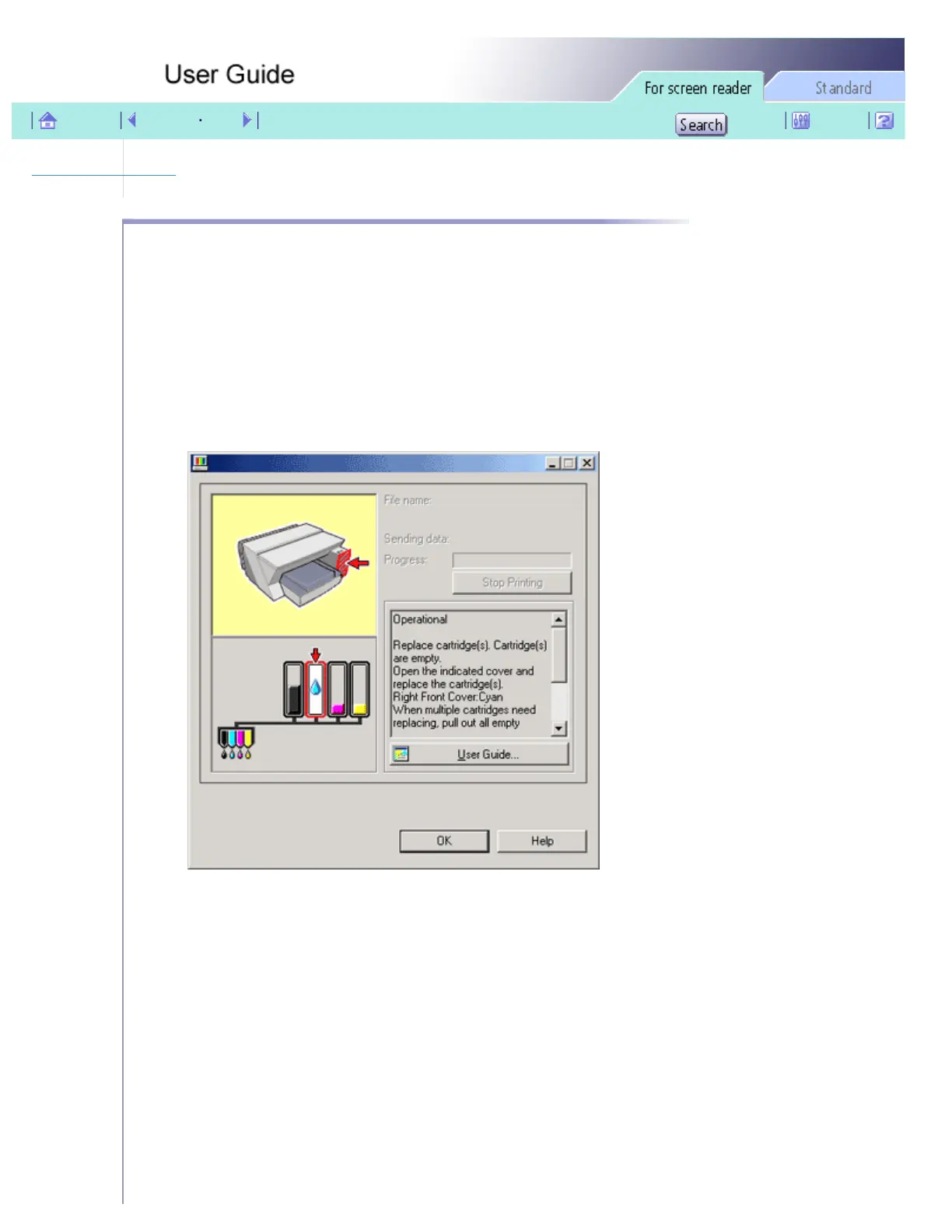
The Printer Status monitor dialog box appears.
4. Check the cartridge status.
In the illustration above, the cyan Print cartridge is empty.
If the background of the image in the top left corner of dialog box is yellow, the indicated cartridge is empty.
Replace the cartridge.
file:///E|/shared/pdf-work/newfiles/pp2w/Op_Guide/acc/0144.htm (1 of 3)2005/10/05 12:08:52



 To Next Page