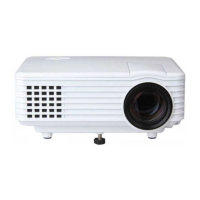
This document is an instruction manual for a projector, providing comprehensive guidance on its operation, installation, and maintenance. The projector is designed to display high-definition video signals and composite video signals, supporting stereo audio input and output. It is suitable for various viewing environments, with recommendations for use in dark rooms to enhance the viewing experience.
Function Description
The projector serves as a display device, capable of projecting images and videos onto a screen or surface. It supports multiple input sources, including HDMI 1, HDMI 2, and AV, allowing connection to various external devices such as laptops, media players, and gaming consoles. The device also features USB connectivity for playing multimedia files directly from a USB disk. For wireless connectivity, the projector supports both iOS Cast and Miracast, enabling screen mirroring from iOS and Android devices, respectively. This makes it versatile for both entertainment and office presentations. The projector's core function is to transform digital content into a large-format visual display, offering an immersive viewing experience.
Usage Features
The projector offers a range of features designed for ease of use and optimal viewing.
- Power On/Off: The projector can be turned on or off using either the power key on the device body or the remote control. A red indicator light signifies standby mode, while a blue light indicates the projector is in operation.
- Focus Adjustment: A focusing dial allows users to manually adjust the lens focus to achieve the clearest possible image. This involves slowly rotating the trackwheel counterclockwise while observing the pixels on the screen until they appear sharpest, typically in the middle of the image.
- Source Selection: Users can easily select the desired input source (e.g., HDMI 1, HDMI 2, AV, iOS Cast, Miracast, Movie, Music, Photo, Office Suite) from the main interface using the "OK" key on the remote control.
- Wireless Connectivity (WiFi): The projector can connect to a WiFi network. This is essential for features like iOS Cast and for potential projector upgrades. The process involves navigating to the "WiFi Setting" in the settings interface, selecting the desired network, and entering the password.
- Projection Settings: The projector offers various projection settings to optimize the display. These include:
- Manual Keystone: A 4-point keystone adjustment allows for correcting distorted images when the projector is not perfectly perpendicular to the screen.
- Projection Mode: Users can choose from different projection modes: Front-Desktop, Rear-Desktop, Front-Ceiling, and Rear-Ceiling. These modes adjust the image orientation to suit different installation setups.
- Digital Zoom: The digital zoom feature allows users to scale the image size from 50% to 100% without physically moving the projector.
- iOS Cast: For iOS devices, the projector facilitates screen mirroring. Both the iOS device and the projector must be connected to the same network. Users can then open the Control Center on their iOS device, select "Screen Mirroring," and choose the projector's device name from the list.
- Miracast: For Android devices, Miracast enables wireless display. Users need to turn on the WiFi on their Android device (it's recommended that the projector is connected to the same router or the Android device's WiFi is not connected to any router). Then, they activate "Wireless Display" on their Android device and select the corresponding projector device name.
- USB Disk Playback: The projector supports direct playback of multimedia files from a USB disk. Users can select categories like "movie," "music," "photo," or "Office Suite" from the main interface and then browse and play files.
- Remote Control: A comprehensive remote control is provided, featuring keys for power, source selection, arrow navigation, menu access, USB homepage, volume control, mute, picture flip, confirmation (play/pause), exit, previous, and next. An LED indicator lamp on the remote provides feedback.
- Keystrokes on Device: The projector also has onboard controls, including power, exit, OK, up, down, left, and right keys, offering an alternative to the remote control.
- Level-Stand Adjustment: The projector includes a level-stand adjustment mechanism to ensure a stable and level projection.
Maintenance Features
Proper maintenance is crucial for the longevity and optimal performance of the projector.
- Cleaning:
- Always unplug the power cable before cleaning.
- The projector's shell should be cleaned regularly with a damp cloth and neutral detergent.
- For the lens, use a glasses cloth or lens paper to avoid scratches.
- Regularly clean the projector's vents and speakers with a banister brush to prevent ventilation blockage, which can lead to overheating.
- Heat Dissipation:
- To ensure stable heat dissipation, it is recommended to open the height bracket at the bottom of the projector before operation.
- The exhaust port can become very hot during or immediately after projection, so avoid touching it to prevent scalds.
- The projector should be used in an environment where the temperature does not exceed 5 °C - 35 °C to prevent malfunction.
- Poor ventilation can cause overheating, potentially damaging the projector and creating a safety hazard.
- General Care:
- Handle the projector carefully to avoid dropping or crashing, which can damage internal parts, blur images, or cause abnormal display.
- Avoid excessive bending of the power cord, as damage can lead to electric shock or fire. It is advisable to unplug the power cord after powering off the projector.
- Do not disassemble the projector, as this voids the warranty and poses a risk of electric shock.
- Avoid placing any liquid or heavy objects on the projector.
- Do not look directly into the lens during projection, as it may harm your eyes.
- Dust Cover: The projector features a removable dust cover, which likely aids in cleaning and protecting internal components from dust accumulation.


 To Next Page
 General