EasyManua.ls Logo

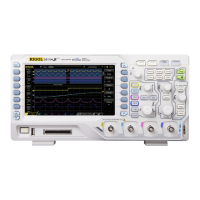
Rigol DS1104B - User Manual

Rigol DS1104B
172 pages
Print Icon
To Next Page IconTo Next Page
Loading...
RIGOL
User’s Guide
DS1000B Series Digital Oscilloscopes
DS1074B,DS1104B,DS1204B
Aug. 2016
RIGOL TECHNOLOGIES, INC.

Table of Contents

Other manuals for Rigol DS1104B

Questions and Answers

  • B
    barrettdeniseAug 3, 2025
    What to do if my Rigol Test Equipment oscilloscope doesn't display any waveform after pressing the RUN/STOP button?
    • F
      frenchdavidAug 3, 2025
      If your Rigol Test Equipment oscilloscope isn't showing a waveform after you press RUN/STOP, here's what to check: * See if the Trigger Mode is set to “Normal” or “Single” and whether the trigger level is outside the signal range. If the trigger level is out of range, adjust it using the knob or by pressing the 50% button. * Alternatively, set the Trigger Mode to “AUTO”. * You can also push the AUTO button to attempt to automatically display the waveform.
  • A
    Andre BarronAug 7, 2025
    How to fix a dark screen on my Rigol Test Equipment oscilloscope after powering it on?
    • S
      Samuel OwensAug 8, 2025
      If your Rigol Test Equipment oscilloscope screen remains dark after powering on, try these steps: * First, check the power cord connection to ensure it's secure. * Next, verify that the power switch is turned on. * If both are fine, restart the oscilloscope. If the problem persists after these steps, further assistance may be needed.
  • C
    changalexandraAug 12, 2025
    Why doesn't a waveform appear on my Rigol DS1104B after signal acquisition?
    • K
      Kevin EllisonAug 12, 2025
      If a waveform doesn't appear on your Rigol Test Equipment after signal acquisition, consider the following checks: * Ensure the probes are correctly connected to the signals and firmly attached to the channels. * Also, verify that the probes are properly connected to the object being tested and that the circuit generates a signal at the test point. * Finally, try repeating the acquisition.
  • K
    kevansAug 17, 2025
    How to get a stable waveform display on Rigol Test Equipment oscilloscope?
    • M
      Mark ShawAug 17, 2025
      To achieve a stable waveform display on your Rigol Test Equipment oscilloscope, consider these adjustments: * Check that the Trigger Source is set to the channel you are using. * Verify the Trigger Type: use “Edge” for normal signals and “Video” for VIDEO signals. * Try switching the coupling to HF Rejection or LF Rejection to filter out noise that might be disturbing the trigger. * Adjust the trigger Sensitivity and the hold off time.
  • E
    Elizabeth DavisAug 20, 2025
    What causes incorrect measurement results on Rigol DS1104B Test Equipment (10x higher or lower)?
    • B
      Benjamin HartmanAug 20, 2025
      If the measurement result on your Rigol Test Equipment is significantly off (10 times higher or lower than expected), the most likely cause is a mismatch between the probe attenuation and the channel attenuation. Check if the probe attenuation setting matches the channel attenuation setting.
  • J
    Juan SmithAug 26, 2025
    How do I resolve a ladder-like waveform display on my Rigol DS1104B Test Equipment oscilloscope?
    • L
      Lisa AtkinsAug 26, 2025
      If your Rigol Test Equipment oscilloscope displays a signal as a ladder-like waveform: * The time base setting may be too slow. Turn the horizontal knob to increase the horizontal resolution. * Alternatively, the display Type might be set to “Vectors”. Set it to “Dots” mode to improve the display.
  • T
    Tracy CortezAug 29, 2025
    Why can't my Rigol DS1104B connect to a PC or PictBridge printer via USB?
    • B
      Benjamin VillaAug 29, 2025
      If your Rigol Test Equipment is unable to connect to a PC or PictBridge printer via USB: * When connecting to a PC, if you see an “Unknown device” message or a prompt indicating a scanner or camera was found, go to the Utility menu, choose I/O Setting, and check the USB Device menu. If it's set to “PictBridge”, switch it to “Auto Detect” or “Computer”. * If connecting to a PictBridge printer is unsuccessful, switch the USB Device menu to “Auto Detect” or “PictBridge”. In either case, restarting the oscilloscope may be necessary.

Summary

Guaranty and Declaration

Safety Notices

General Safety Precautions

Lists essential safety measures for instrument operation, connection, and handling.

Safety Notices and Symbols

Safety Terms and Symbols

Explains hazard warning terms and symbols used in the manual and on the product.

General-Purpose Oscilloscopes

Product Introduction

Introduces the DS1000B series digital oscilloscopes and their key features.

Document Overview

Chapter Structure

Outlines the structure and content of each chapter in the user's guide.

Chapter 1 Quick Guide

General Inspect

Guide for inspecting the instrument and accessories after receiving it.

Panels and User Interface

Introduction to the front and rear panels and their controls.

Functional Check

Steps to perform a quick functional check to verify instrument operation.

Probe Compensation

Procedure to match probe characteristics with the oscilloscope channel input.

Vertical System Overview

Explanation of controls for adjusting vertical position and Volts/div.

Horizontal System Overview

Explanation of controls for adjusting horizontal scale and position.

Trigger System Overview

Overview of trigger modes, level adjustment, and settings.

Chapter 2 Operating Your Oscilloscope

Vertical System Setup

How to set up and configure the vertical channels and MATH/REF functions.

Horizontal System Setup

How to configure delayed scan, time expansion, time base, and trigger offset.

Trigger System Setup

Detailed setup for various trigger modes like Edge, Pulse, Video, Pattern, Alternative.

Sampling System Setup

How to configure acquisition modes like Normal, Average, and Peak Detect.

Storage and Recall

Procedures for saving and recalling waveforms, setups, and files.

Automatic Measurements

How to use automatic measurements for voltage and time parameters.

Cursor Measurements

Using cursors in Manual, Track, and Auto modes for measurements.

Chapter 3 Application Examples

Simple Measurements

Demonstrates displaying and measuring frequency and peak-to-peak amplitude.

Signal Delay Observation

How to observe signal delay caused by a circuit using waveform analysis.

Single-Shot Signal Capture

Steps to capture a single event using trigger setup and acquisition.

Noise Reduction Techniques

Methods to reduce random noise using trigger coupling and average acquisition.

Cursor Measurement Examples

Measuring peak frequency and amplitude using cursors on a sinc waveform.

X-Y Operation for Phase

Using X-Y display to monitor input/output and capture phase changes.

Pass;Fail Test Example

Performing a Pass/Fail test by comparing input signal to a predefined mask.

Chapter 4 Troubleshooting

No Display Issues

Troubleshooting steps for a dark screen after powering on the oscilloscope.

Waveform Not Appearing

Steps to resolve issues where the waveform does not appear after signal acquisition.

Unstable Waveform Display

Troubleshooting for obtaining a stable waveform display, including trigger settings.

USB Connectivity Issues

Troubleshooting problems connecting to a PC or PictBridge printer via USB.

Chapter 5 Specifications

Technical Specifications

Detailed specifications for acquisition, inputs, horizontal, and vertical systems.

General Specifications

Environmental, mechanical, power, and display specifications for the oscilloscope.

Chapter 6 Appendixes

DS1000 B Series Accessories

Lists standard and optional accessories for the DS1000B series oscilloscopes.

Warranty Information

Details RIGOL's warranty terms for the product and its accessories.

Care and Cleaning Guide

Instructions on how to care for and clean the instrument to ensure longevity.

Rigol DS1104B Specifications

General IconGeneral
Bandwidth100 MHz
Channels4
Sample Rate1 GSa/s
Input Voltage Range400V (DC + AC Peak)
Vertical Sensitivity2 mV/div to 10 V/div
Timebase Range5 ns/div to 50 s/div
Display Resolution800 x 480
Trigger ModesEdge, Pulse, Video, Slope, Alternate
Vertical Resolution8 bits
InterfacesUSB Host, USB Device
Input Impedance1 MΩ ± 2%
Memory Depth16 kpts
Display7-inch TFT LCD (800x480)

Related product manuals