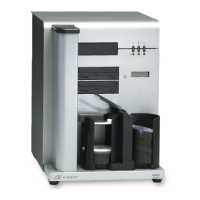
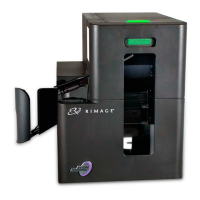
2003484_A
For more information visit www.rimage.com/support
10
Operate the Catalyst System
Load the Discs
You can load up to 50 discs in each bin. You can use the procedure
below to place discs in a bin.
1. Open the front door.
2. Press the system button to rotate the carousel and place a bin in
position to load discs.
3. Place up to 50 discs to be recorded and/or printed in the bin.
• The default bin conguration for CD/DVD-based systems is:
Bin 1: CD-R
Bin 2: DVD-R
Bin 3: Output/Reject
External Output Bin: Unused
• The default bin conguration for systems with Blu-ray
recorders is:
Bin 1 = CD
Bin 2 = DVD
Bin 3 = BD
External Output Bin = Output/Reject
Important! Place the discs with the recording side facing down.
Tip: You may designate bins 1 through 3 as input, output, reject, or
output/reject and specify media type through your software.
4. Repeat steps 2 - 3 until the required bins are lled.
5. Close the front door.
Unload the Discs
1. Open the front door.
2. Press the system button to rotate the carousel and place a bin in
position to remove discs.
3. Remove all discs from the bin.
4. Repeat steps 2 - 3 until the required bins are empty.
5. Close the front door.
Set Your Printing Preferences
Printing preferences allow you to set up and run your Catalyst system
to produce the best possible label on your discs. Refer to your printer
user guide for specic printing preferences instructions.


 To Next Page