20
Reducing power consumption
You can control how the machine progresses towards lower power consumption stages with the [Backlight OFF] and
[Auto sleep] functions in the [Power save setting].
Depending on the transition time setting, you can reduce power consumption by putting the machine from Ready state
directly into sleep state and skipping Backlight-OFF state. You cannot put the machine from sleep state into Backlight-
OFF state.
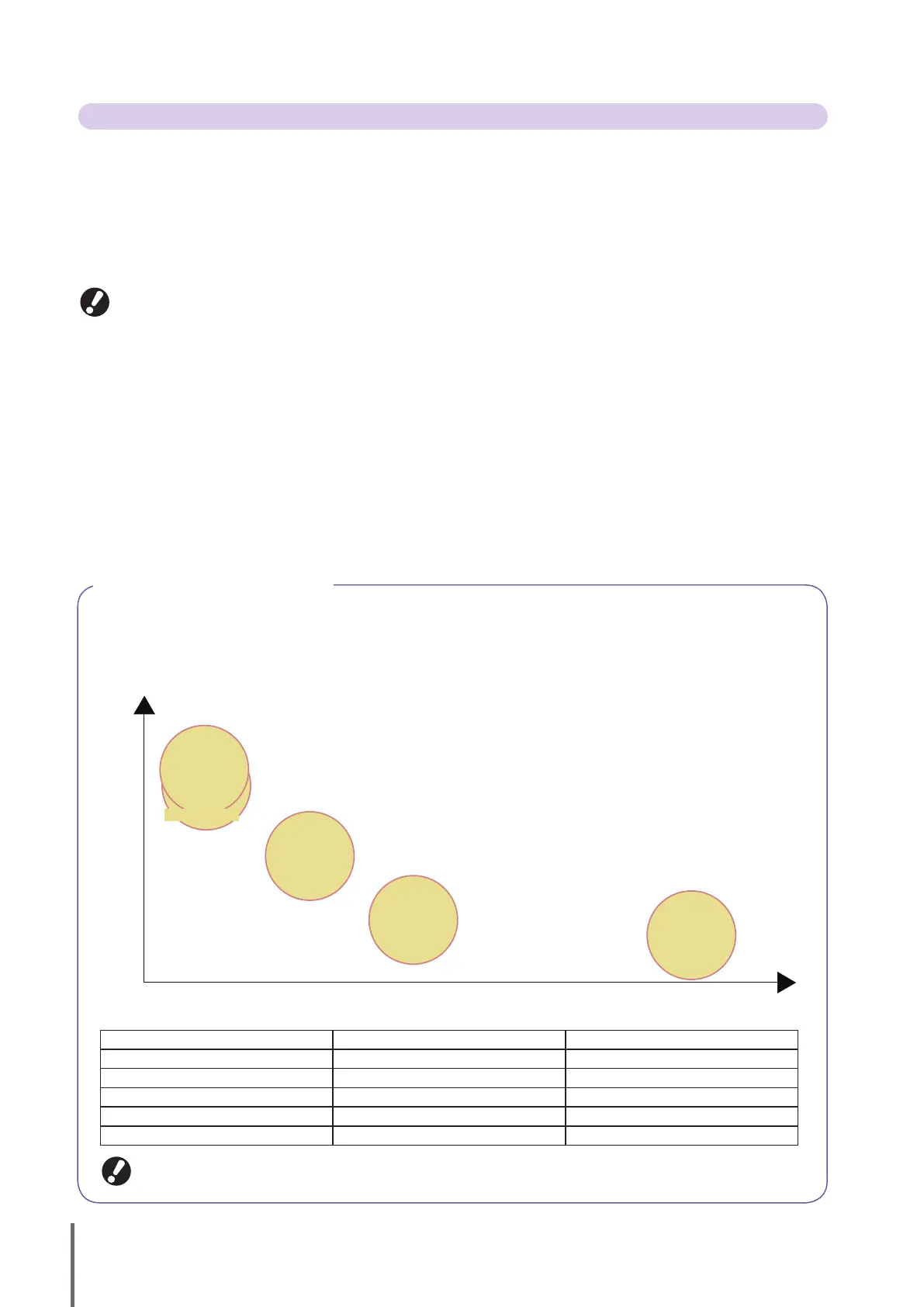
Power consumption
Short LongRecovery time
Ready state
Backlight-OFF
Sleep
[Standard]
Sleep [Low]
Standby
High
Low
Printer status Setting item/value Power consumption
Ready state - 150 W or less
Backlight-OFF Auto backlight-OFF 147 W or less
Sleep: [Standard] Power consumption (in sleep) [Standard] 65 W or less
Sleep: [Low] Power consumption (in sleep) [Low] 5 W or less
Standby - 0.5 W or less
You can also turn ON or OFF the sub power automatically by “Power schedule” and “Auto power-OFF setting”. Contact the
administrator for details.
Power save setting
You can save power by controlling power consumption during standby.
The power saving mode turns on automatically if you leave the machine unattended for some time. When the power saving
mode turns on, the touch panel turns o, and the [Wake up] key turns on. When you press the [Wake up] key, the power
saving mode is canceled, and the machine recovers.
The power saving mode has backlight o and sleep states. You can select sleep from two dierent consumption power
values, [Low/Standard]. In the “Admin. Settings”, set the time the machine enters each state and the power consumption
value. Less power is consumed in sleep state than in backlight o state. The machine turns back on faster in backlight o
state.
Cautions when setting [Power consumption (in sleep)] to [Low]:
• The RISO Console is not displayed in sleep state.
• If you print on a network where wake on LAN does not work, the printer does not wake up automatically. Set “MAC address” in the
printer driver’s [Environment] tab. See “Conguring the MAC Address” in the “User’s Guide” for details.
ComColor Series Basic Guide 06



 To Next Page