77
How to Use Useful Functions >> Printer Mode Screens
3
• The screens displayed vary depending on what optional equipment has been connected and how you have completed settings.
• Some items may not be displayed, depending on how the administrator has congured the settings. For details, ask your
administrator.
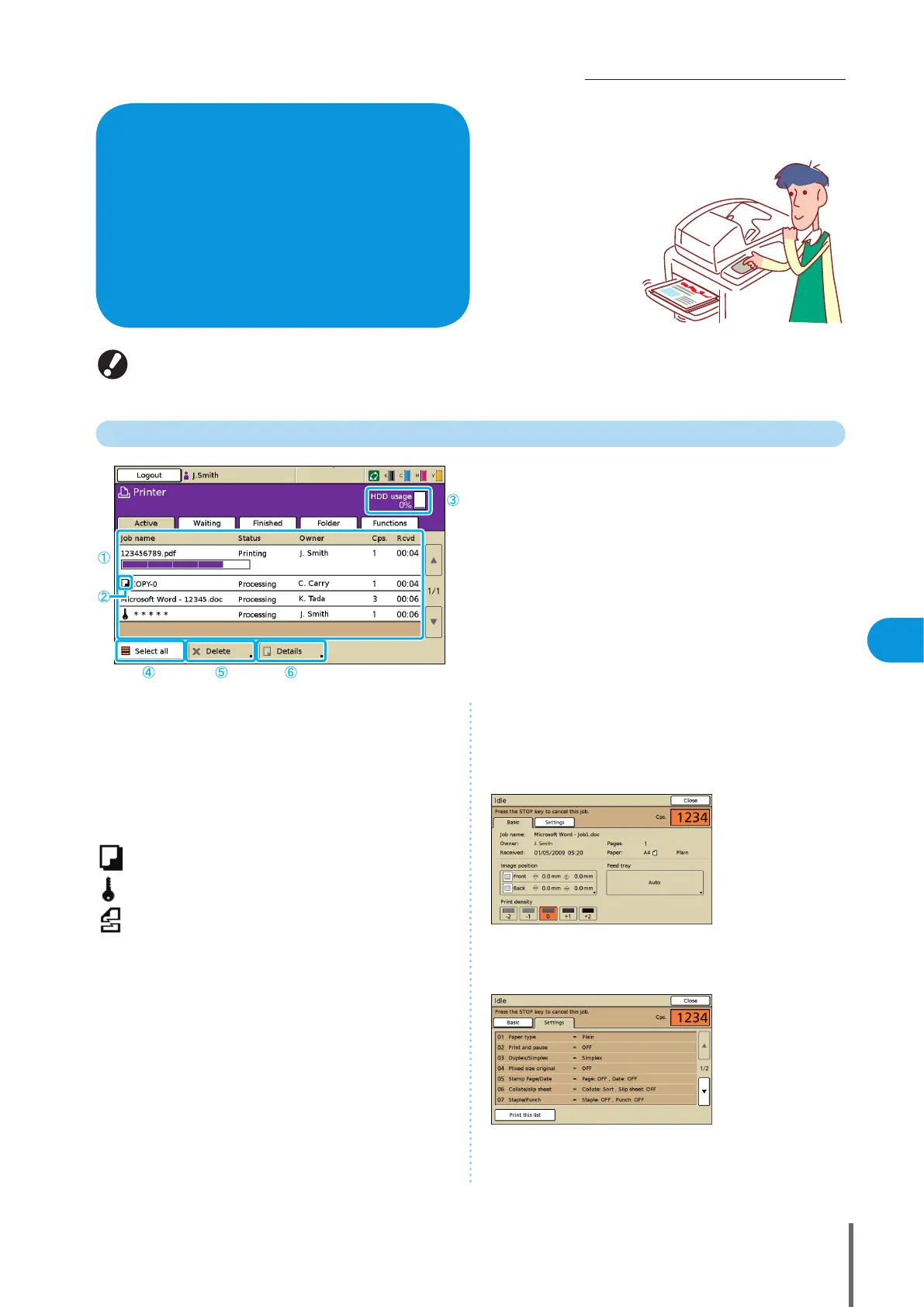
Active Screen
Lists active and idle jobs.
a Job list
Check the job name, status, owner name, and other details.
The job currently being processed is listed rst. Jobs shown
here will be processed in the order they are listed.
b Job icon
Indicates the job type. The icon is located to the left of a job
name.
Copy job
PIN code job
Broken jobs (broken data or a dierent type of le
format from the RISO printer driver’s)
c HDD usage
Indicates how much of the hard disk drive is used.
d [Select all]
Press to select all listed jobs.
e [Delete]
Delete the selected job.
f [Details]
Check settings of selected jobs.
z Basic Screen
Check paper or print settings, as needed.
z Settings Screen
Check the current settings, as needed.
[Print this list]
Print the listed settings information.
On printer mode screens, you can select jobs from the job
list for printing, deleting, or detailed display.
What You Can Do in the
Printer Screens
(Printer Mode Screens)
ComColor Series Basic Guide 06









 To Next Page