78
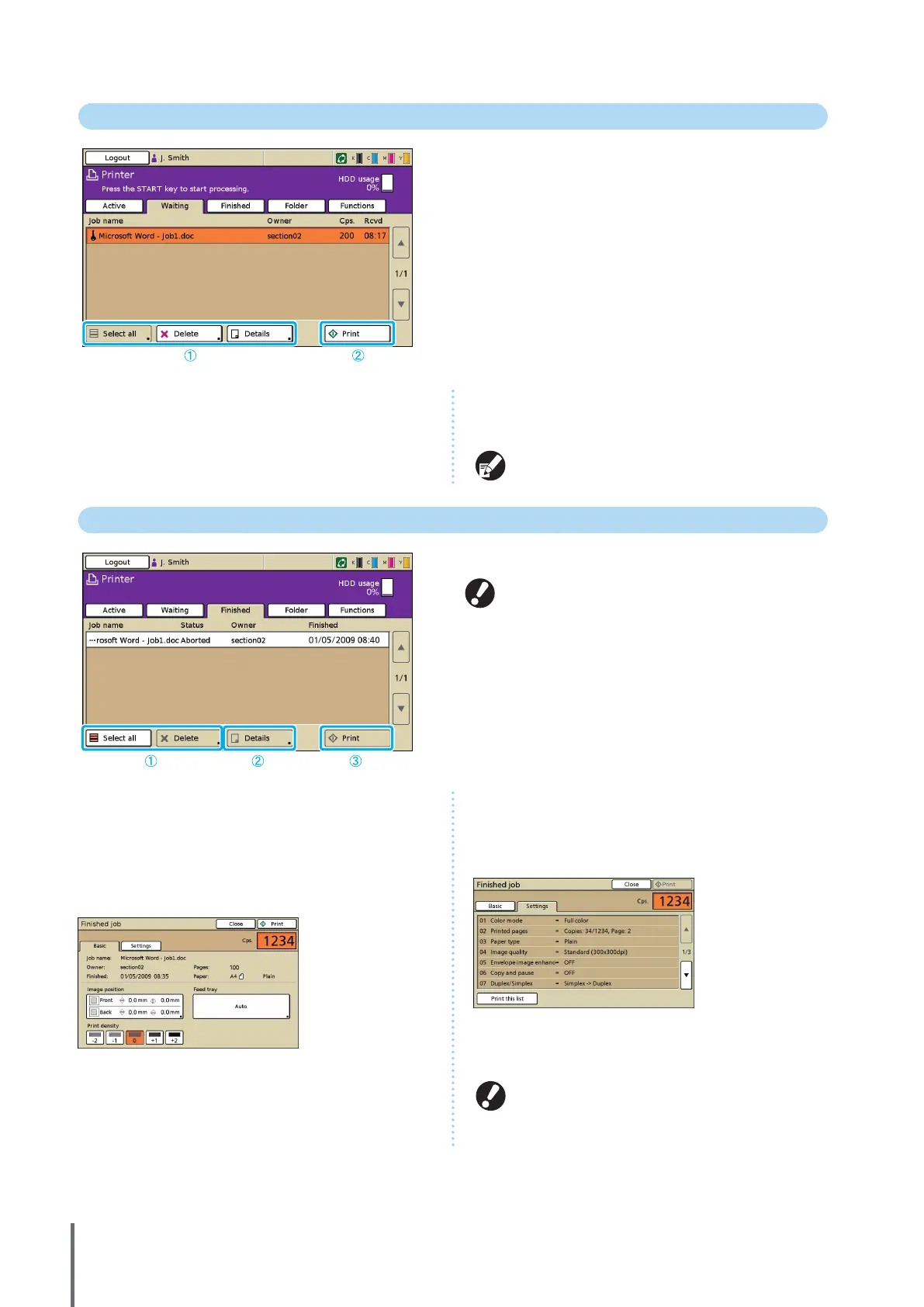
Waiting Screen
Lists jobs awaiting further user action.
Jobs appear on this list under the following conditions.
• They have a PIN code
• The administrator has assigned the jobs to this list
• When an IC card reader has been connected (but under
some settings, jobs may be printed without appearing on
this screen)
Selecting a job and pressing the [START] key moves the job to
the list on the [Active] screen, after which the job will be
printed.
a [Select all], [Delete], and [Details]
See ”Active Screen” (p.77).
b [Print]
Print the selected job. Pressing [Print] displays the [Active]
screen, and then the job will be printed.
For PIN code jobs, the conrmation screen is displayed.
Finished Screen
Lists jobs for which processing is nished.
It may not be possible to display or print some jobs,
depending on how the administrator has congured the
settings. For details, ask your administrator.
a [Select all], [Delete]
See ”Active Screen” (p.77).
b [Details]
z Basic Screen
Check or modify paper or print settings, as needed.
[Image position]
Adjust the printing position of images.
[Feed tray]
Specify the tray to use.
[Print density]
Specify the print density.
z Settings Screen
Check current settings and the number of printed pages.
c [Print]
See ”Waiting Screen” (p.78).
Copy jobs cannot be printed again.
ComColor Series Basic Guide 06









 To Next Page