93
How to Use Useful Functions >> RISO Console Screens
3
• The screens displayed vary depending on the operating system used and the optional equipment connected.
• Make sure the machine has been connected to the network.
• Some items may not be displayed, depending on how the administrator has congured the settings. For details, ask your
administrator.
• Supported browsers
– Internet Explorer Ver. 6.0 (SP1 or later)
– Internet Explorer Ver. 7.0
– Internet Explorer Ver. 8.0
– Internet Explorer Ver. 10.0
– Internet Explorer Ver. 11.0
•
is displayed on the left side of the screen while information on the machine is being collected.
• The RISO Console screens may not be displayed due to some of the power saving settings. Contact the administrator for details.
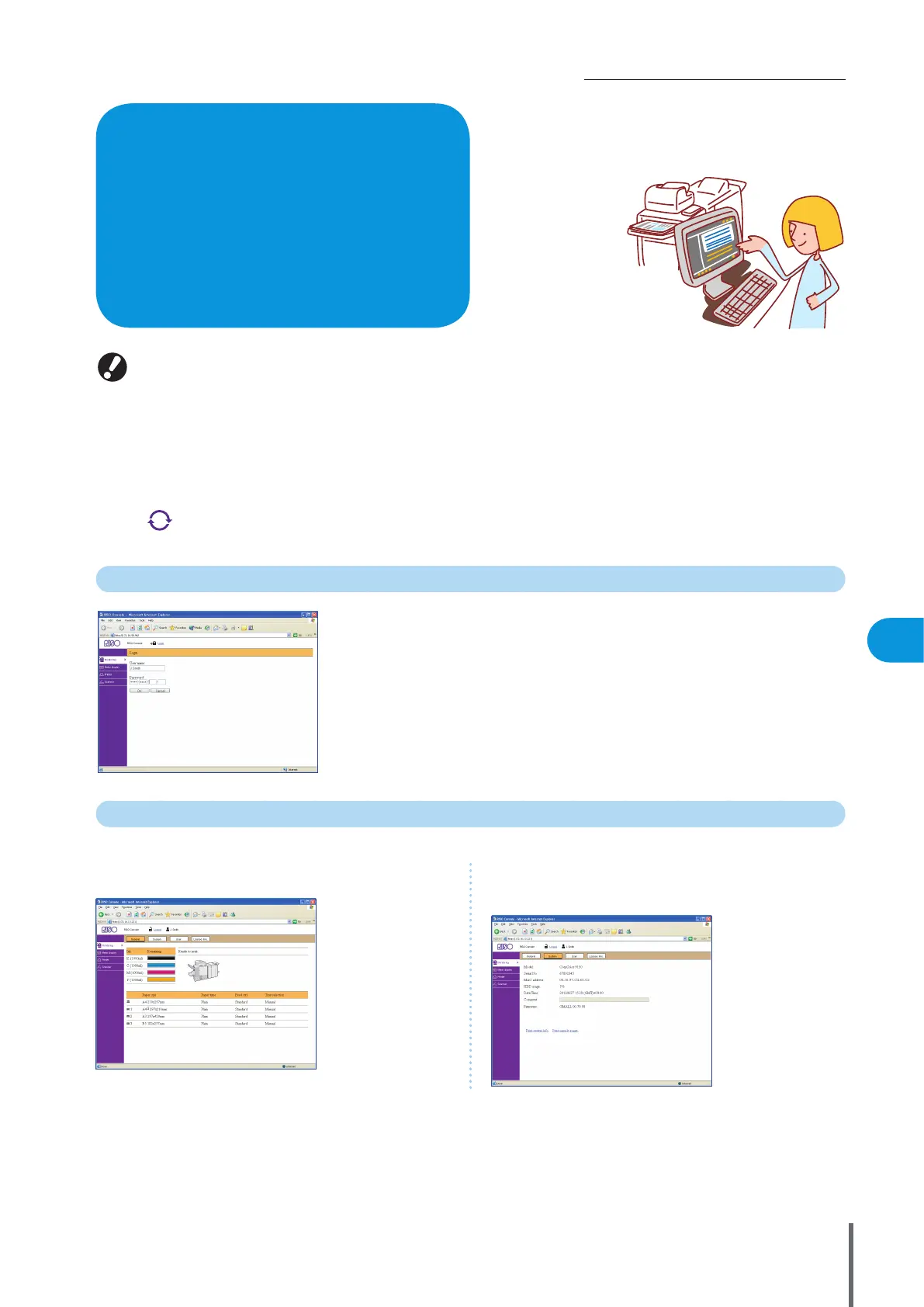
User Login
When you attempt to access screens that require login, a login screen is displayed.
Enter the user name and password and click [OK].
Monitoring
Indicates machine settings and status.
If you connect this machine to a network, you can use a
Web browser to check its status and settings.
This section describes the RISO Console screen.
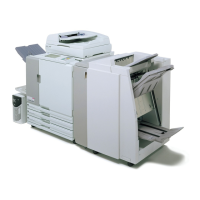
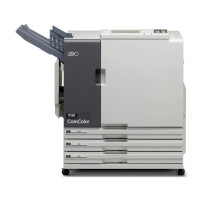
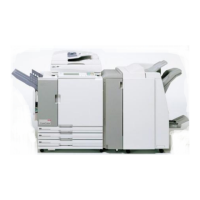
What You Can Do in the
RISO Console Screens
(RISO Console Screens)
z [General]
Indicates paper settings, ink levels, and printer status.
z [System]
Indicates system information including the machine’s serial
number, MAC address and rmware version.
ComColor Series Basic Guide 06



 To Next Page