50
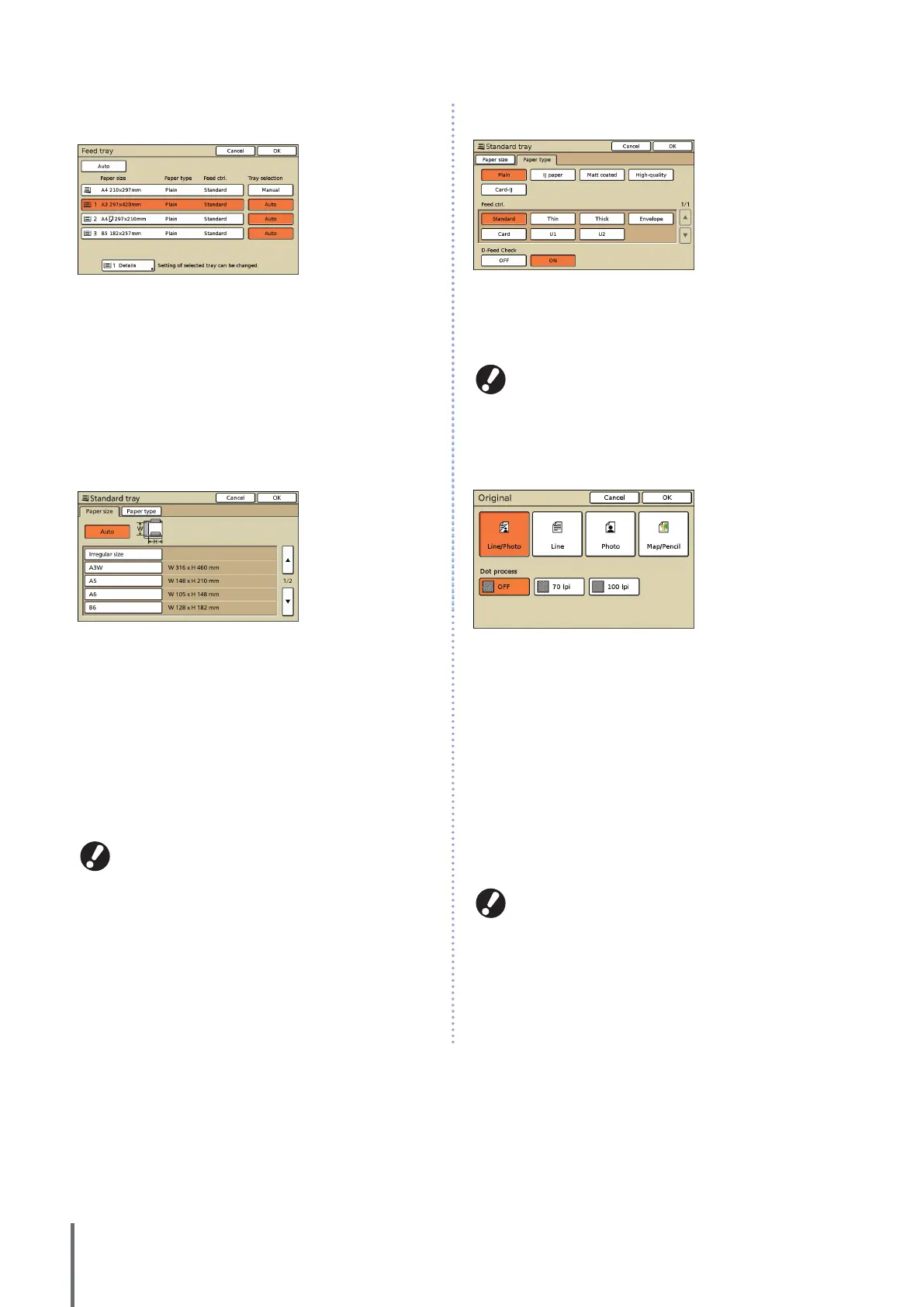
c [Feed tray]
Select and specify the tray to use for copying.
[Auto]
The feed tray is selected automatically during copying. Available
trays are indicated by [Auto] in [Tray selection].
[Tray selection]
Specify trays that will be available when [Auto] is selected.
[Details]
Specify the [Paper size] and [Paper type] settings for each tray.
Select a feed tray to congure, and then press [Details].
z Paper size screen
Specify the paper size.
[Auto]
The size of paper in the feed tray is detected automatically. Only
standard sizes can be detected. When loading non-standard sizes,
select the size using the buttons located below [Auto].
[Irregular size]
Specify to print out unregistered irregular sized sheets. For sheet
width, the width of each sheet tray guide is specied. For length, the
maximum value of each tray is specied.
Paper size button
Choose from predened paper sizes or custom sizes registered by
the administrator.
Unregistered irregular sized sheets cannot be output to
the high capacity stacker. If you want to print out irregular
sized sheets, specify [Custom paper entry] in the “Admin.
Settings”.
z Paper type screen
Specify the paper type.
[Feed ctrl.]
Specify the thickness of the paper.
[D-Feed Check]
Specify to detect accidental feeding of multiple sheets.
Duplex printing is not supported for envelopes. Regardless
of the type of paper actually loaded, duplex printing is no
longer possible when you have specied [Envelope] in
[Feed ctrl.] for the standard tray.
d [Original]
Specify the types of originals.
[Line/Photo]
Settings optimized for originals with both text and photos or
graphics.
[Line]
Settings optimized for originals with text only.
[Photo]
Settings optimized for originals with photos or graphics only.
[Map/Pencil]
Settings optimized for originals with faint text or illustrations, such
as maps or pencil drawings.
z [Dot process]
The halftone processing for photos can be specied.
If you have selected [Line], these buttons are grayed out.
[OFF]
Copy without halftone processing.
[70 lpi]
Reproduce photos with a halftone of 70 lpi.
[100 lpi]
Reproduce photos with a halftone of 100 lpi.
ComColor Series Basic Guide 06









 To Next Page