04
Product Introduction
A
Product Installation
B
Connecting to the App
A2–8—Error
A2–9—Drying
A3–1—Charging Contacts
B1–1—
B2–2—
B2–3—
B2–1—
B1–2—
Insert the handle into the vacuum
cleaner until it clicks in place. The
screen should face forward.
• Off: WiFi disabled
• Flashing slowly: Waiting for
connection
• Flashing quickly: Connecting
• Steady on: WiFi connected
Place the charging dock on a flat,
hard surface and then plug it into
the socket.
The maintenance brush can be
placed in the groove behind the
charging dock.
Place the charging dock upside
down, connect the power cord into
the bottom of the charging dock, and
store the extra cord inside the power
cord storage slot as required.
To remove the handle, hold the
• Press: Start/Pause
• Press and hold for 2 seconds while in
upright and locked position:
Switch off
• Press while charging: Start/
Stop drying
• Press: Switch to AUTO/MAX/
ECO mode
• Press while charging: Start/
Stop self-cleaning
• Press and hold for 2 seconds while
charging: Start DEEP mode
—Power
—
Change Mode
—Self-Clean
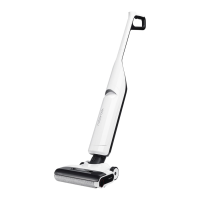
A1–1—Handle
A1–2—Handle Release
A1–3—Dirty Tank Release
A1–4—Dirty Tank
A1–5—LED Display
A1–6—Clean Tank Release
A1–7—Clean Tank
A1–8—Cleaning Head
A1–9—Roller Cover Release
A1–10—Roller Cover
A1–11—Roller
A1
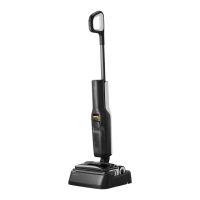
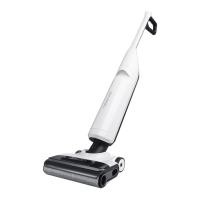
Vacuum Cleaner
A2
Screen Functions
A3
Charging Dock
A4
Power Cord
A5
Filter
A6
Maintenance Brush
B1
Installing and Removing
the Handle
B2
Connecting the Charging
Dock
1. Download the App
Power cord can exit from either side.Note:
Do not place the charging dock in humid
locations or near any heat sources, such as bathrooms,
kitchens, or radiators.
Note:
Search "Roborock" in the App
Store or Google Play or scan
the QR code to download
and install the app.
A2–1—Dirt Level
A2–2—ECO Mode
A2–3—Charging
A2–4—Battery Level
A2–5—AUTO Mode
A2–6—MAX Mode
A2–7—WiFi
handle firmly and pull it out while
inserting a hard object into the hole
on the back of the vacuum body to
press the release button.
2. Reset WiFi


 To Next Page