05
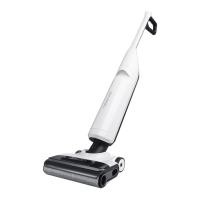
The vacuum cleaner can only be laid flat when
the Self-Clean button faces up.
3. Add the Device
When the vacuum cleaner is laid flat for cleaning
or when there is a significant amount of water on the
floor, it will automatically adjust its operating mode to
prevent sewage from entering, and there will be no
response when switching between modes.
Note:
If the mobile phone fails to connect to the
vacuum cleaner because your router configuration has
changed or you forget your password or for any other
reasons, reset the WiFi, and add your device again.
Note:
Open the Roborock app, tap “Scan to
Connect” or “Search for Device” on
the home page, and add the device as
instructed in the app.
Instructions for Use
C
C1–1—
C2–2—
C2–1—
C2–3—
C1–2—
C1–3—
Hold the upper part of handle firmly,
and pull out the clean tank.
Locked
Unlocked
Tap one side of the cleaning head
and push the handle to lock the
cleaning head or pull the handle to
unlock the cleaning head.
Open the plug, fill it with tap
water,the water level should not
exceed the MAX line, and then close
the plug tightly.
Unlock the cleaning head and press the
button to start the vacuum cleaner.
1. When lowering the handle during
operation, the vacuum cleaner can be
positioned flat to clean low-lying areas.
Please be aware that when the vacuum
cleaner is in this flat position, the usable
volume of the dirty tank is reduced.
Therefore, we recommend cleaning the
Tilt the clean tank, install the bottom
in place, and then gently push it
inward until it clicks in place.
You can modify the settings in the app to enable
automatically resume operation after unlocking the
cleaning head.
Note:
Press the button to switch to AUTO, MAX,
or ECO mode. The screen will display the
icon for the current mode.
1. When the vacuum cleaner is operating,
press the
button to pause it and enter
standby mode.
2. In standby mode, you can lock the
cleaning head and place the vacuum
cleaner upright on the floor.
3. Lock the cleaning head and press and
hold the
button for 2 seconds to turn
off the vacuum cleaner. If the vacuum
cleaner is left idle for 5 minutes in standby
mode, it will automatically turn off.
Notes:
• The actual process may vary due to ongoing app
updates. Follow the instructions provided in the app.
• Only 2.4 GHz WiFi is supported.
• If the vacuum cleaner waits more than half an hour for
a connection, WiFi will be automatically disabled. If you
want to reconnect, reset the WiFi before proceeding.
C1
Filling the Clean Tank
C2
Locking and Unlocking
C3
C4
Starting the Vacuum
Cleaner
Low-Profile Cleaning
C5
C6
Switching Modes
Standby and Power Off
Notes:
• To avoid deforming the clean tank, only use cold water.
• To prevent any potential damage to the clean tank,
do not use any disinfectant and only use detergent
recommended by Roborock.
Notes:
• The cleaning head does not work when locked. Unlock
it first.
• Press the
button to start or stop drying while the
vacuum cleaner is charging.
Note:
Adding and Emptying Water
When the dirty tank is full or the clean tank
a. Keep the machine upright and press
to light up the screen and enter standby
mode.
b. Press and hold
and until you hear
the “Resetting WiFi” voice alert. The reset
is complete when the WiFi indicator
flashes slowly. The vacuum cleaner will
then wait for a connection.
dirty tank before tackling low-lying.
2. When the vacuum cleaner is laid flat for
cleaning, it will automatically adjust its
operating mode.


 To Next Page