09
Connecting to the App
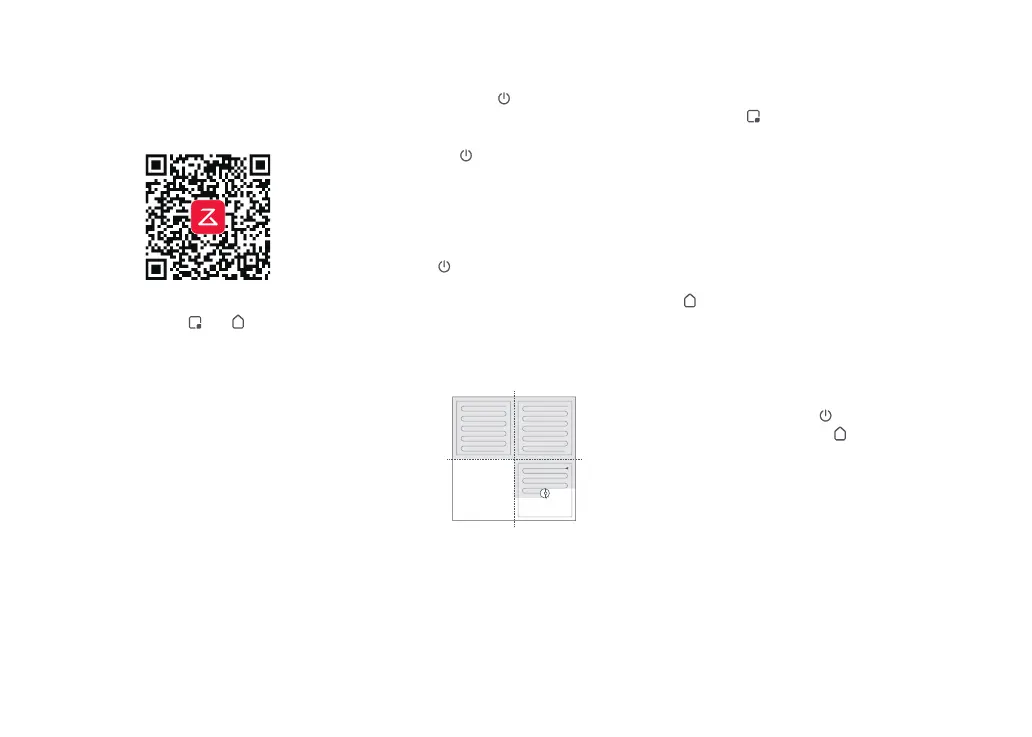
Search for “Roborock” in the App Store or
Google Play or scan the QR code to
download and install the app.
1. Download App
2. Reset WiFi
If you cannot connect to the robot due to your
router configuration, a forgotten password, or any
other reason, reset the WiFi and add your robot as a
new device.
Note:
Press and hold the and buttons until
you hear the “Resetting WiFi” voice alert. The
reset is complete when the WiFi indicator
flashes slowly. The robot will then wait for a
connection.
Note: The robot cannot be turned off when it is being
charged.
Instructions for Use
Press and hold the button to turn on the
robot. The power indicator will turn on and
the robot will enter standby mode. Press
and hold the
button to turn off the robot
and complete the cleaning cycle.
On/Off
Notes:
• The actual process may vary due to ongoing app
updates. Follow the instructions provided in the app.
• Only 2.4 GHz WiFi is supported.
• If the robot waits more than 5 minutes for a connection,
WiFi will be automatically disabled. If you want to
reconnect, reset the WiFi before proceeding.
3. Add Device
Press the
button to start cleaning. The
robot will plan its cleaning route and in each
room, it firstly draws out zone edges and
then fills the room in a zigzag pattern. In so
doing, the robot cleans all rooms one by
one, thoroughly and efficiently.
Starting Cleaning
Open the Roborock App, tap the “Scan to
Connect” button or the “Search for Device”
button, and add the device as instructed in
the app.
Note: After spot cleaning, the robot will automatically
return to the starting point and enter Standby mode.
Press the button to start spot cleaning.
Cleaning range: The robot cleans a 1.5 m
(4.9 ft) × 1.5 m (4.9 ft) square area centered
on itself.
Spot Cleaning
Auto-emptying will begin when the robot
returns to the dock after cleaning. Press the
button to trigger emptying manually.
Press any button to stop emptying.
Emptying
Notes:
• To allow the robot to automatically vacuum and return
to the dock, start the robot from the dock. Do not move
the dock during cleaning.
• Cleaning cannot start if the battery level is too low.
Allow the robot to charge before starting the cleanup.
• If cleaning is completed in less than 10 minutes, the
area will be cleaned twice.
• If the battery runs low during the cleaning cycle, the
Zone 1 – Cleaned
Zone 4 – Next
Zone
Zone 2 – Cleaned
Zone 3 – In
Progress
Note: Placing a paused robot on the dock manually will
end the current cleanup.
Note: Avoid frequent manual emptying.
When the robot is running, press any button
to pause it, press the
button to resume
cleaning, and press the
button to send it
back to the dock.
Pause
If the robot is paused for over 10 minutes, it
will go to sleep, and the power indicator will
flash every few seconds. Press any button
to wake the robot up.
Sleep
robot will automatically return to the dock. After
charging, the robot will resume where it left off.
Notes:
• The robot will not go to sleep when it is charging.
• The robot will automatically shut down if left in sleep
mode for more than 12 hours.



 To Next Page