EasyManua.ls Logo

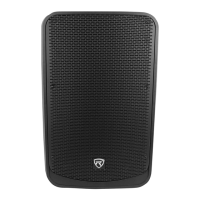
Rockville BPA8 - User Manual

Rockville BPA8
16 pages
Print Icon
To Next Page IconTo Next Page
Loading...
Who reads manuals?
Instead, go to vimeo.com/480983315 or scan the QR code and watch a short
video, which shows you how to set this item up and how to use it.
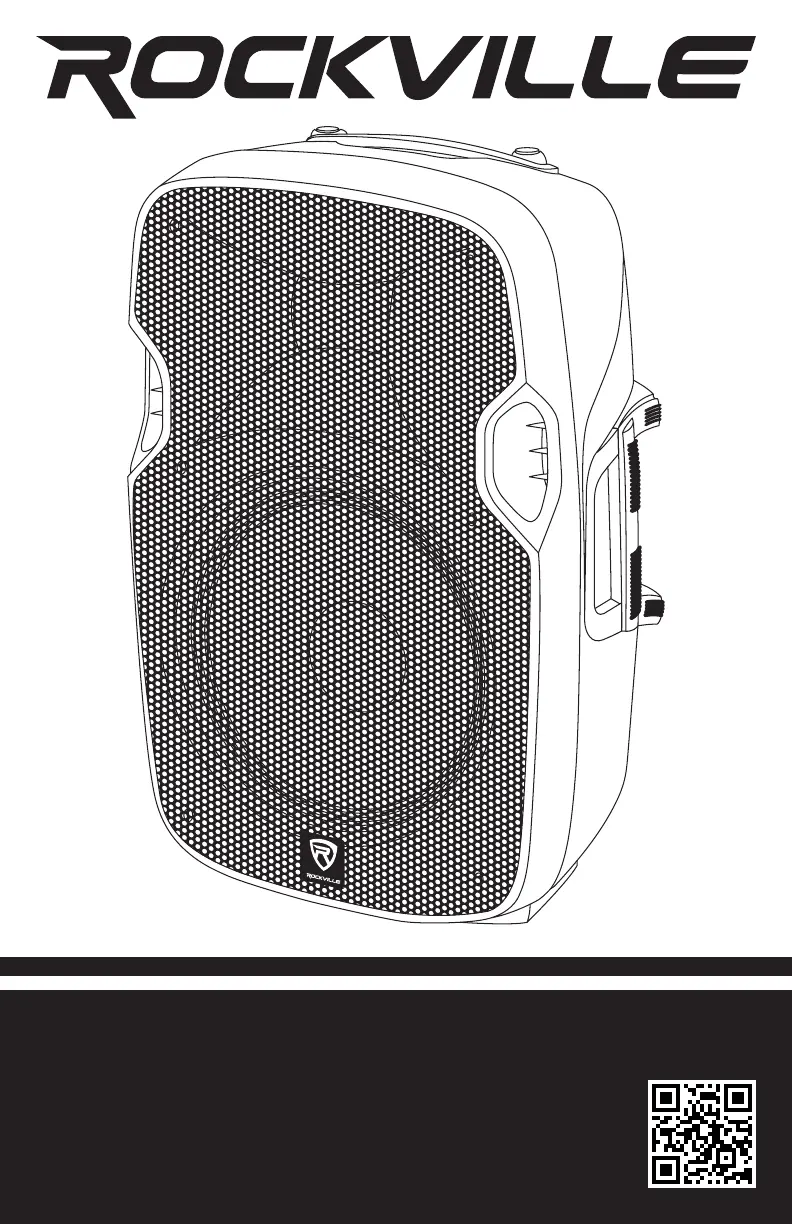
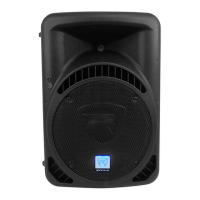
BPA8
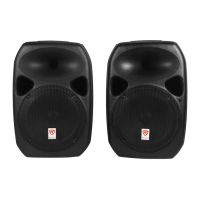
8˝ ACTIVE DJ/PA SPEAKERS w/BLUETOOTH
OWNER’S MANUAL

Questions and Answers

  • J
    Jimmy CurtisJul 27, 2025
    What to do if my Rockville Speakers have no power?
    • C
      Craig SextonJul 27, 2025
      If your Rockville Speakers have no power, here's what you can do: 1. Ensure the unit is plugged in and the power switch is in the ON position. 2. Verify that the power cable is securely plugged into the unit. 3. Inspect and replace the fuse if needed. 4. Try using a different power cable to check for shorts in the original cable, especially if the cable has been subjected to being stepped on or rolled over. Dispose of damaged power cables immediately.
  • L
    lmooreAug 1, 2025
    What to do if Bluetooth pairing fails on Rockville BPA8?
    • A
      Aaron KnightAug 1, 2025
      If Bluetooth pairing fails on your Rockville Speakers, try these steps: 1. Confirm that both devices are powered on and that your Bluetooth device is discoverable. 2. Turn both devices off and then on again. 3. Ensure you've selected the correct source. 4. Make sure the Bluetooth device is within 5 feet of the unit. 5. Move both devices away from other Bluetooth devices, microwaves, wireless routers, and other electronics. 6. Verify that the unit is not paired to a previously connected device.
  • U
    ulucasAug 5, 2025
    Why is there no sound or distorted sound from my Rockville BPA8?
    • S
      Sarah HardingAug 5, 2025
      If you're experiencing no sound or distorted sound from your Rockville Speakers, consider the following: 1. Check that all the appropriate cables are correctly plugged in. 2. Examine the volume settings (Volume 1, Volume 2, and MP3 Volume) to ensure they are properly adjusted. 3. Make sure the Volume and Gain settings of the appropriate channels are set above level 0 and are correctly matched. 4. If using a microphone, ensure that it is turned on. 5. When using a mixing console, verify that the fader and balance are set to the center positions and the levels are appropriately increased. 6. If the volume and EQ settings are maxed out, reduce one of them, as the unit may be overdriven.
  • E
    Eric LeachAug 9, 2025
    Why do my Rockville BPA8 Speakers have mic feedback?
    • A
      Ashley OwensAug 9, 2025
      To prevent mic feedback with your Rockville Speakers, point the microphones away from the speaker. Ensure the mics are positioned behind the speaker, not in front of it.
  • G
    Garrett SanchezAug 14, 2025
    What to do if there is a buzzing sound from Rockville BPA8 Speakers?
    • D
      donlawrenceAug 14, 2025
      If you are experiencing a buzzing sound from your Rockville Speakers, ensure that you are using the correct cable. For ¼? cables, there are three types: instrument, TS (unbalanced), and TRS (balanced). Check the requirements of the connected equipment and the input of the speaker and make sure you are using the appropriate cable.
  • C
    Carol ChambersAug 18, 2025
    What to do if there is no SD or USB playback on Rockville BPA8 Speakers?
    • S
      Sarah BuckAug 18, 2025
      If there is no SD or USB playback on your Rockville Speakers: 1. Ensure that you have selected the correct source. 2. Verify that the audio files are properly formatted. 3. Check that the USB drive or SD card is not damaged.
  • L
    Lucas BennettAug 22, 2025
    Why is the mic sound poor on my Rockville BPA8?
    • M
      melissabranchAug 22, 2025
      If you are experiencing poor mic sound on your Rockville Speakers: 1. Ensure you are using the Mic In port. 2. If using wireless mics, connect them to the Line input of your mixer.

Summary

Important Safety Instructions

Speaker Setup and Feedback Prevention

Setting Up Your BPA Professional Sound System

Guidance on speaker placement for optimal sound dispersion and vocal clarity.

Audio Input and Level Control

Setting Level Controls

Procedure for setting input volume (gains) to prevent distortion and ensure optimal signal levels.

Microphone Presentations

Instructions for connecting and setting up microphones via XLR or 1/4" TRS inputs.

Mixer Setup and Line Output

Line Out Connection and Bluetooth Pairing

Bluetooth Pairing

Step-by-step guide to connect Bluetooth-enabled devices like smartphones and tablets.

Back Panel Overview

Specifications and Features

Troubleshooting and Maintenance

Troubleshooting Common Issues

Solutions for common problems like no power, distorted sound, mic feedback, and Bluetooth pairing failures.

Fuse Replacement

Step-by-step instructions and diagrams for safely replacing the fuse.

Rockville BPA8 Specifications

General IconGeneral
TypeActive PA Speaker
Woofer Size8 inches
OutputsXLR
BluetoothYes
MP3 PlaybackYes
Microphone InputYes
Input TypesXLR, 1/4", RCA, Bluetooth
Voltage110V
Tweeter Size1 inch

Related product manuals