
EasyManua.ls Logo

Rockwell Automation Allen-Bradley VersaView 6300P Series - User Manual

Rockwell Automation Allen-Bradley VersaView 6300P Series
48 pages
Print Icon
To Next Page IconTo Next Page
Loading...
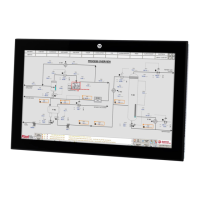
VersaView 6300P Panel PCs
Catalog Number 6300P
User Manual
Original Instructions

Table of Contents

Questions and Answers

Rockwell Automation Allen-Bradley VersaView 6300P Series Specifications

General IconGeneral
BrandRockwell Automation
ModelAllen-Bradley VersaView 6300P Series
CategoryTouch Panel
LanguageEnglish

Summary

Important User Information

Safety Guidelines

General safety instructions and definitions of hazard symbols for proper product operation and safety.

Proper Disposal of the Computer

Guidelines for environmentally responsible disposal of computer equipment and its components.

Chapter 1 About the Panel PC

Computer Options

Details available computer models, display sizes, resolutions, and bezel types.

Computer Connections

Illustrates and lists the various I/O ports available on the panel PCs.

Computer Dimensions

Provides detailed physical dimensions for panel PC models and panel cutouts.

Chapter 2 Install the Panel PC

Unpack the Computer

Instructions for inspecting and unpacking the computer and listing included parts.

Prepare for Installation

Essential precautions and information before beginning the installation process.

Environment and Enclosure Information

Guidelines on suitable environments and enclosure requirements for installation.

UL;cUL Mark Compliance

Information regarding compliance with UL and cUL safety standards.

European Union Directive Compliance

Details on compliance with European Union directives and CE marking.

Installation Guidelines

General recommendations for reliable computer installation and site selection.

Mounting Requirements

Specifies requirements for mounting height and clearances for optimal performance.

Enclosure Requirements

Details enclosure specifications for proper air circulation and cooling.

Prepare the Panel Cutout

Instructions for preparing the panel cutout, including dimensions and material.

Mount the Computer in the Panel

Step-by-step guide for physically installing the computer into a panel cutout.

Required Tools

Lists the necessary tools for installing the computer and its components.

Mount the Computer

Detailed steps for securing the computer within the panel cutout using clips.

Connect Peripheral Cables

Guides on connecting external cables to the computer's I/O ports.

Grounding and Bonding

Methods to overcome grounding problems and ensure proper electrical bonding.

DC Power Supply Guidelines

Specifies requirements for selecting and connecting a DC power supply.

Power Consumption

Details the maximum power consumption for various components.

Install the Ground Wire

Step-by-step instructions for properly installing the ground wire connection.

Connect DC Power

Procedures for connecting the computer to a DC power source.

Chapter 3 Operate the Panel PC

Operating Guidelines

General rules and best practices for operating the panel PC.

Touch Screen Precautions

Important safety warnings and considerations for using the touch screen.

Touch Screen Calibration

Instructions for calibrating analog resistive touch screens.

Start the Panel PC

Steps to manually start the panel PC after power connection.

Light-emitting Diode and Button Descriptions

Explains the function of LEDs and buttons for monitoring the PC's status.

Restart or Reset the Panel PC

Procedures for restarting or performing a system reset on the panel PC.

Shut Down the Panel PC

Safe methods for shutting down the panel PC using the operating system.

Chapter 4 Configure, Restore, and Update System Settings

Access the Set-up Utility

Guide on how to access and navigate the UEFI setup utility.

Common Set-up Modifications

Common configuration changes available in the setup utility.

Initial Steps to Back Up or Restore a Windows OS Image

Prerequisites for backing up or restoring the Windows OS image.

Create a Bootable USB Drive

Steps to create a bootable USB drive for OS image operations.

Back Up the OS Image

Detailed procedure for backing up the computer's operating system image.

Restore the OS Image

Instructions for restoring the computer's operating system image from a backup.

Update to a New UEFI

Process for updating the computer's Unified Extensible Firmware Interface (UEFI).

Verify or Create a FAT32-formatted USB Drive

How to format or verify a USB drive for UEFI updates.

Download the UEFI Update Files

Steps to download necessary files for updating the UEFI.

Restore Factory Defaults Through a DIP Switch

Procedure to reset UEFI settings to factory defaults using a DIP switch.

Chapter 5 Clean the Panel PC

Clean the Computer

General guidelines for maintaining the computer's cleanliness.

Clean the Integrated Display

Instructions for cleaning the computer's display screen safely.

Clean the Air Openings and Heatsinks

How to clean air vents and heatsinks for proper cooling.

Remove Paint and Grease from the Bezel

Method for removing paint and grease from the computer's bezel.

Chapter 6 Troubleshoot the System

Thermal Alarm

Explains the thermal alarm LED and how to check temperature thresholds.

Troubleshooting

General steps to identify and isolate operational issues with the computer.

Display Troubleshooting

Common display problems and their corresponding solutions.

System Default Options

How to load default settings to correct errors and optimize performance.

Ship or Transport the Computer

Precautions for shipping or transporting the computer.

Dispose of the Computer

Guidelines for safely disposing of the computer at its end of life.

Chapter 7 Replace Components

Replacement Parts

Information on how to find and select compatible replacement parts.

Voltage Precautions

Safety warnings regarding high voltage when working inside the computer.

Electrostatic Discharge Precautions

Steps to prevent damage from electrostatic discharge (ESD) during maintenance.

Pre-configuration

Steps to take before accessing internal components or performing maintenance.

Post-configuration

Steps to complete after installing or replacing a hardware component.

Remove the Cover

Procedure for safely removing the computer's back cover.

Replace the Battery

Instructions for replacing the real-time clock (RTC) lithium battery.

Reinstall the Cover

Steps to reinstall the computer's back cover after component replacement.

Preface

Catalog Numbers

Information on identifying different VersaView 6300P panel PC models by catalog number.

Summary of Changes

Lists new or updated information included in this publication.

Additional Resources

Pointers to other Rockwell Automation documents for further information.