Rockwell Automation Publication 6300P-UM001B-EN-P - March 2021 33
Chapter 4 Configure, Restore, and Update System Settings
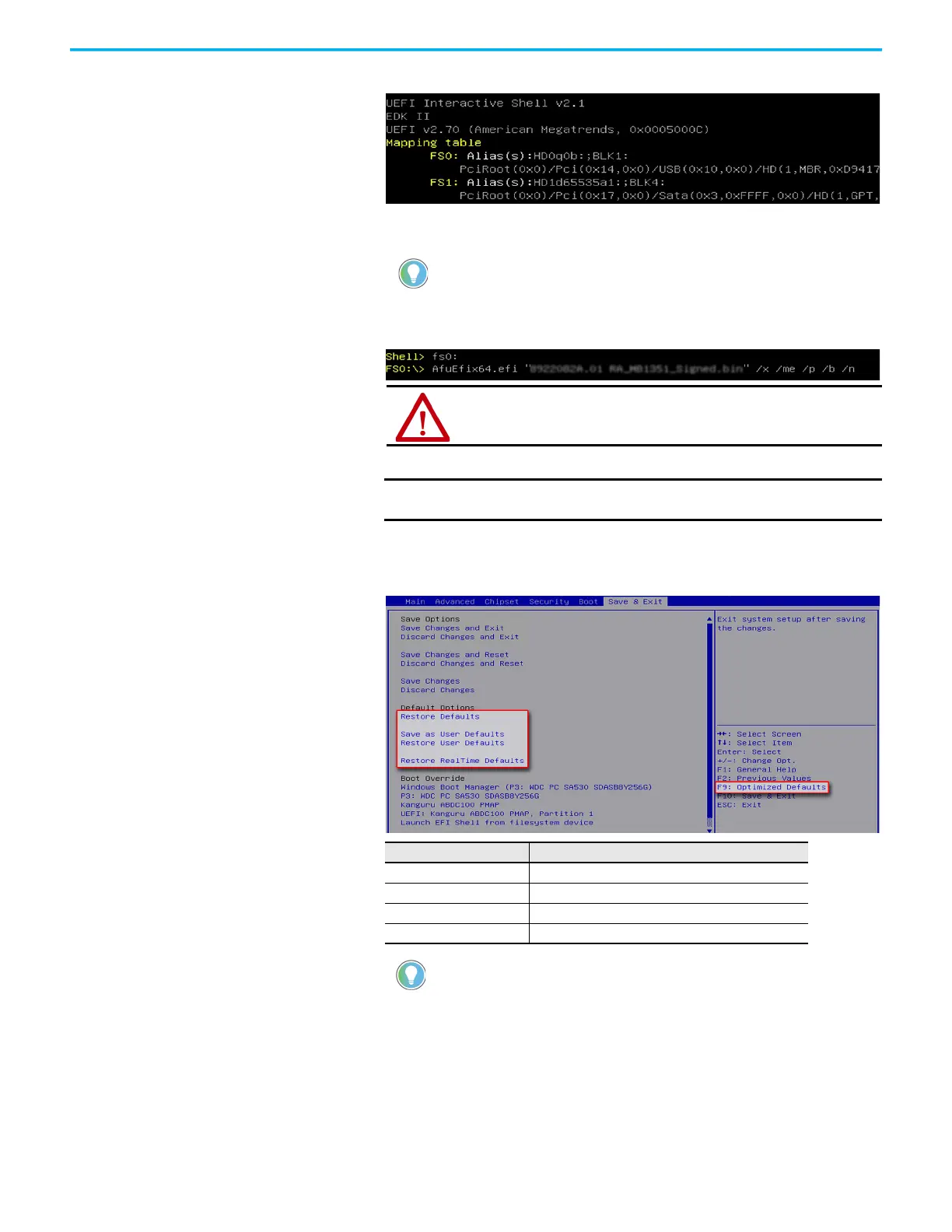
The internal UEFI shell appears.
13. Type FSx: (where ‘x’ is the number that is shown for your mapped USB
drive) and press Enter.
14. To update the UEFI, type
AfuEfix64.efi "NAME_OF_THE_BIN_FILE.bin" /x /me /p /b /n
and press Enter.
15. Once the UEFI update procedure is completed, restart the computer.
16. During POST, press F2 to enter the set-up utility.
17. Use the right (6) arrow to toggle over to the Save and Exit tab.
18. Use the down (2) arrow to toggle down and select a default option.
19. After you have selected the preferred UEFI setting, press F10 to save
and exit.
The UEFI has been updated successfully to your computer.
To verify that you moved to the USB drive, use the command ‘dir’ and confirm that
the downloaded files are there.
ATTENTION: Do not disconnect power from the computer until after the UEFI
update procedure is completed.
Power loss during this procedure can render the computer inoperable.
IMPORTANT In some instances, the computer restarts more than once before
POST.
UEFI Setting Function
Restore Defaults Restores the default values for all set-up options.
Save as User Defaults Save the changes that are already done as user defaults.
Restore User Defaults Restores the user defaults to all set-up options.
Restore RealTime Defaults Restores the real-time default settings.
You can also press F9 to select Optimized Defaults.


 To Next Page
 Loading...