4
5. Record using the M50 camera:
5.1. Turn the M50’s mode-selection dial (on top) to
M (movie) (Fig. 2c).
5.2. Press on the Menu button on the back (lower-
right area) of the M50 (Fig. 2c).
5.3. Select Shooting settings.
5.4. Scroll to page 8 and set the Sound Recording
setting to Manual.
5.4. Press the record button (smaller button with
red circle) on top of the M50.
3A. Recording to a computer with an input
port
Note: This section assumes that your computer has
a 3.5 mm port for input (microphones).
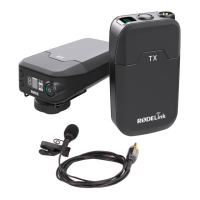
1. Connect the Go receiver to your computer using
the TRS-to-TRS cable:
1.1. Insert the TRS plug (black cover) into the
receiver’s 3.5 mm port (left side).
1.2. Insert the other TRS plug (black cover) into the
computer’s 3.5 mm input port.
2.
P
lace the Go transmitter at (or near) the desired
source of sound.
3.
(
Recommended
)
Con
rm the input source on
your computer:
3.a. mac
O
S (Fig. 3a)
S
y
ste
m
P
re
f
erences -
>
Sound -
>
I
n
p
ut
3.b.
W
indows
1
0
/11
Settings -
>
S
y
ste
m
-
>
Sound
4.
(
Recommended
)
Ad
j
ust the gain level
(
volume
boost
)
by pressing the receiver’s d
B
button (bottom
side).
5.
O
pen an audio-
/
video-recording app and record.
6
. If no audio is recorded
,
try the steps in section
3B
.
F
ig. 2a. R
X
connected
to cold-shoe mount
F
ig. 2b. TRS-to-TRS
cablee connection
F
ig. 2c. M50 dial set to
M
F
ig. 3a.
I
n
p
ut tab of
Sound section for
mac
O
S


 To Next Page