5
3B. Recording to a computer with only an output port
Note: This section ssumes that your computer only has a 3.5 mm port for
output (headphones).
1. Connect the Go receiver to your computer using the TRS-to-TRRS cable:
1.1. Insert the TRS plug (black cover) into the receiver’s 3.5 mm port (left
side).
1.2. Insert the TRRS plug (grey cover) into the computer’s 3.5 mm port.
2. Place the Go transmitter at (or near) the desired source of sound.
3. (Recommended) Conrm the input source on your computer:
3.a. macOS
System Preferences -> Sound -> Input
3.b. Windows 10/11
Settings -> System -> Sound
4. (Recommended)
A
d
j
ust the gain level (volume boost) by pressing the
receiver’s d
B
button (bottom side).
5.
O
pen any audio-
/
video-recording app and record.
6
. If no audio is recorded
,
try the steps in the following section
,
3C
.
3C. Recording to a computer using the
splitter cable
Note: This section assumes that your computer
only has one 3.mm port and/or you want to use
wired headphones while the receiver is connected.
1. Connect the Go receiver to the splitter cable
using the TRS-to-TRS cable :
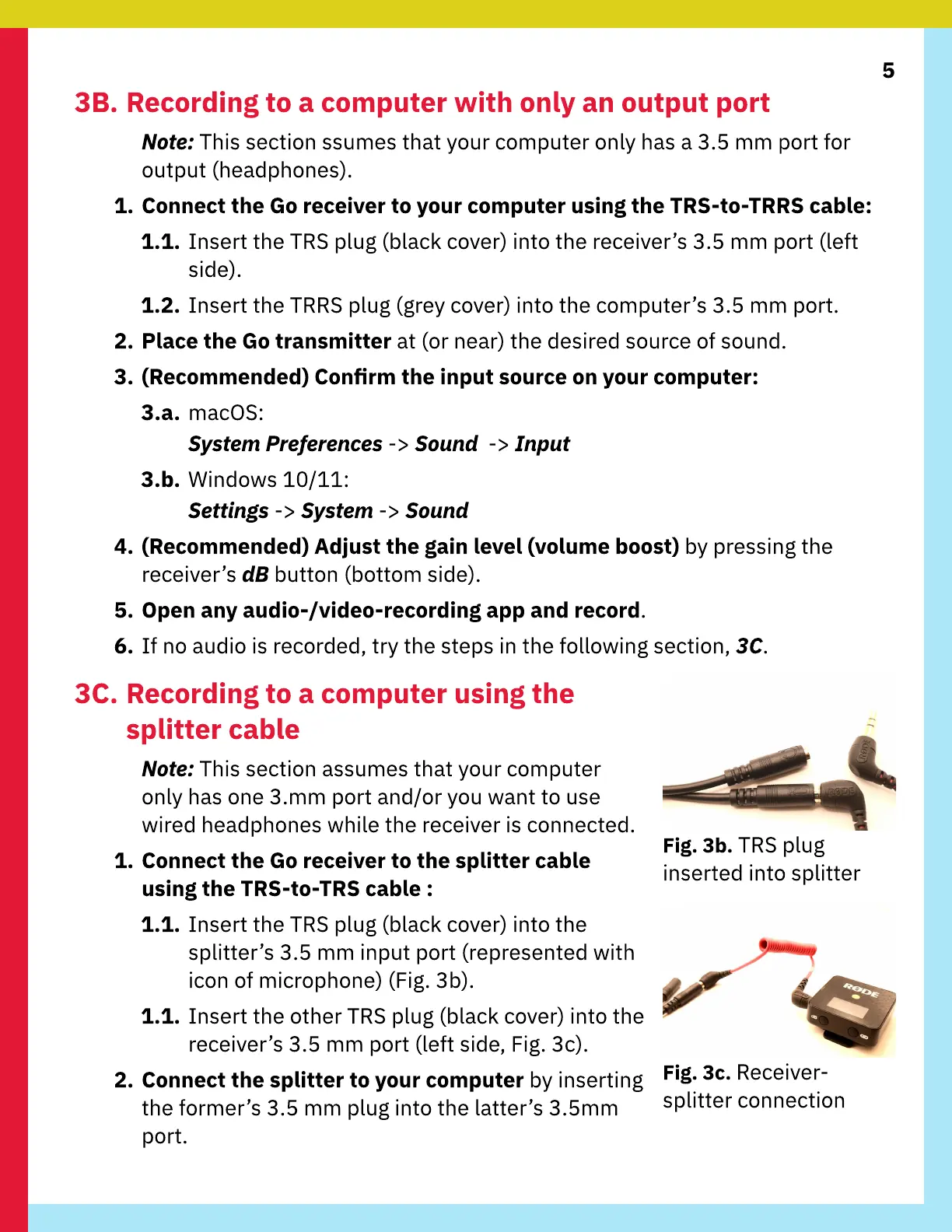
1.1. Insert the TRS plug (black cover) into the
splitter’s 3.5 mm input port (represented with
icon of microphone) (
F
ig. 3b).
1.1. Insert the other TRS plug (black cover) into the
receiver’s 3.5 mm port (left side
,
F
ig. 3c).
2. Connect the splitter to your computer by inserting
the former’s 3.5 mm plug into the latter’s 3.5mm
port.
F
ig. 3b. TRS plug
inserted into splitter
F
ig. 3c. Receiver-
splitter connection


 To Next Page